23
3. Commissioning
Note
WOW!DIALOOQdiagnosissystemswithadisplayunit(computerortabletPC)arealreadyprecongured,
registered and enabled for you. In this case, you do not have to make any further settings.
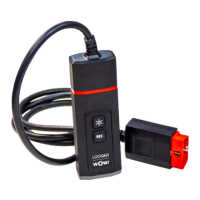
Please do not use the LOOQER until you have been briefed by a WOW! service technician or a person
authorised by WOW!
3.1 InstallingtheWOW!software“LOOQIT”.
Installation is only required if you are using your own computer hardware.
The current version of the WOW! Software “LOOQIT” is supplied on a USB memory stick
Runtheinstallationlecalled„install.exe“ontheUSBstickor„starter.exe“intheunzippeddirectory.
The installation program will guide you through the installation of the WOW! software. Follow the instructions during the
installation procedure. Once installation is complete, the WOW! software will start automatically.
Note:If possible, the installation directory "C:\Users\Public\wow" should not be changed, as this can lead to
problems during the online update.
3.2 RegisteringtheWOW!software“LOOQIT”.
NoteWith an existing diagnostics licence, a LOOQIT licence must be enabled in order to use the LOOQER.
Only then can you select the LOOQER in the settings.
1
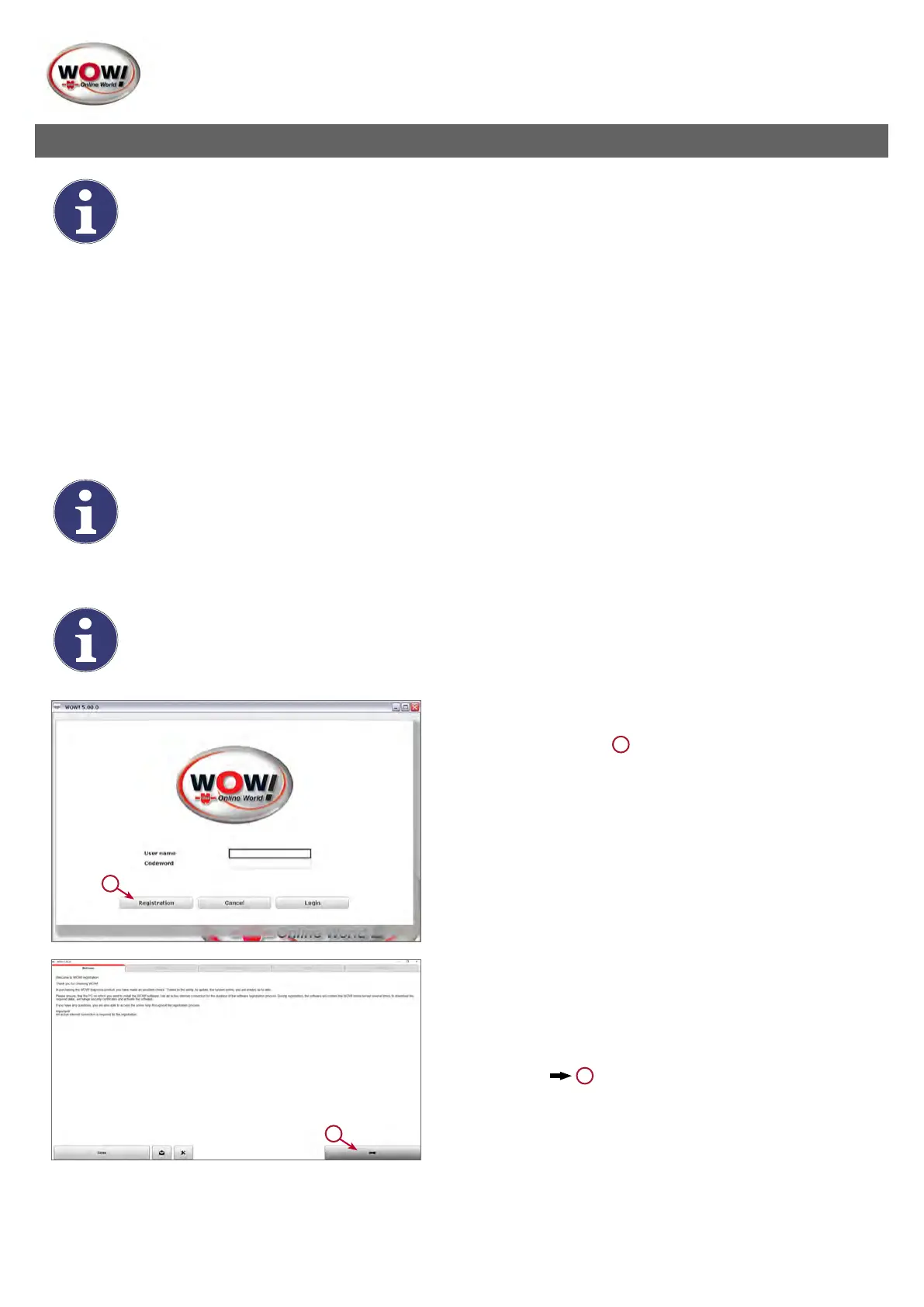
1. Performing registration.
Click Registration.
1
Follow the instructions in the registration wizard.
1
2. Information
Follow the instructions in the registration wizard.
Continue with
1


 To Next Page
 Loading...