27
3.4 Installing LOOQER
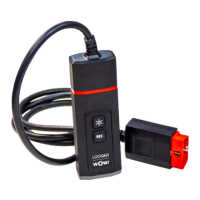
LOOQERterminaldiagram
Withthisunit,youareusingthelatesthardwaregenerationofWOW!WürthOnlineWorldGmbH(WOW!).Equippedwith
state-of-the-art connection technology, we also use cutting edge transmission methods, including encrypted communi-
cation, to ensure that the connection between vehicle, diagnostic interface and computer is as secure as possible. Data
security is increasingly important, as online communication is necessary in many areas of application. For this reason, it is
vital to follow all instructions.
Selectingthediagnosisbox
1
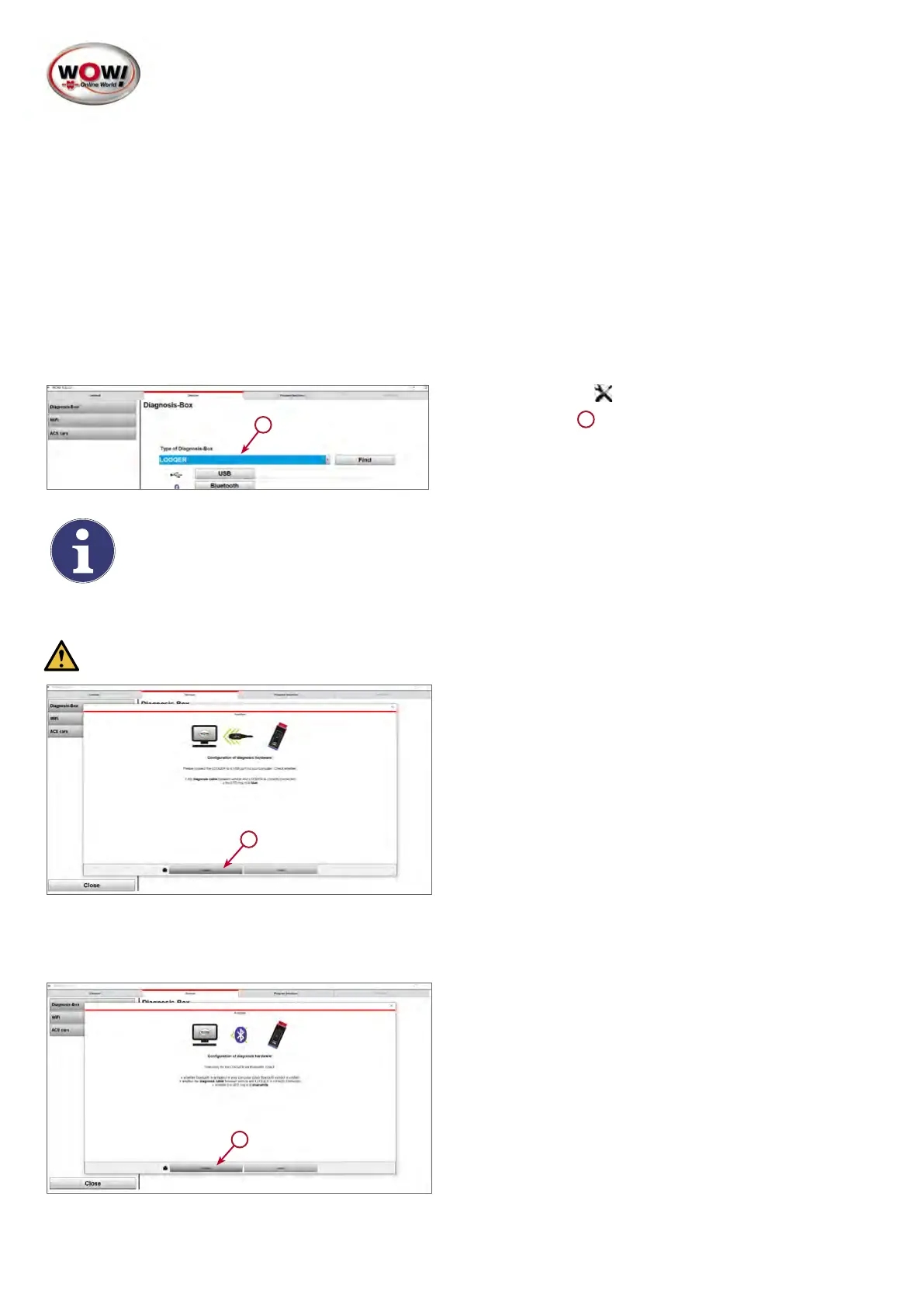
1. Open Settings / Units / Diagnosis-Box and select
“LOOQER”.
1
Note:If the LOOQER is not already displayed, you need to install a LOOQIT licence.
USB connection
Attention! Installation of the USB connection is mandatory.
1
The drivers (USB and Bluetooth
®
) were already installed
on your computer during installation of the WOW! software
“LOOQIT” or with update from the Version 5.33.00.
1. Connect the unit using the USB-C cable and a free
USB port on your computer. The LED light ring on the
lower end must now light up white or blue.
2. Press the USB button and follow the instructions.
Connected USB devices are listed. Select “LOOQER”
Serialnumber.
Bluetooth
®
connection
2
1. Press the Bluetooth
®
button and follow the instructions.
If no USB cable is connected to the device, make sure
that the device is connected to the diagnostic interface
of a vehicle to ensure the power supply. Follow the
instructions in the wizard.
2. Bluetooth
®
devices are located and listed for selection.
Select “LOOQER BT” Serialnumberandconrmwith
OK.


 To Next Page
 Loading...