EasyManua.ls Logo

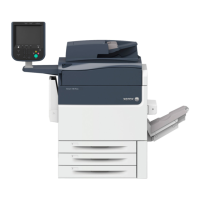
Xerox Versant 180 Press - User Manual

Xerox Versant 180 Press
166 pages
Print Icon
To Next Page IconTo Next Page
Loading...
Xerox
®
Versant
®
180 Press
User Guide
Book Version 1.0
February 2017
702P04572

Table of Contents

Other manuals for Xerox Versant 180 Press

Questions and Answers

  • Z
    zhardySep 5, 2025
    How to clear message on Xerox Versant 180 Press All in One Printer UI?
    • D
      danielle37Sep 5, 2025
      If a message on the Xerox All in One Printer UI will not clear: * For paper jam faults, ensure all paper, including small pieces, is removed from the area. * Reboot the printer using the On/Off button located on top of the press near the UI.
  • S
    Sarah SmithNov 19, 2025
    What to do if Xerox Versant 180 Press All in One Printer paper jams?
    • M
      Mark PetersNov 19, 2025
      If your Xerox All in One Printer is experiencing paper misfeeds, frequent jams, or repeated wrinkling, consider the following: * If a message appears on the touch screen, follow the instructions provided. * Ensure the paper and paper tray settings match the paper size. * Verify that the trays are loaded correctly with acceptable media and do not exceed the MAX fill line. * Make sure the paper tray edge guides are in the correct position and that the tray is firmly pushed in. * Try turning the paper stack around or over in the tray. * Remove a few sheets from the top and bottom of the stack. * Fan all four edges of the paper. * Replace the paper with paper from a new package. * Remove any partially fed paper and any torn pieces from the press. * Ensure the paper has bee...
  • Y
    ymontgomerySep 18, 2025
    Why are the drilled paper holes on the wrong side with my Xerox Versant 180 Press All in One Printer?
    • A
      Aaron DunlapSep 18, 2025
      Ensure that the drilled paper is loaded correctly in the paper tray and that the holes are positioned as shown on the tray label when using your Xerox All in One Printer.
  • J
    Jacob PaulSep 16, 2025
    Why Xerox Versant 180 Press prints deformed transparencies?
    • K
      Kimberly ScottSep 16, 2025
      If your Xerox All in One Printer is producing deformed transparencies, ensure that 'Transparencies' is selected as the paper type. The printer adjusts for different media types, and paper can tolerate more heat than transparencies.
  • D
    duncanshaneSep 14, 2025
    Why is the output from my Xerox All in One Printer not stacked correctly?
    • J
      Jessica McculloughSep 14, 2025
      If the output from your Xerox All in One Printer is not stacked correctly, check for paper curl and ensure that the paper tray guides are locked into position against the paper. Mixed media sizes may not stack well.
  • M
    murillorobertSep 12, 2025
    What to do if Xerox Versant 180 Press All in One Printer paper width does not match the installed fuser?
    • A
      Angelica CervantesSep 12, 2025
      If you are unable to print because the output paper width does not match the installed fuser on your Xerox All in One Printer: * Replace the fuser assembly with one that supports the specific paper width for the current print job. * Cancel the current print job and resubmit it from the print server.
  • J
    John MarshSep 12, 2025
    Why text prints incorrectly on Xerox Versant 180 Press All in One Printer?
    • R
      robert59Sep 12, 2025
      If text is printing incorrectly or appears corrupted on your Xerox All in One Printer, check the application or print driver settings to see if non-standard fonts are being used for printing.
  • W
    William ProctorSep 9, 2025
    Why Xerox Versant 180 Press All in One Printer trays do not recognize the media?
    • R
      Rachel GlassSep 9, 2025
      If the trays on your Xerox All in One Printer are not recognizing the media: * Check the paper settings for the tray at the UI (Machine Status > Device Information > Paper Tray Status). * Check the print server settings. * Ensure the paper is loaded correctly as either SEF or LEF, matching the paper settings programmed at the print server.
  • P
    Peter AtkinsonSep 7, 2025
    Why Xerox All in One Printer pages are not stapled or punched?
    • A
      ajonesSep 7, 2025
      If pages are not being stapled or punched by the PR Finisher or PR Booklet Maker Finisher on your Xerox All in One Printer: * Select the appropriate option on the press touch screen. * Ensure there are staples in the staple cartridge. * Check that the punch scrap container is not full.
  • S
    Stephanie CampbellAug 22, 2025
    How to resolve paper jams exiting paper trays in Xerox All in One Printer?
    • E
      Eric RodriguezAug 22, 2025
      To resolve paper jams when paper is exiting the paper trays in your Xerox All in One Printer: * Ensure that the edge guides of the paper tray fit snugly against the paper stack. * Do not fill the paper trays above the MAX fill line indicator. * Close the tray slowly to prevent the paper stack from shifting.

Summary

Product Symbols

Getting Started

Print Server Overview

Details the role and types of print servers connected to the press.

Press Components

Identifies and describes the main physical parts of the press.

Locating the Press Serial Number

Provides methods to find the press's unique serial number for support.

User Interface (UI) Overview

Describes the touch screen and control panel interface and buttons.

Key Press Features

Lists and explains key features like Logon, Language, and performance packages.

Power On;Off Procedures

Details the procedures for powering the press on and off, including power switches.

Power Saver Modes

Explains the press's energy-saving modes and how to exit them.

Getting Help and Support

Guides users on how to find support through the Xerox website and documentation.

Press Applications

Print Functionality

Explains how to submit and manage print jobs from different sources.

Copying Procedures

Details the steps and options for making copies using the document feeder or glass.

Output Customization Features

Covers image quality adjustments, layout options, and output format controls.

Scanning Operations

Outlines scanning methods, file formats, email, network, and PC scanning.

Job Flow Management

Allows registering transfer settings and monitoring job progress.

Machine Status and Job Monitoring

Displays information about the press, including device status and job monitoring.

Paper and Media Handling

Supported Paper Specifications

Lists paper specifications including type, size, and weight compatibility.

Paper Tray and Feed Information

Details specifications for print engine and bypass trays, and feed direction.

Throughput and Productivity Details

Provides data on print speeds based on paper type, size, and duplexing.

Loading Media into Trays

Step-by-step instructions for loading various media into trays 1-3 and the bypass tray.

Maintenance Procedures

Press Cleaning Procedures

General guidelines and steps for cleaning exterior and internal press components.

Fuser Cleaning and Consumable Replacement

Procedures for cleaning the fuser and replacing consumables like toner, drums, and filters.

Troubleshooting Common Issues

General Troubleshooting & Power

Basic checks for power, UI lockups, and general press operability.

Performance and Print Job Issues

Addresses slow printing, incorrect text, and print job completion failures.

Paper Feed and Jam Resolution

Guides on clearing paper jams, misfeeds, and handling paper handling issues.

Finisher, Output, and Curl Issues

Troubleshooting tips for finisher jams, output issues, and paper curl.

Toner Consumption and Image Quality

Steps to reduce toner usage and resolve common image quality defects.

Custom Paper Settings for Feed Issues

Using custom paper settings to resolve multifeeds, misfeeds, and jams.

Alignment and Registration Corrections

Resolving problems with image registration, skew, and magnification.

Fusing and Smear Problem Resolution

Troubleshooting unfused toner, smears, and fuser-related print quality problems.

Detailed Paper Jam Procedures

Detailed steps for clearing paper jams in all press locations and feeders.

Technical Specifications

Print Performance and Capabilities

Covers rated speed, print modes, printable area, paper sizes, and resolution.

Start-up Times and Feeder;Copy Specs

Details press warm-up, first print time, document feeder, and copier specifications.

Scan and Interface Specifications

Provides technical details for scanning functions and supported interfaces.

Environmental Operating Conditions

Specifies the required ambient temperature, humidity, and altitude for correct operation.

Xerox Versant 180 Press Specifications

General IconGeneral
Print Resolution2400 x 2400 dpi
Paper CapacityStandard: 1, 900 sheets; Maximum: 5, 900 sheets
Monthly Duty Cycle750, 000 pages
Paper Weight52 to 350 gsm
Duplex PrintingAutomatic
Supported Operating SystemsWindows, Mac OS, Linux
Print Speed80 ppm
Media TypesLabels, envelopes
ConnectivityEthernet
Output Capacity500 sheets

Related product manuals