Main Bridge
Flybridge 1
Servo Unit 1
Servo Unit 2
IM-APP
: IM
: CP-S
: SU-S
: SU-S
OK
3.8 4.0
3.8 4.0
OK
OK
ZIPWAKE DYNAMIC TRIM CONTROL SYSTEM - FOR INTEGRATION 23
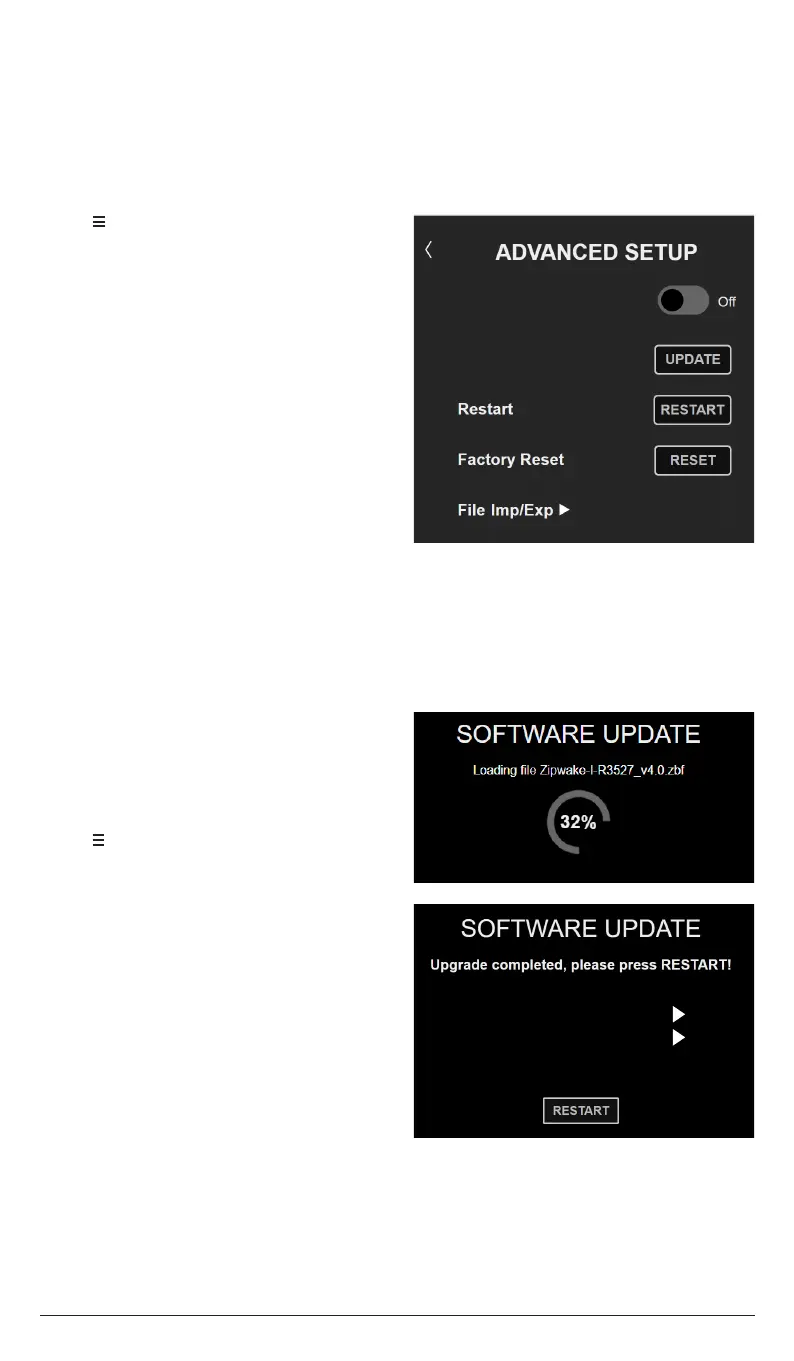
12 ADVANCED SETUP
Touch Lock is disabled by default allowing adjustments to the system from the connected
device (e.g MFD or mobile device). Enable Touch Lock to prevent undesired adjustments
from the connected device.
12.1 TOUCH LOCK
1. Tap to open the System Menu.
2. Tap Advanced Setup.
3. Tap the Touch Lock toggle slider to
enable/disable the Touch Lock.
NOTE!
The Touch Lock setting only applies
locally to the current device.
Touch Lock
Software Update
The Dynamic Trim Control System software can be updated using a mobile device
(e.g smartphone, tablet or laptop). Visit zipwake.com to check for new software releases.
12.2 SOFTWARE UPDATE - MOBILE DEVICES
1. Download the upgrade file from
zipwake.com to a mobile device.
Connect the device to the integrator
module via Wi-Fi or ethernet cable and
start the Zipwake application.
2. Tap to open the System Menu.
3. Tap Advanced Setup.
4. Tap Software Update.
5. Tap UPDATE.
6. Tap Choose file and browse to the file
downloaded to the mobile device.
7. Once the file has been uploaded to
the integrator module, tap START to
initiate the update.
8. Once the update process has finished,
tap RESTART.


 To Next Page