Mixer Screen settings
38
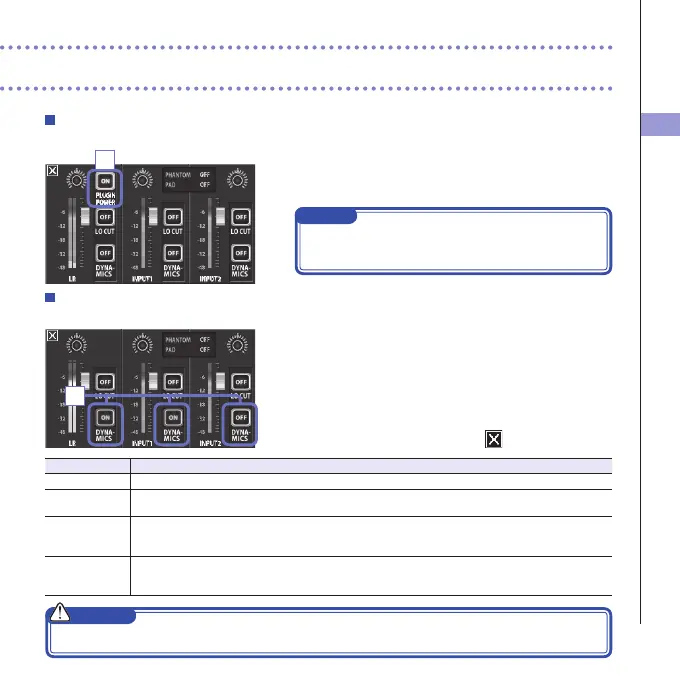
PLUGIN POWER
Thisunitcanprovideplug-inpowertomicsthatuseit.Makethefollowingsettingsbeforeconnectingmics.
1. Touch "PLUGIN POWER" on the Mixer Screen.
TouchingthistogglesitON/OFF
NOTE
You can use this whenamic capsule that supports
plug-inpowerisconnected.
DYNAMICS
Thisdigitaleffectreducesaudiodynamics.Itcompensatestoreducevolumechanges.
1. On the Mixer Screen, touch the "DYNAMICS" button
for the channel that you want to adjust.
2. Change the "DYNAMICS" setting in the submenu
that opens.
3.
After completing the setting, touch to close the submenu.
Setting Explanation
Off DisableDYNAMICS.
Limiter
Iftheinputsignalexceedsacertainlevel,itwillbecompressedsothevolumestaysbelowthatlevel.
Thissuppressessuddenpeaks,makinglisteningtotherecordedaudioeasier.
Compressor Thiscompresseshigh-levelsoundsandraiseslow-levelsounds.
Whenrecordingbands,forexample,thiscanincreasethesoundpressure,whichincreasesthe
impact of the audio.
Leveler Iflow-levelsoundcontinues,theinputsignalisampliedandadjustedtomakethevolumeeven.
Thisiseffectivewhenvolumedifferencesaregreat,suchaswhenanemceespeaksbetween
concert performances.
CAUTION
TheAUTOGAINfunctioncannotbeusedwhentheaudioleformatissetto96kHzWAV.
1
1



 To Next Page