RETRIEVING TEST RESULTS - 7
VerifyNow System User Manual Page 59 14340.J
7 Retrieving Test Results and Performance
Data
The instrument stores information on patient test results, quality control tests,
troubleshooting events, and usage statistics. This section covers the activities to
retrieve stored information and display it on the screen, print it, or export it to a
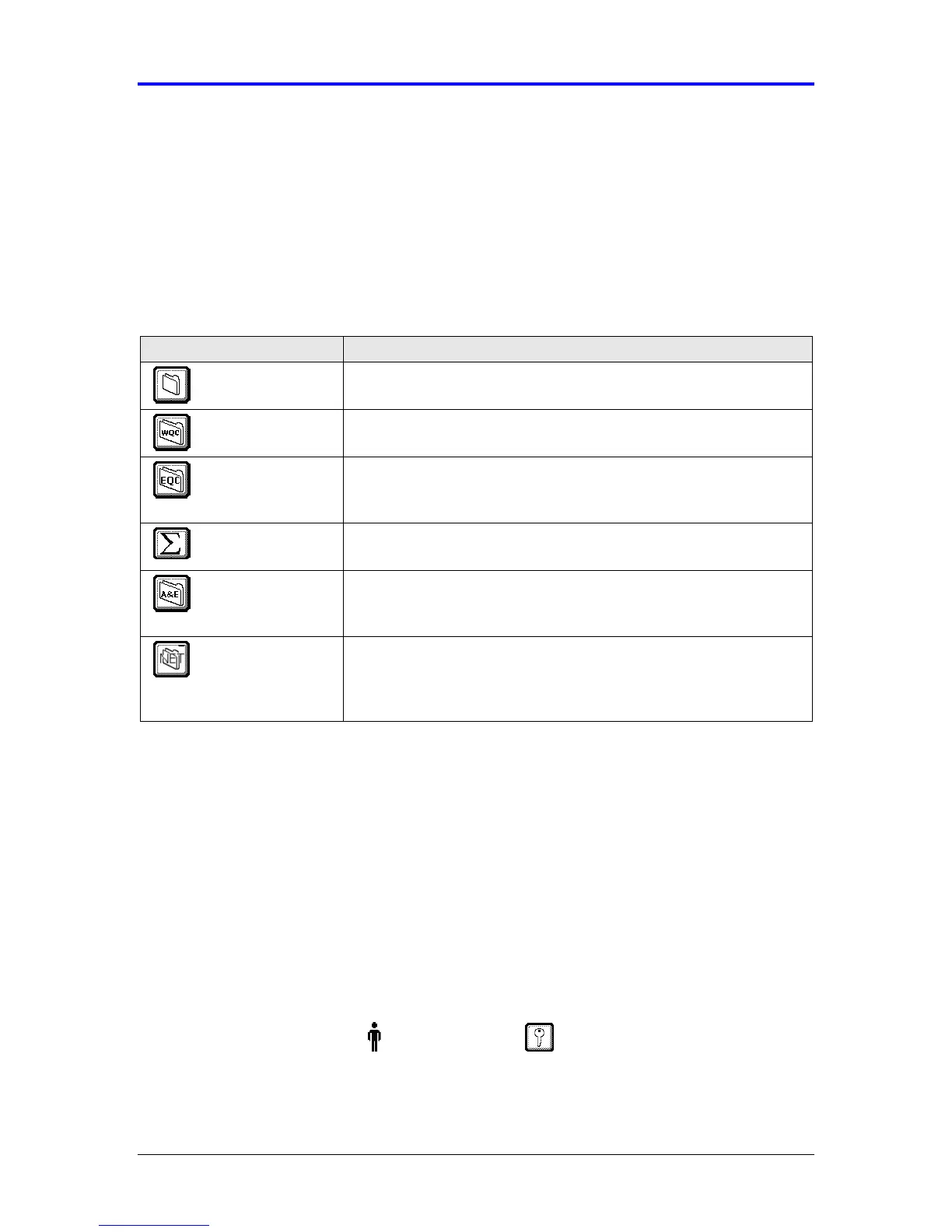
network (where network connectivity is enabled). Table 7-1 lists and describes the
six activities available to an operator.
Table 7-1 Retrieving Test Results and Performance Data
Activity Description
Retrieve patient
results
This feature enables you to retrieve the last 150 patient results from
earlier tests. Refer to Section 7.1.
View WQC results
(Level 1 & 2)
Use this feature to view earlier WQC results. This feature enables
you to retrieve the last 100 WQC results. Refer to Section 7.2.
View EQC
diagnostic results
Use this feature when troubleshooting instrument performance.
This feature enables you to retrieve the last 100 EQC results. Refer
to Section 7.2.
View usage log This feature enables you to view the quantity and type of assays
performed on the instrument. Refer to Section 7.3.
View alarms and
errors log
Use this feature when troubleshooting instrument performance.
This feature enables you to retrieve information on recent alarms
and errors. Refer to Section 7.4.
Transfer data
across a network
This optional accessory enables you to transfer information across
a network. This includes all assay, WQC and EQC results as well
as messages, alerts, alarms, and errors logged. Refer to Section
7.5.
7.1 Retrieving Patient Test Results
The instrument stores the last 150 patient results in its memory. You can retrieve and
print information about the patient result, assay type, assay date and time, and
operator identification (when configured).
Patient information can be retrieved by date and time or by patient identification,
depending on the instrument setting. Refer to Section 7.1.2 if the instrument is
configured to use patient identification; otherwise, refer to 7.1.1 for the appropriate
procedure.
7.1.1 Patient Information Stored by Date/Time
From the main menu, enter Operator ID and Password, if required. Use the
keypad to enter the Operator ID number at the prompt. Press the Tab key to advance


 To Next Page