INSTRUMENT SETTINGS - 8
VerifyNow System User Manual Page 73 14340.J
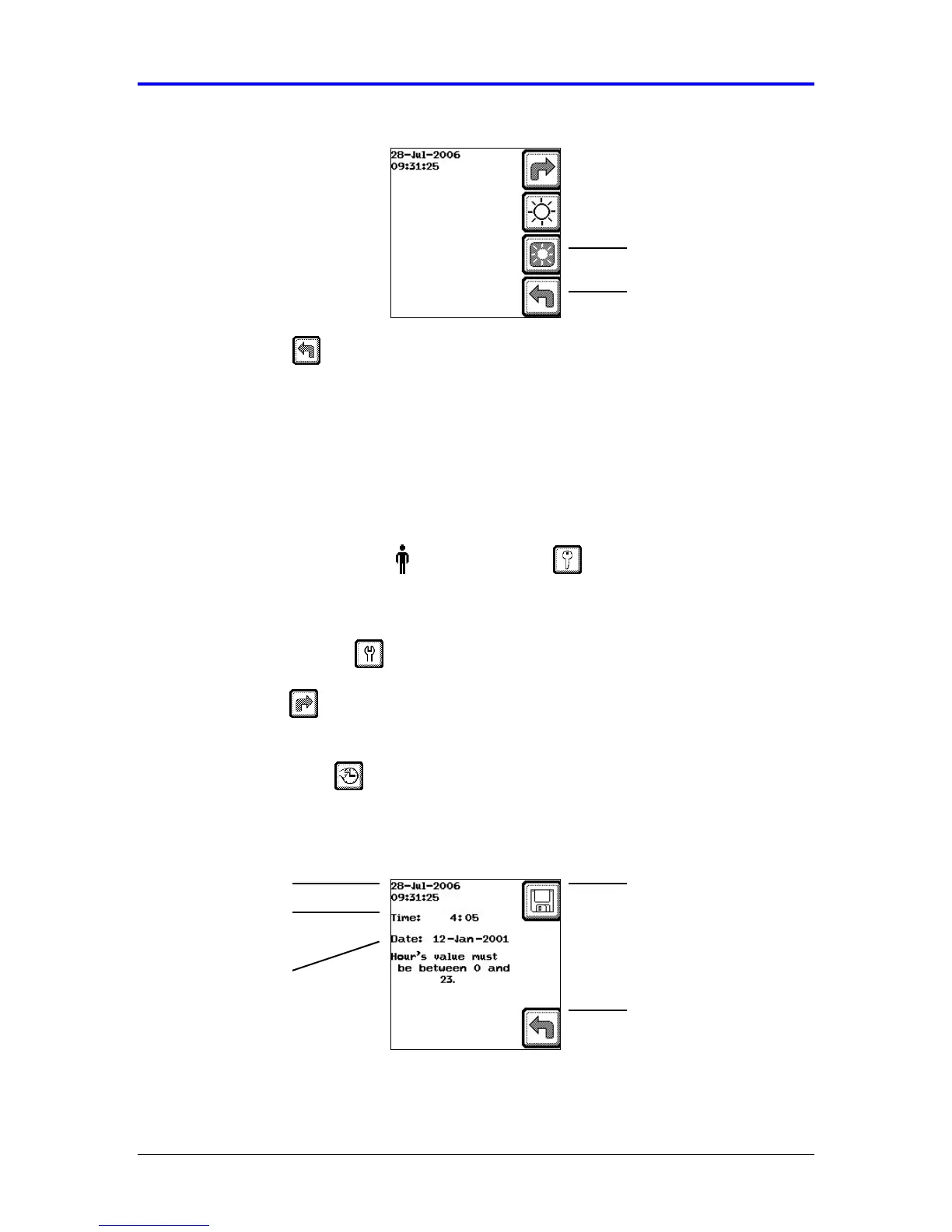
Figure 8-2 Adjust Backlight
5.
Press the Back key once to return to the Main Menu.
8.3 Set the Date and Time
The date and time is initially configured during installation. However, this setting will
need to be adjusted during a leap year and twice annually for Daylight Savings Time.
Use the following procedure to adjust the setting:
1.
From the main menu, enter Operator ID and Password, if required. Use
the keypad to enter the Operator ID number at the prompt. Press the Tab key to
advance to the Password prompt to enter the password number.
2.
Press the Maintenance key.
3.
Press the Next key two times. Refer to the Appendix for information on
navigating within the Maintenance section.
4.
Press the Date/Time key to display the setting (Figure 8-3).
Figure 8-3 Date and Time Setting
5.
Record the new time stamp according to a 24-hour clock format. Press the Tab
key to move between the settings. For example, 1:30 pm is equivalent to 13:30 in
Date
Back
Save Setting
Back
Backlight


 To Next Page