RETRIEVING TEST RESULTS - 7
VerifyNow System User Manual Page 67 14340.J
Feature Description
number and the right column provides a count of the number of
incidents.
Alarms List Lists the quantity of alarms logged during operation. The left
column of the list provides the alarm number and the right column
provides a count of the number of incidents.
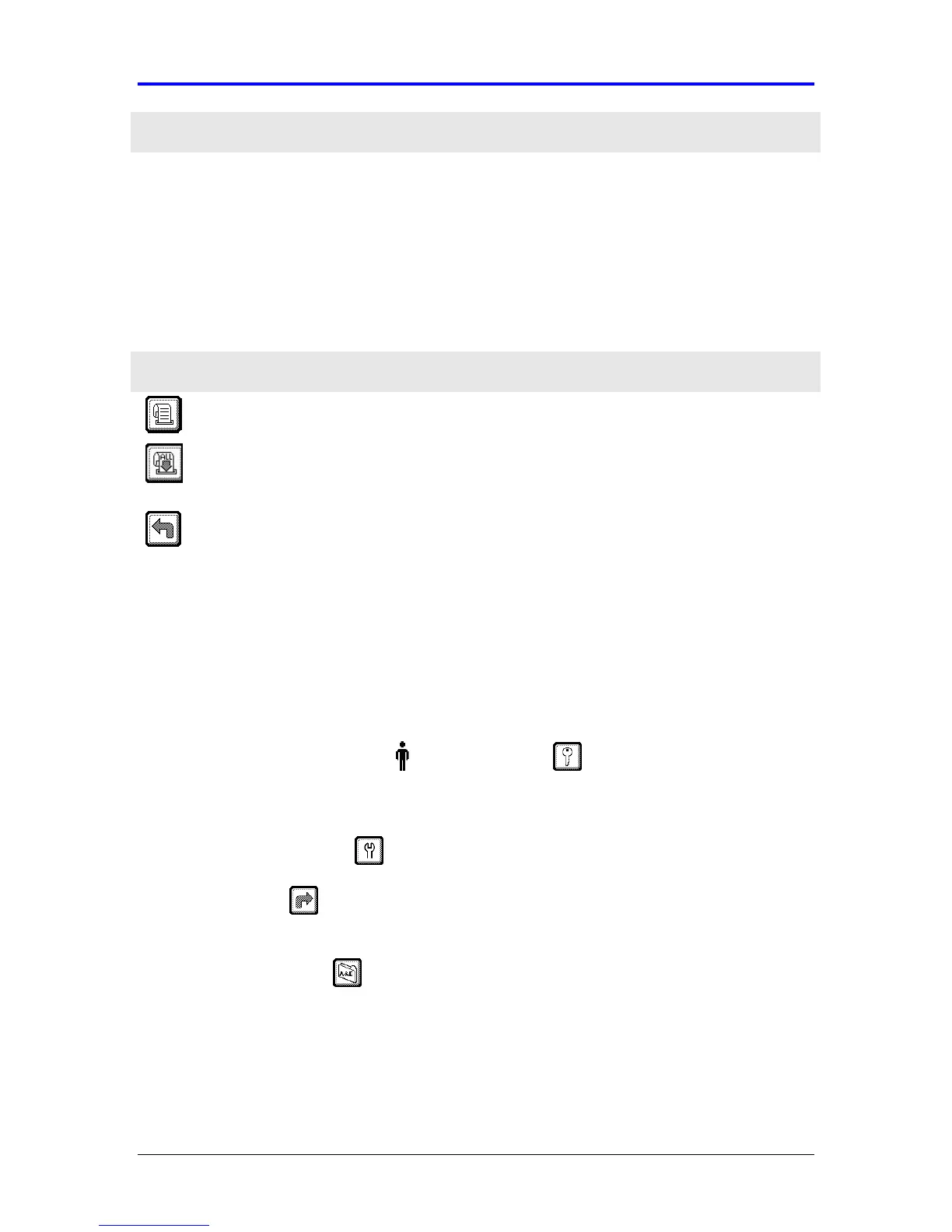
In addition to viewing earlier results, icons keys enable results to be printed (optional)
or another assay started.
Icon Description
Print Result Scroll to the selected record, and select this icon to print the
selected results from the lists.
Print All
Results
Scroll backwards through the results using the
←
←←
←
key, and
select this icon to print all results in the log that are forward
of the cursor position.
Back Select this icon to return to the previous screen.
7.4 View Event Log
The instrument stores the last 50 error/attention events and the last 11 alarms in its
memory. The instrument Event log displays the errors and alarms that have occurred
during use. They are arranged chronologically. Use the following procedure to view
the Event log (Figure 7-7):
1.
From the main menu, enter Operator ID and Password, if required. Use
the keypad to enter the Operator ID number at the prompt. Press the Tab key to
advance to the Password prompt to enter the password number.
2.
Press the Maintenance key.
3.
Press the Next key two times. Refer to the Appendix for information on
navigating within the Maintenance section.
4.
Press the Event Log key to retrieve the appropriate usage information.
See Section 7.4.1 for a description of the event log.


 To Next Page