RETRIEVING TEST RESULTS - 7
VerifyNow System User Manual Page 63 14340.J
1.
From the main menu, enter Operator ID and Password, if required. Use
the keypad to enter the Operator ID number at the prompt. Press the Tab key to
advance to the Password prompt to enter the password number.
2.
Press the Maintenance key.
3.
Press the Next key three times. Refer to the Appendix for information on
navigating within the Maintenance section.
4.
Press the EQC key or the WQC key to retrieve the appropriate results.
See Section 7.2.1 for a description of the EQC results log or Section 7.2.2 for a
description of the WQC results log.
7.2.1 Electronic Quality Control Results Log
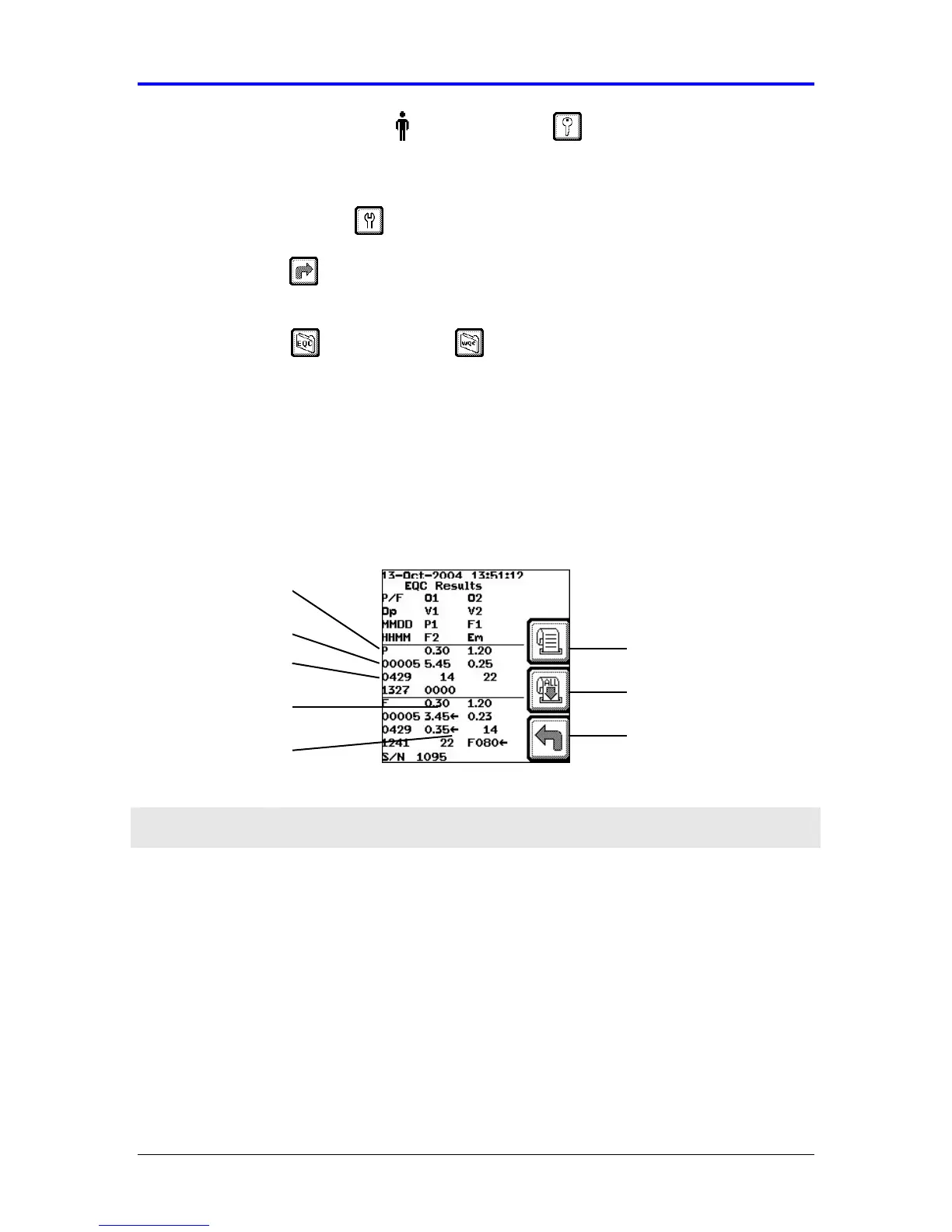
The cursor is positioned on the most recent assay result (Figure 7-4). Navigate within
an individual EQC test result using the (←
←←
← , →
→→
→) keys.
Figure 7-4 EQC Results Log
Feature Description
EQC Result Displays the result as either a Pass (P) or Fail (F). A Pass result
indicates the instrument was operating within its specification
limits. If there was an earlier problem detected during the EQC
process, then a FAIL result would display.
Operator ID Displays the operator identification for the user who performed the
test (when configured).
Date and Time
Stamp
Displays the date and time by month, day, hour (24 hr clock
format), and minute using the following notation, “MMDD HHMM.”
Parameter Displays the result for the following measured parameters:
Operator ID
Date and Time
Flagged
EQC Result
Back
Print All Results
Print Result
Parameters


 To Next Page