INSTRUMENT SETTINGS - 8
VerifyNow System User Manual Page 75 14340.J
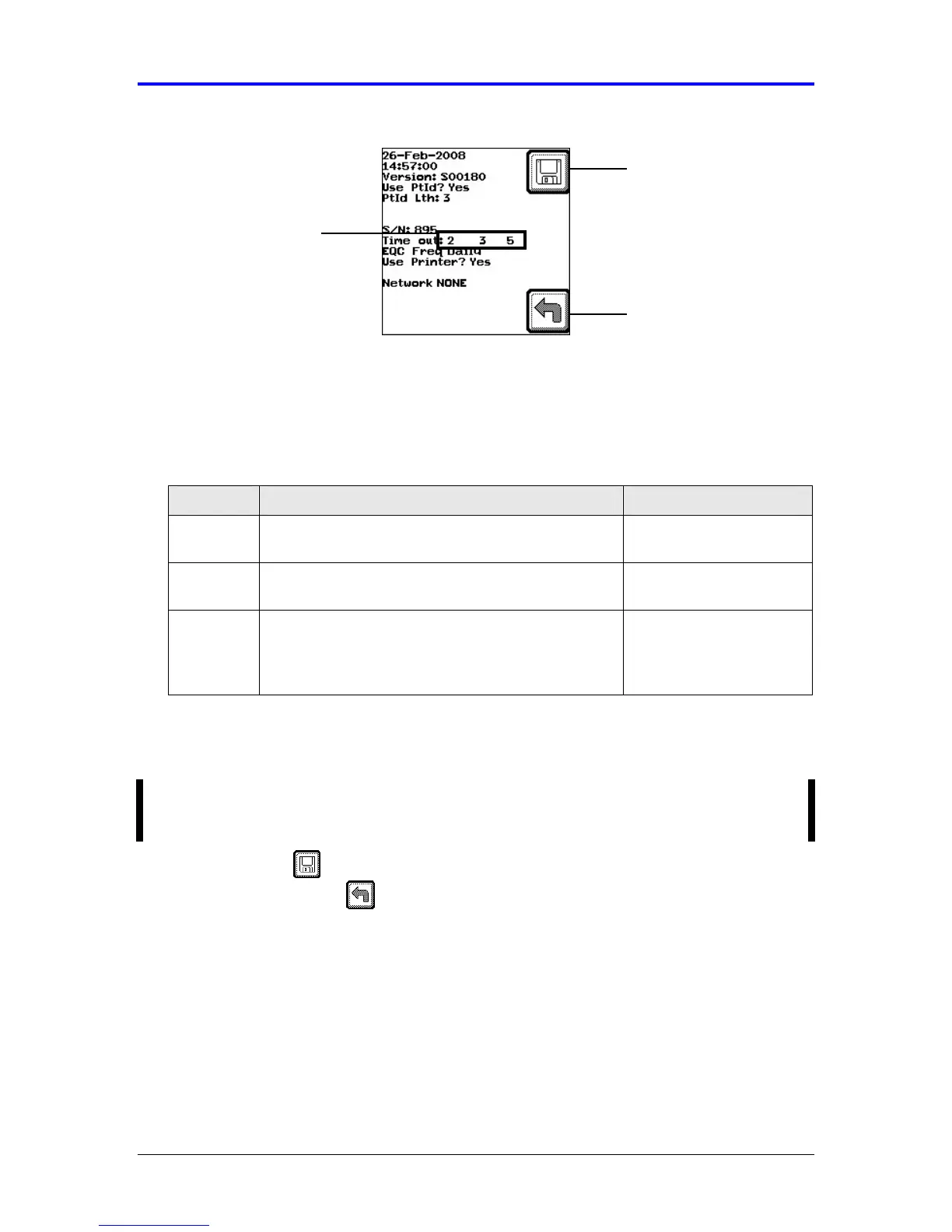
Figure 8-4 Time Out Setting
4.
Press the Tab key 3 times to advance the cursor to the Time Out setting. The
instrument supports three different time out settings, depending on the operation
being performed. These settings correspond to the following three different fields
(Table 8-2).
Table 8-2 Time Out Settings
Field Activities Affected Default Time Setting
1 Affects all input operations associated with an
assay or QC.
2 minutes
2 Affects the time that a user’s password will
remain on the screen (when configured).
3 minutes
3 When idle, affects when the screen saver
“stand-by” feature is engaged. When engaged,
the “stand-by” feature returns to the main
menu and dims the display.
5 minutes
5.
Record the new timeout settings for the three fields – between 0 and 255
minutes. Assigning a timeout value to 0 means the affected screens will not time
out. Press the Tab key to move between the settings.
NOTE: Unless the third field is set to 0, the second field needs to be less than or
equal to the third field.
6.
Press the Save key to keep the new setting and return to the Maintenance
menu. Press the Back key twice to return to the Main Menu without saving
the changes.
8.5 Enable Patient ID
The VerifyNow Instrument supports patient result traceability. This includes a feature
that assigns a patient identification (ID) to each patient sample. The instrument’s
default setting does not assign patient ID; however, use the following procedure to
adjust the setting:
Time Out Setting
Back
Save Setting


 To Next Page