INSTRUMENT SETTINGS - 8
VerifyNow System User Manual Page 76 14340.J
1.
From the main menu, enter Operator ID and Password, if required. Use
the keypad to enter the Operator ID number at the prompt. Press the Tab key to
advance to the Password prompt to enter the password number.
2.
Press the Maintenance key.
3.
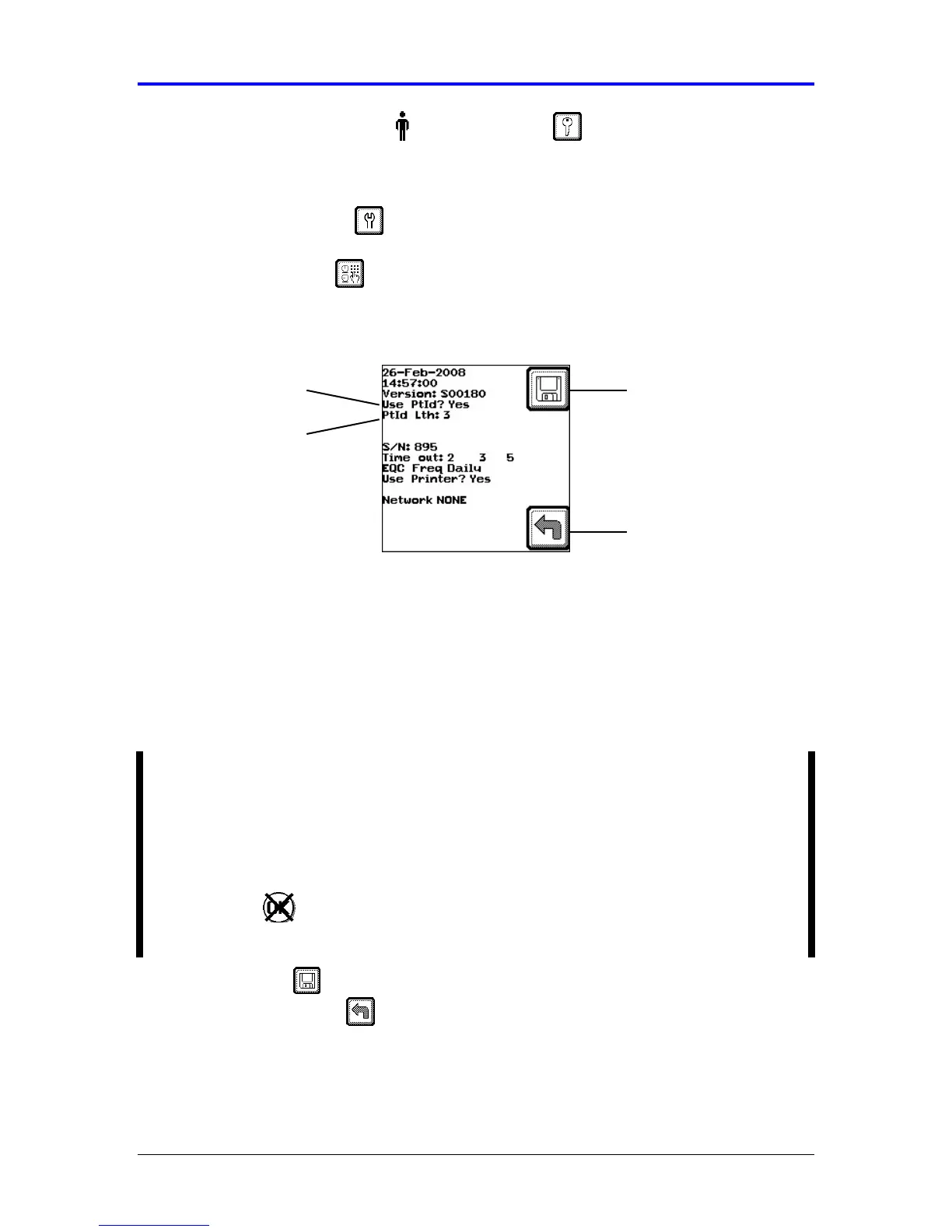
Press the Parameter key to display the settings (Figure 8-5). Refer to the
Appendix for information on navigating within the Maintenance section.
Figure 8-5 Patient Identification Setting
4.
At the Use Pt ID prompt, press either the (←
←←
←) or (→
→→
→) key to change the setting
between Yes and No.
5.
If Patient ID is enabled, press the Tab key to move to “Pt ID Lth:” prompt. The
patient identification length can be any combination of letters and/or numbers up
to 11 characters. Enter the number of characters in the institution’s patient
identification. For example, if a sample patient identification is “325679”, the
number “6” should be entered to designate a Patient ID length of six characters.
NOTE: After the patient identification length is defined in the system, only a Patient
ID with the correct number of characters will be accepted
in order to start an assay.
At the start of the assay, a series of “?” will represent the established patient ID
length. For example, if the ID length is set to 6 characters and the patient ID is five
characters, then a leading zero (0) must be entered. A “?” is not a valid input and
all “?” must be replaced by alpha-numeric characters. If a different number of digits
is entered the will display. The assay cannot proceed until the correct number
of digits is entered.
6.
Press the Save key to keep the new setting and return to the Maintenance
menu. Press the Back key twice to return to the Main Menu without saving
the changes.
Patient ID Setting
Back
Save Setting
Patient ID Length


 To Next Page