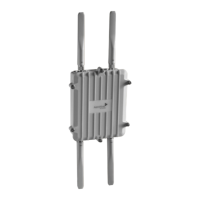
Hardware Reference Guide 23
MOUNTING THE AP121 OR AP141
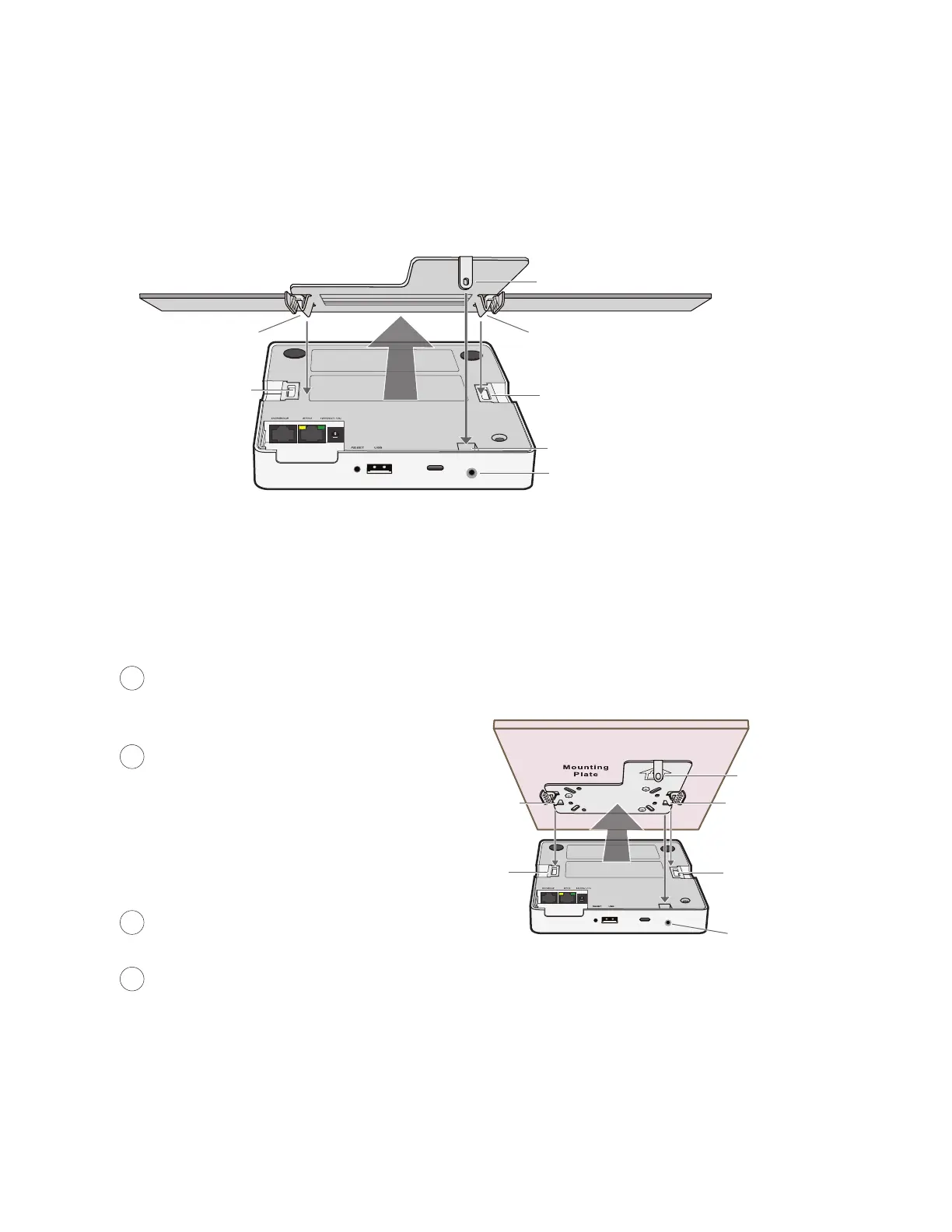
With the AP upside down, align the two flexible V-shaped tabs and the security tab extension on the rail
mounting bracket with the two tab slots and the security screw cavity on the underside of the AP, and then
push the AP upward until it clicks into place as shown in Figure 5.
Figure 5 Attaching the AP to the rail mount
When you are done, adjust the ceiling tiles back into their former position.
Surface Mount
You can use the flat mounting plate to attach the AP121 or AP141 to any surface that supports its weight
(AP121: 11.6 oz or 0.36 kg; AP141: 13.5 oz or 0.42 kg), and to which you can screw or nail the plate. First,
mount the plate to the surface, and then attach the device to the plate, as shown in Figure 6.
Figure 6 Mounting the AP on a wall
Security tab extension
Security screw cavity
Tab slot
Tab slot
V-shaped tab
V-shaped tab
(Side view)
Security tab slot
Security screw
cavity
Tab slot
Tab slot
Security tab
extension
V-shaped
tab
V-shaped tab
(Bird’s eye view)
2
3
1
With the two flexible V-shaped tabs at the
sides of the plate extending away from the
surface, attach the mounting plate to a
secure object such as a wall, ceiling, post, or
beam.
Cut or drill a hole in the space not covered
by the L-shaped mounting plate, pass the
cables through to the AP, and connect them.
(You can also run the cables along the wall to
the AP instead of through a hole.)
Depending on how the AP is powered and how
it connects to the network, connect a power
cable and an Ethernet cables. (The cable is
not shown in this illustration.)
Align the tabs and security tab extension on
the mounting plate with the tab slots and
security screw cavity on the AP.
Push the AP against the mounting plate until
the tabs click inside the tab slots. For the
4



 To Next Page