Hardware Reference Guide 79
PRODUCT OVERVIEW
Fans
The SR2024 switch has four cooling fans which, by default, are always on. You can view fan status and
temperature levels in HiveManager. The fan speeds and temperature settings are preconfigured. Make sure
the switch fans have enough space for proper cooling (see "Mounting and Installation" on page 81.).
Displaying Fan and Temperature Status using CLI commands:
To display the current status of the fans, enter the following command:
show system fans
To display the current system temperature, enter the following command:
show system temperature
Viewing Fan and Temperature Status in HiveManager
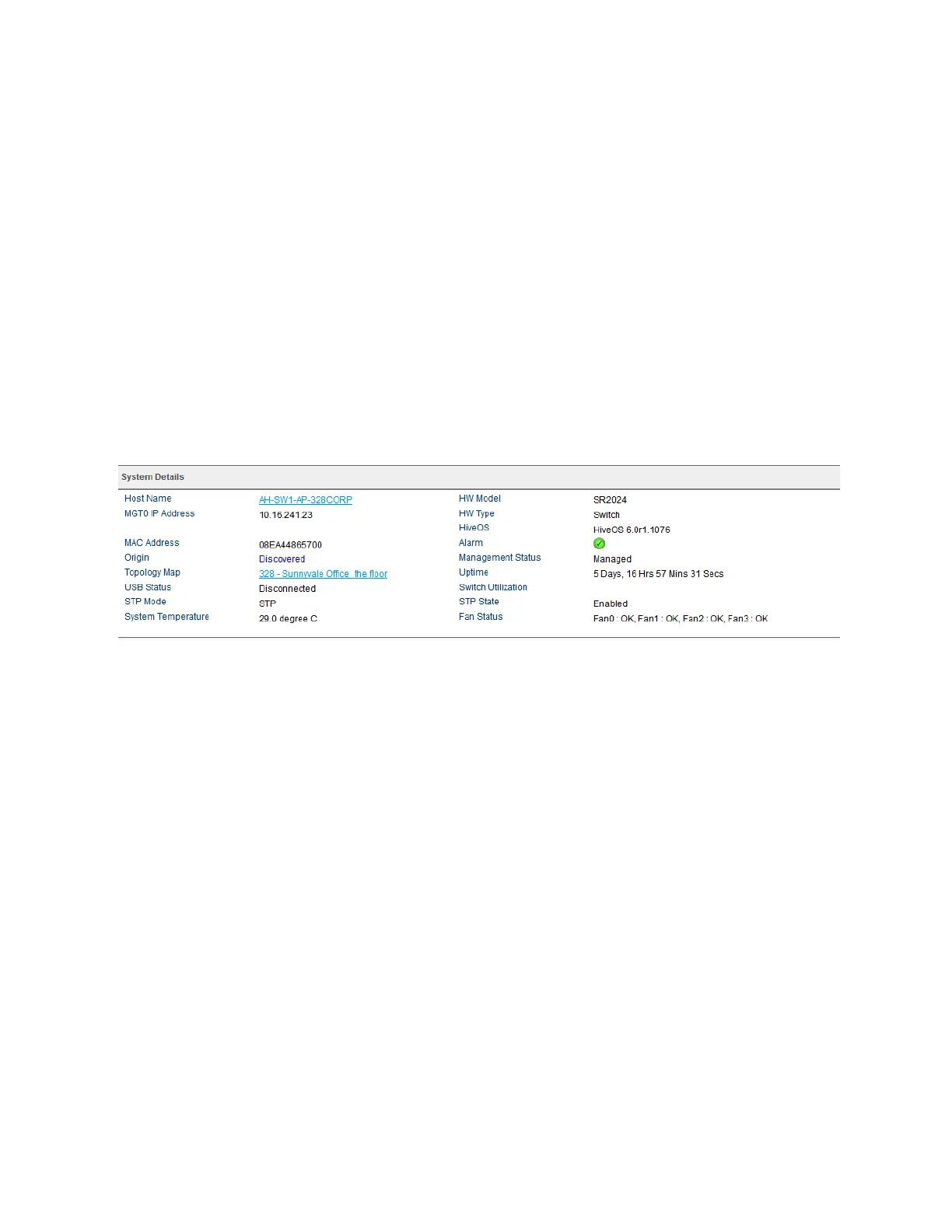
To view fan and temperature status in HiveManager, navigate to Monitor > Devices > Switches. Click the
name of a switch. A page appears that shows system information for the switch. Scroll down to the System
Details
section, where you will see information similar to that shown in Figure 2. The temperature and fan
status appear at the bottom of this section.
Figure 2 Temperature and fan information display in HiveManager
Changing the Temperature and Fan Speed Alarm Thresholds
You can change the threshold for the alarms in HiveManager. To do this, go to Configuration > Advanced
Configuration > Management Options
. To modify existing system settings, click the name of the
management options object you want to change. In the dialog box that appears, scroll down to the
System Settings section, where you will see the alarm fields that you can modify.
Status LEDs
The status LEDs on the SR2024 switch front panel indicate activity states by color and illumination patterns.
Press the LED mode button to cycle through Link, Stack (reserved for future use), Speed, Duplex, or PoE
modes. Depending on which mode you have selected, the port LEDs (one per port) display information
specific to the selected mode. Figure 3 on page 80 describes the port LED color and pattern meanings for
each mode.
SFP Port LEDs
The SFP ports LEDs are not connected to the LED mode selection button. SFP port LEDs are either dark (no
power to the port), solid green (there is an active link to the port, but no activity), or green flashing (port is
linked and active).



 To Next Page