HP106/HP406 Programmer software guide
Ver. 1.0 Page 7
3 PROGRAMMING
3.1 Running HPx06 programmer software
1) Make sure that the transceiver’s battery is properly charged and the radio is turned off
2) Keep the MON button pressed and switch the radio on by rotating clockwise the On-Off/Volume knob provided in its top panel. After the
mechanical click, the status LED will steadily glow orange, showing that the radio is switched on in programming mode
3) Click the Start button, point to Programs and then to HPx06 folder.
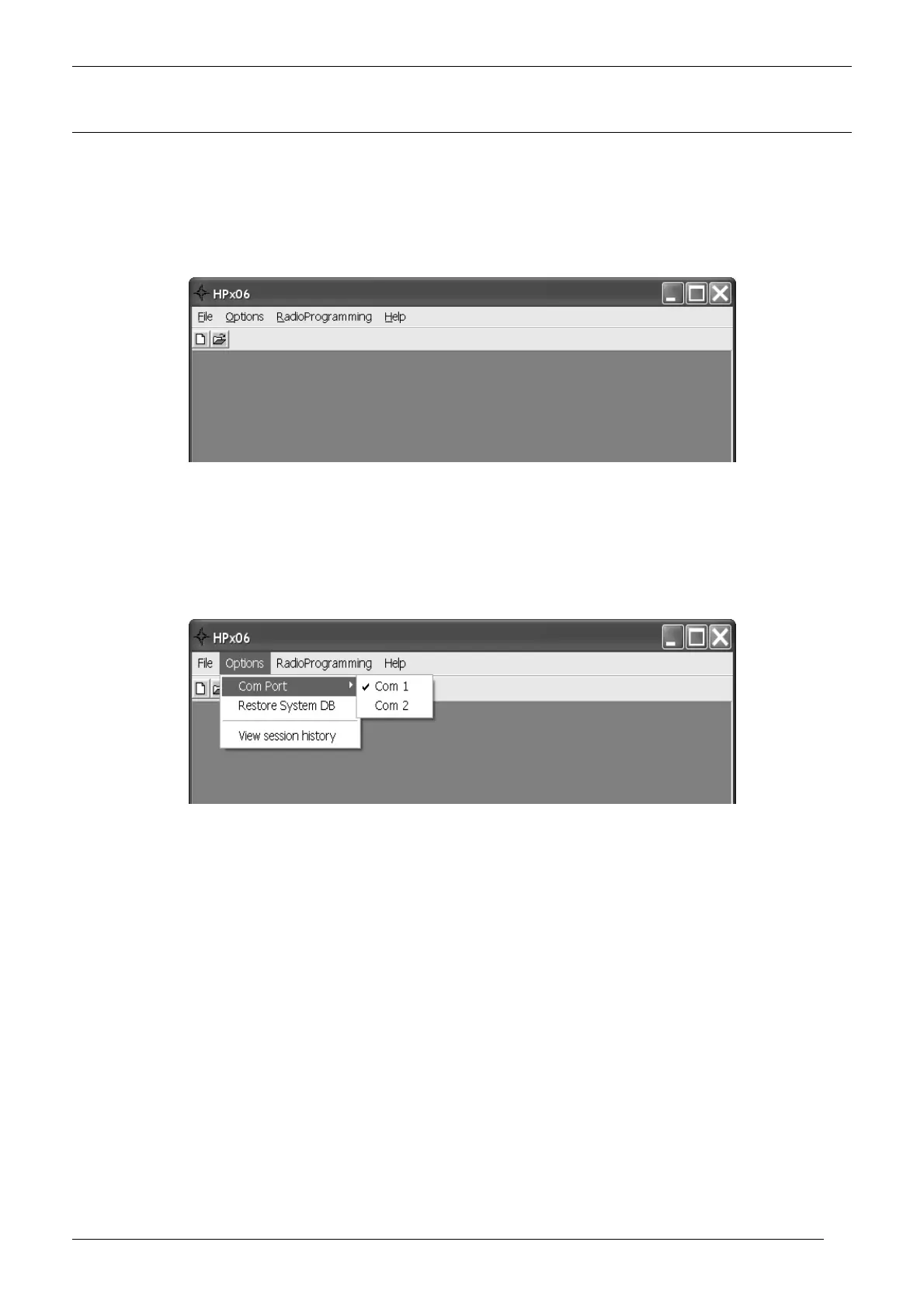
4) Click HPx06 icon: the HPx06 programmer window will open (blank gray window)
The figure shows the blank window under Windows XP
3.2 Selecting the proper COM (serial) port
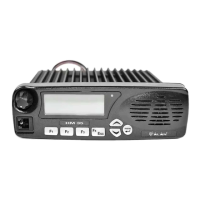
The serial port COM1 is automatically preset as default port. However, should you need to toggle between COM 1 and COM
2:
1) From the menu Options select Com Port: you will see the tick sign on Com 1.
2) Select Com 2: the tick will be moved on Com 2 and this port will be switched as default.
3.3 Checking the software version
If you want to see the software version and other additional info, from the menu Help select About. The About window will
open showing you the said data.
3.4 New or already stored data?
Now that you have properly run the software, and connected the programming cable to your PC, you can choose either the
first or the second following procedures depending if you want to create a new programming data set or you need to use a
previously stored one:
If you need to create a new programming data set (because you haven’t previously stored same/similar programming data in
your PC or in a transceiver) please start from the following paragraph 3.5.
If you want to use a data set previously stored in a transceiver (you will download the data from it) or in your PC (you will use a
data file), because either of them contain same/similar programming data, we recommend to “jump” to the chapter 8.1, follow it,
and then go back to the chapter 3.6 below described (i.e. skipping the next 3.5 paragraph).


 To Next Page