HP106/HP406 Programmer software guide
Ver. 1.0 Page 26
7 FINAL OPERATIONS
7.1 Uploading programming data to the radio
Once you are sure to have properly programmed all the radio’s data (at least one TX/RX frequency with basic parameters)
you can transfer the said data to its memory and terminate the programming. Do as follows:
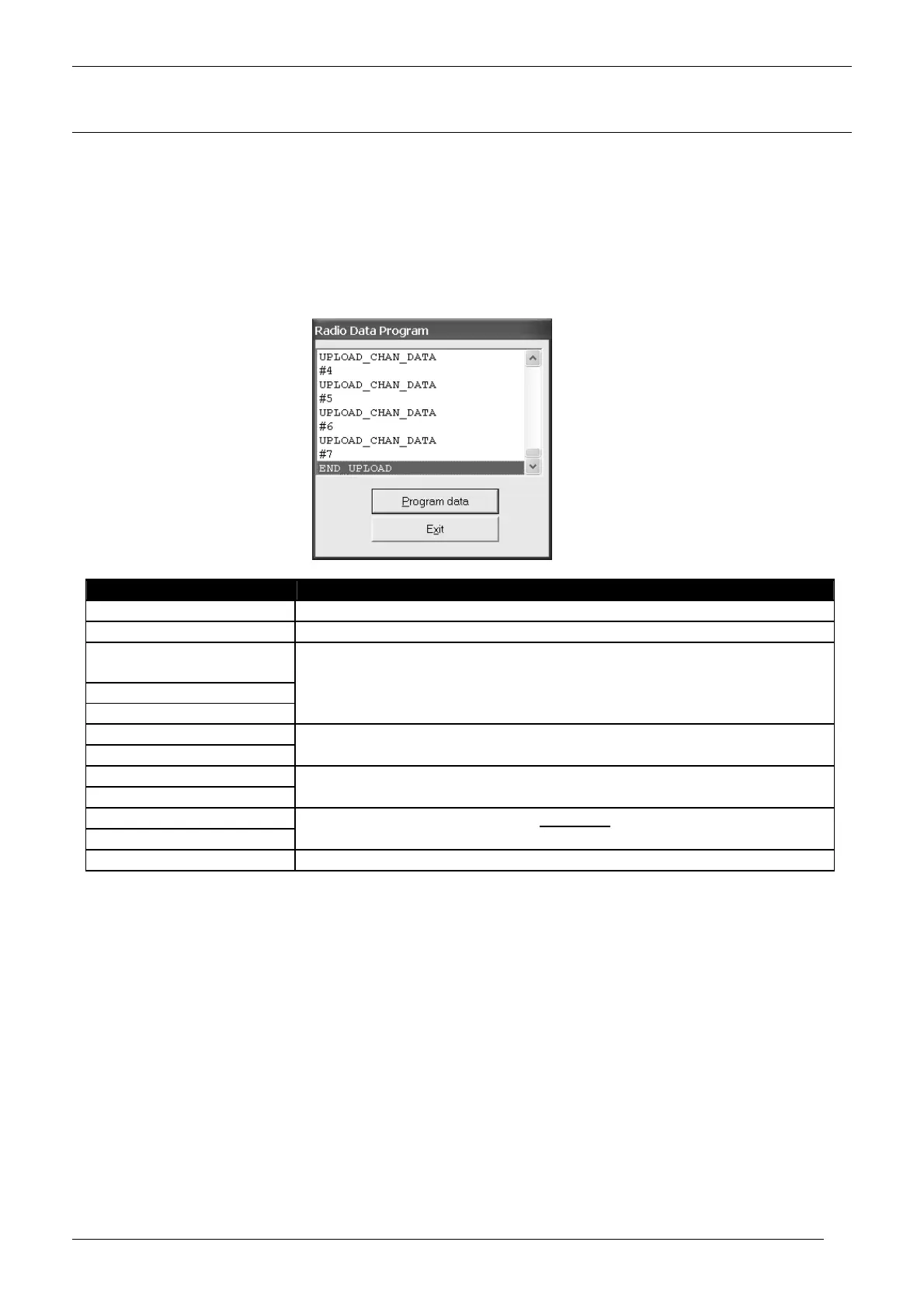
1) From the menu Radio Programming select Program radio: the Radio Data Program window will open (or use the shortcut Ctrl+R)
2) Make sure the radio has been properly connected as described in par. 2.4.
3) Switch off the radio (if switched on), then keep the MON pressed and switch the radio on: the status LED should be steadily lit in orange
color, showing that the radio is in programming mode. In this case you can release the MON key
4) Click the Program data button (or press Exit to escape the programming in case of mistakes): a writing sequence will start.
5) The program window will show the following simultaneous messages:
PROGRAM WINDOW MESSAGES NOTES
(blank)
(idle state before clicking on Program data button)
Performing data channel check First message after clicking on Program data button
WHICH RADIO
Radio type – HPx06
START_UPLOAD
UPLOAD_SYS_RADIO_DATA
UPLOAD_RX_SEQ_DEF
#x
These two messages are repeated for each RX channel (x is the number of the uploaded RX
channel)
UPLOAD_TX_SEQ_DEF
#x
These two messages are repeated for each TX channel (x is the number of the uploaded TX
channel)
UPLOAD_CHAN_DATA
#x
These two messages are repeated for each programmed
channel (x is the number of the
uploaded TX channel)
END UPLOAD
If the programming will fail an error message will be shown
6) Press the Exit button
7) Disconnect the programmer cable from the transceiver
8) Switch off and on the radio in order to exit the programming mode and restore its normal use
9) Check if all the parameters work properly
7.2 Saving programming data
It’s recommended to save all the programmed data in the hard disk of your PC or diskette(s) in order to obtain a programming
archive containing the data of all the radios you have programmed. This will be useful in case your customer would like to add
new radios to the existing network or if you have to create new networks which have similar programming.
1) From the menu File select Save Radio as: the Save Radio database as window will open.
2) Type the file name in the appropriate box (file name usually).
3) Define the directory in which you want to store the file (default is C:\Programs\HPx06\usrDB), then press Save
7.3 Restoring the default signal database
This option is basically useful in two conditions:


 To Next Page