HP106/HP406 Programmer software guide
Ver. 1.0 Page 16
5.4 Defining Call1, Call2, Emergency default TX calls and Auto ID (ANI)
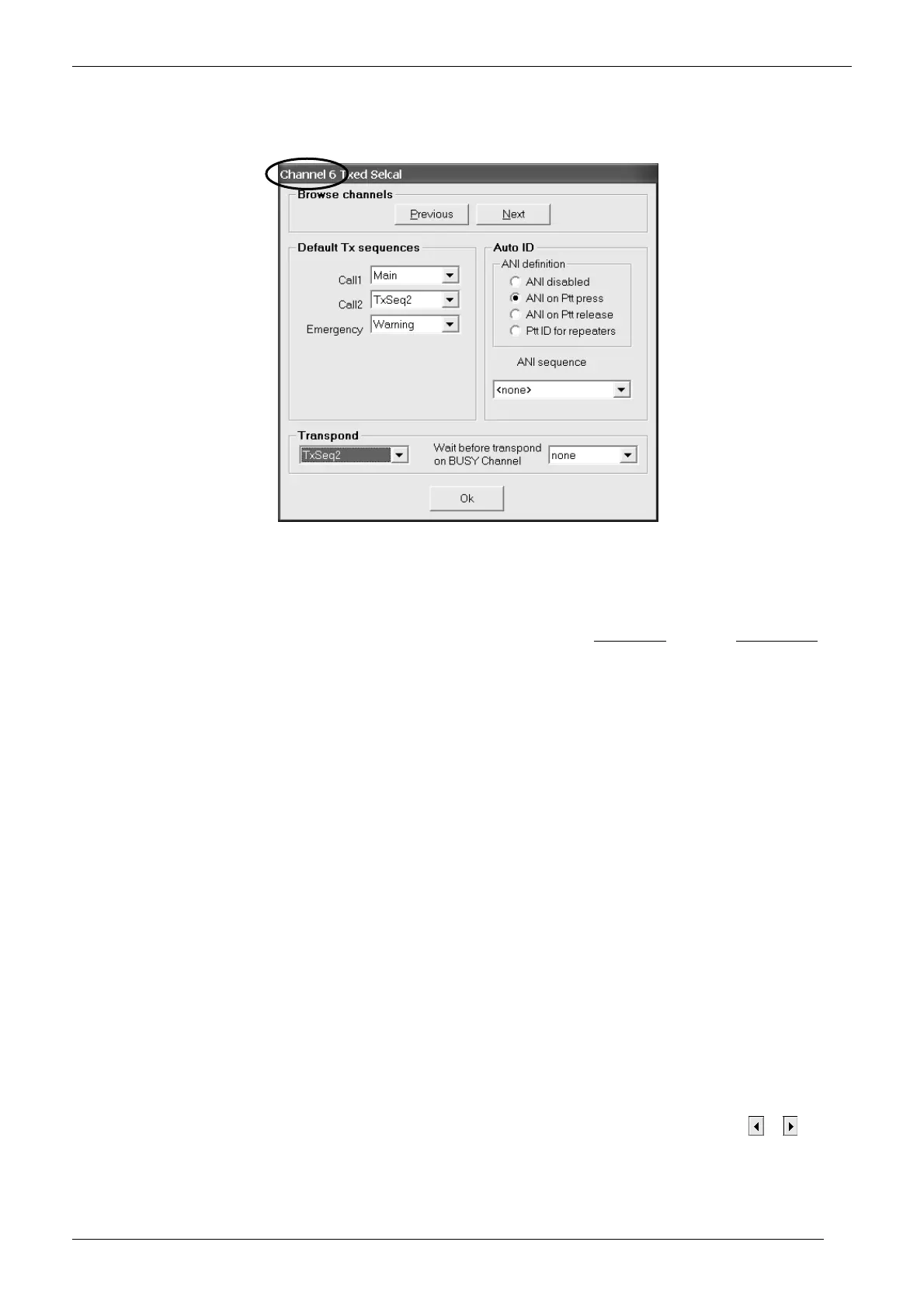
1) Make sure to be on the right RF channel and, from the Channels Data window, click on TX sequences button: the Channel X Txed
Selcal window will open.
2) Be sure you are selecting parameters on the proper channel (shown in the heading of the window - Channel 6 in the example). If you
want to set up another channel click Previous or Next buttons to select the appropriate channel.
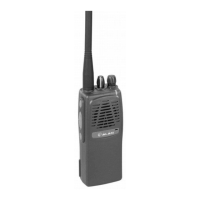
3) Select the TX Sequence you want to send when MON button (located over the PTT) is kept pressed by clicking the Call1 drag down
button in the Default Tx sequences area and then click the appropriate sequence (in the example we have chosen Main).
4) Select the TX Sequence you want to send when FUNC button (located below the PTT) is kept pressed by clicking the Call2 drag down
button in the Default Tx sequences area and then click the appropriate sequence (in the example we have chosen TxSeq2).
To avoid confusion, MON and FUNC buttons act as Call1 and Call2 send buttons when kept pressed. If they are briefly pressed, their
function is different.
5) Select the TX Sequence you want to send with Emergency button (by keeping pressed together MON and FUNC buttons) by clicking the
Emergency drag down button in the Default Tx sequences area and then click the appropriate sequence (in the example we have
chosen the sequence Warning).
6) You can now define one of the previously programmed sequences to be sent when a selcall is recognized. Click the drag down button in
the Transpond area and then click the appropriate sequence (in the example we have chosen the sequence TxSeq2). You can also set
the time which the radio has to wait before sending the transpond sequence just set if the channel is busy. Just go to the Wait before
transpond on BUSY Channel drag down button and select the time you need which is available in 2.5 sec. steps
7) Select the condition in which you want the transceiver be sending the ANI by activating the related radio button in the Auto ID area: ANI
disabled, ANI on Ptt press, ANI on Ptt release or Ptt ID for repeaters.
8) Unless you have left ANI disabled, the ANI sequence drag down button will be activated: click it and select the TX Sequence you want
to use as ANI.
ANI (Automatic Number Identification), is a tone sequence transmitted before or after normal voice transmissions in order to identify the
radio in use. These last two steps allows you to set the condition in which the transceiver will automatically send it as well as the
sequence to be transmitted.
9) Now you have two choices:
If you need to program the said parameters for another channel go back to step 2).
If you don’t need to program the said parameters for other channels press the OK button and go to the next paragraph.
5.5 Monitor Key Behaviour
You can define the behaviour of the MON (monitor) key located in the left side of the transceiver (over the PTT) when briefly
pressed. Normally, only Monitor key opens SQUELCH is available. However, depending on the previous settings you have
made for Selcal and CTCSS/DCS in that channel, you will find different active options. For example, if you have activated
CTCSS in the channel, the Monitor key opens CTCSS signalling checkbox will be available as well.
If MON is briefly pressed a second time, it restores the previous monitor condition.
1) Be sure you are selecting parameters on the right channel, if not please select the right one by clicking on either the
or button in
the Channel num. area in Channel Data window


 To Next Page