27
Altai A8n (ac) Series Super WiFi Base Station
Configuration Guide
Altai Technologies Ltd. All rights reserved
Configure WLAN with WPA-PSK / WPA2-PSK / WPA-auto-PSK
Authentication
Use of WPA or WPA2 provides enhanced security over WEP, and allows
client authentication based on either a pre-shared key (PSK), for home
or small office networks. WPA-auto-PSK is a mixed security mode which
supports multiple implementations of the WPA standard, such as WPA-
PSK and WPA2-PSK.
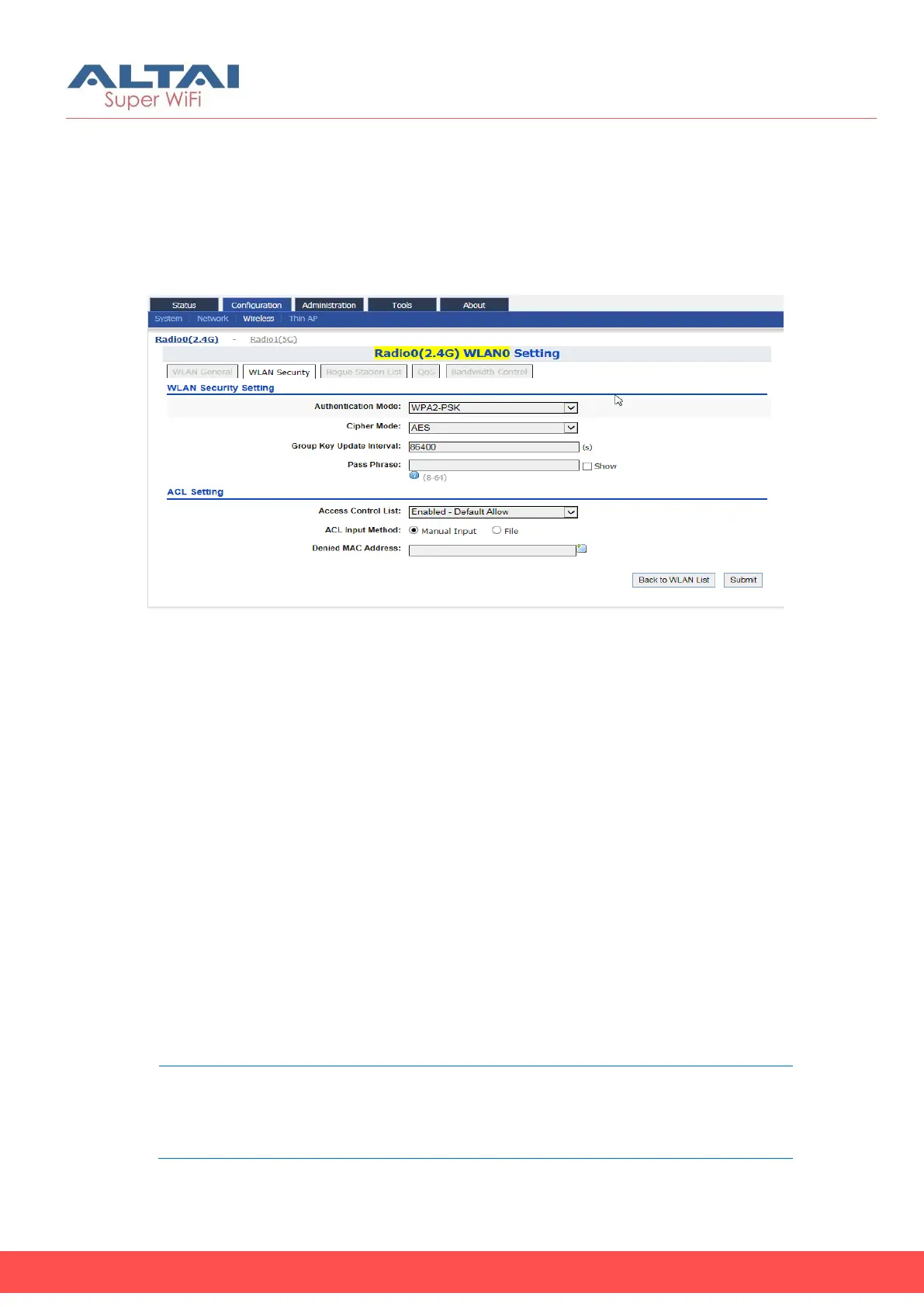
Figure 25 – WPA2-PSK Setting of AP
1. Go to Configuration > Wireless > Radio0(2.4G) > WLAN > WLAN 0-15
> WLAN Security
2. Select WPA-PSK / WPA2-PSK / WPA-auto-PSK in Authentication Mode
3. Select suitable encryption mode in Cipher Mode as the followings:
If Authentication Mode is WPA-PSK:
TKIP + AES - This algorithm automatically selects TKIP or AES based on the
client’s capabilities
TKIP - This algorithm provides greater compatibility with older client
devices, but is not supported by the 802.11n standard.
AES - This algorithm provides enhanced security over TKIP, and is the only
encryption algorithm supported by the 802.11i standard.
If Authentication Mode is WPA2-PSK:
AES - This algorithm provides enhanced security over TKIP, and is the only
encryption algorithm supported by the 802.11i standard.
If Authentication Mode is WPA-auto-PSK:
TKIP + AES - This algorithm automatically selects TKIP or AES based on the
client’s capabilities
Note:
- TKIP is not supported by 802.11n standard. If selected TKIP, the
802.11n’s devices will be limited to 802.11g transfer rate, i.e.
up to 54 Mbps


 To Next Page