28
Altai A8n (ac) Series Super WiFi Base Station
Configuration Guide
Altai Technologies Ltd. All rights reserved
4. Provide time in second in Group Key Update Interval [Optional].
86400 is default setting.
5. Type in a string between 8 and 64 characters long in Pass Phrase
that users will use to connect to the wireless network.
6. Click Submit
7. Click Save & Apply
Configure WLAN with WAPI Authentication
WLAN Authentication and Privacy Infrastructure (WAPI) is a Chinese
National Standard for Wireless LANs (GB 15629.11-2003).
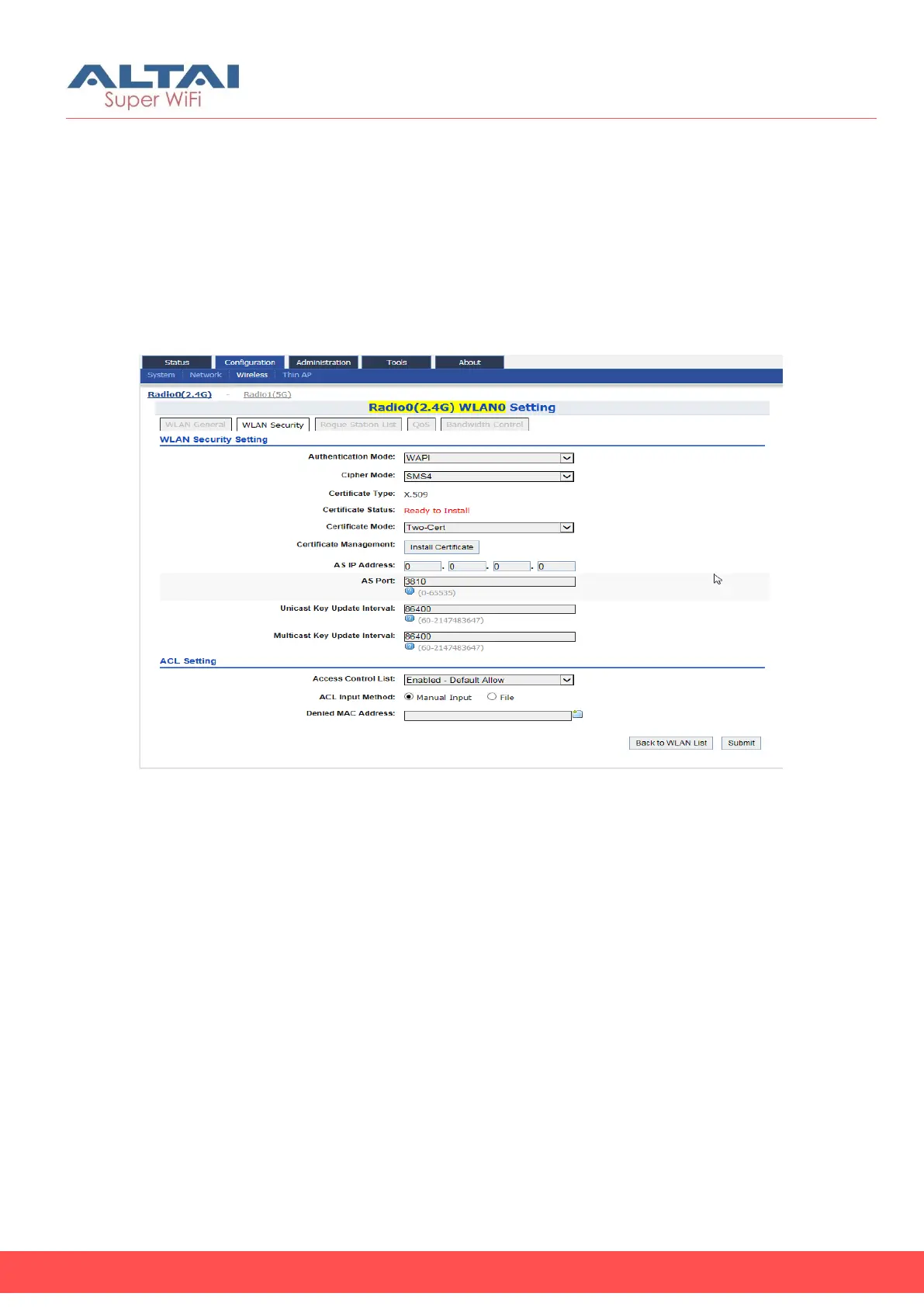
Figure 26 – WAPI Settings of AP
1. Go to Configuration > Wireless > Radio0(2.4G) > WLAN > WLAN 0-15
> WLAN Security
2. Select WAPI in Authentication Mode
3. Select SMS4 in Cipher Mode
4. Select suitable option in Certificate Mode:
Two-Cert – Wi-Fi client is verified by the certification from
authentication server (AS) and Access Point (AP)
Three-Cert - Wi-Fi client is verified by the certification from
authentication server (AS), access point (AP), and certificate
authority (CA)
5. Click Install Certificate; a window for installing certificate is shown
(see Figure 27 and Figure 28)


 To Next Page