30
Altai A8n (ac) Series Super WiFi Base Station
Configuration Guide
Altai Technologies Ltd. All rights reserved
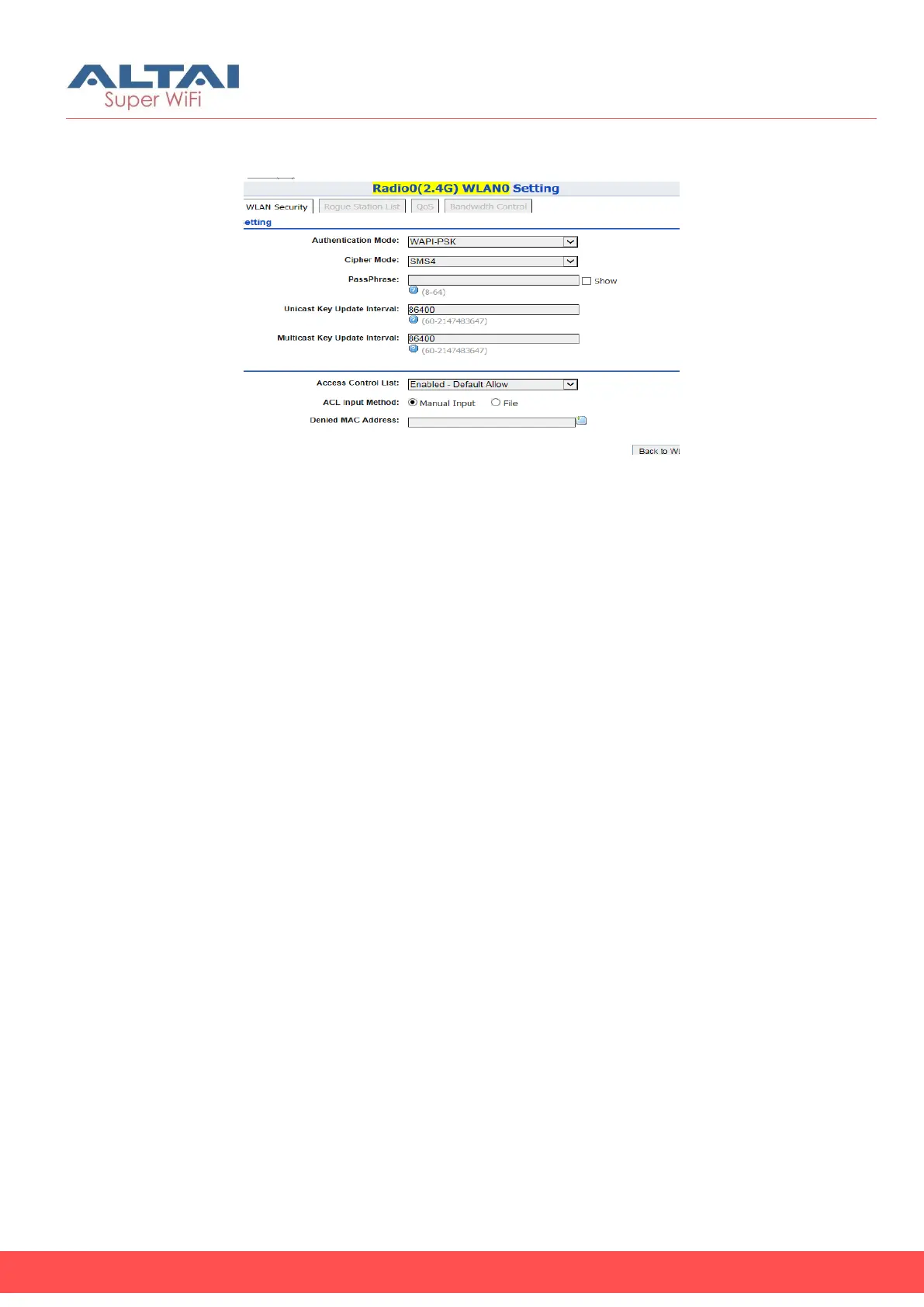
Configure WLAN with WAPI-PSK Authentication
Figure 29 – WAPI-PSK Setting of AP
1. Go to Configuration > Wireless > Radio0(2.4G) > WLAN > WLAN 0-15
> WLAN Security
2. Select WAPI in Authentication Mode
3. Select SMS4 in Cipher Mode
4. Type in a string between 8 and 64 characters long in Pass Phrase
that users will use to connect to the wireless network.
5. Enter interval time between 60 and 2147483647s in Unicast Key
Update Interval [Optional]; 86400 is default setting
6. Enter interval time between 60 and 2147483647s in Multicast Key
Update Interval [Optional]; 86400 is default setting
7. Click Submit
8. Click Save & Apply


 To Next Page