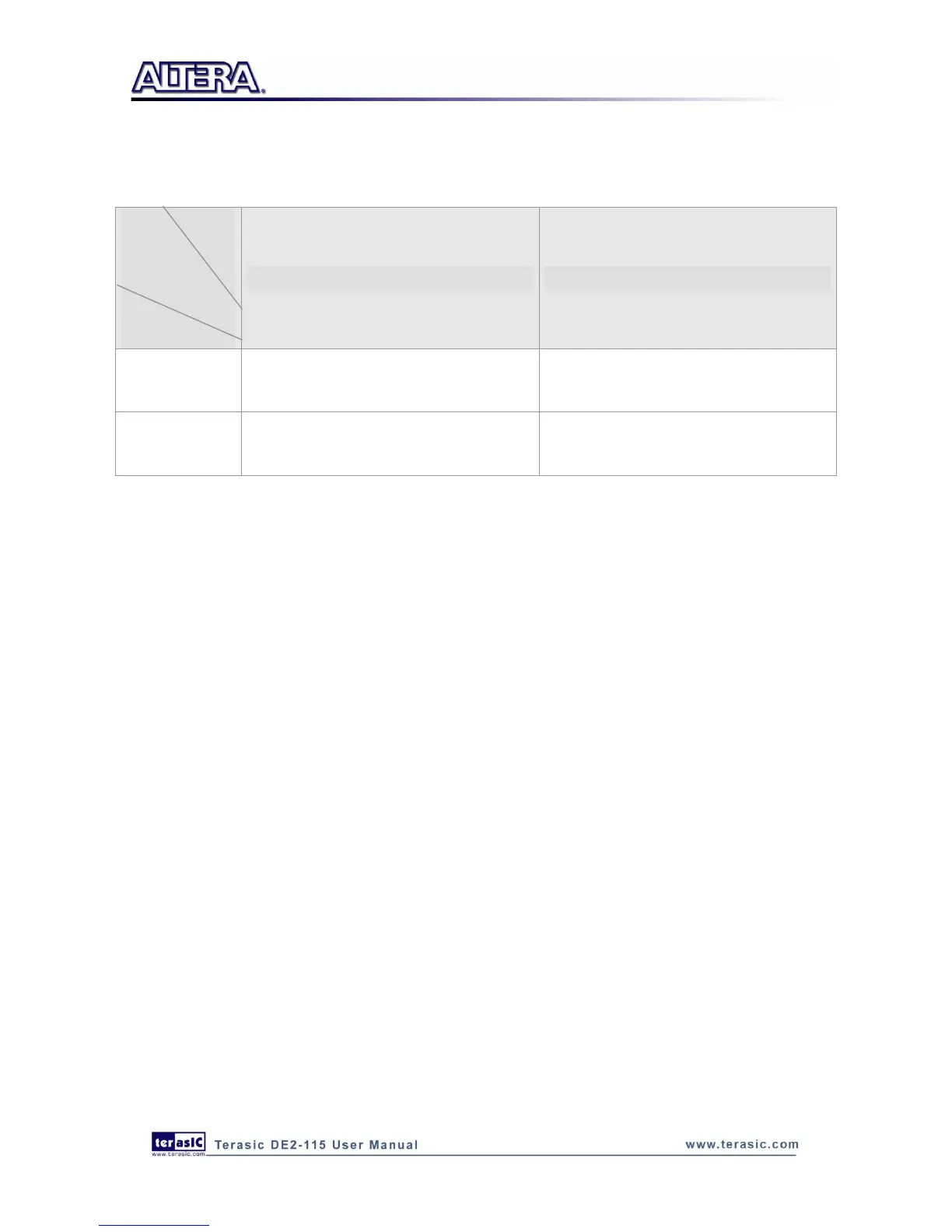
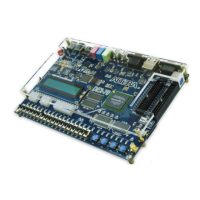
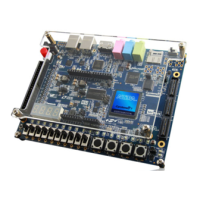
Ethernet 1 respectively. Table 6-9 shows the project name of web server demonstration for each
Ethernet Port and working mode.
Table 6-9 Demo Directory Paths
Demonstration Setup, File Locations, and Instructions
The Following steps describe how to setup a Web Server demonstration on the ENET0 in RGMII
mode.
Project directory: DE2_115_Web_Server\ DE2_115_WEB_SERVER_RGMII_ENET0
Nios II Project workspace: Project directory\software
Bit stream used: DE2_115_WEB_SERVER.sof
Web site content zip file: ro_zipfs.zip
Make sure the PHY device is working on RGMII mode (Short pin 1 and pin 2 of JP1)
Launch Quartus II and download the web server demo bit stream into FPGA
Launch Nios II IDE and open the Nios II Project workspace
Download the web site content zip file into FLASH memory using the Flash Programmer in
Nios II IDE
Plug a CAT 5e cable into the Ethernet port (J4) on the DE2-115 board
Select „Run->Run as Nios II Hardware‟ in Nios II IDE window to run this project (note *)
Once the LCD on DE2-115 board shows the valid IP address got from Gateway, then launch
your web browser
Input the IP into your browser. (IP is shown on the LCD display)
You will see the brand new DE2-115 webpage on your computer
On the web page, you could access the DE2-115 board‟s peripherals from the left sidebar or link
to external pages from the right sidebar. Try check some LEDs on the left sidebar and then press
send will light up the specified LEDs on board. You also could send text to the LCD or set the
value for 7-segment displays on DE2-115 board. Figure 6-35 gives a snapshot of the web server
page


 To Next Page