205
Safety Precautions
AQUOS zero2
Display (Touchscreen)
Handset Display is Touchscreen.
If Display is wet, wipe it with a soft cloth.
・Touchscreen may not respond in these situations:
・Use with gloves/long fingernails
・Use of pens, pencils or sharp objects
・Use with objects on/against Display
・Use while wet
・To prevent malfunctions, do not:
・Touch Display with wet fingers
・Use if Display is wet
・Subject Display to force/pressure
・Place a sticker or shield (commercially-available protective
film, privacy protector shield, etc.) on Display
・In the following cases, Press Power Key to turn off Display,
Press Power Key again to turn on Display and then operate
handset.
・Handset operates automatically without touch input
・Handset does not respond to touch input
SIM Removal Tool
・Do not insert SIM Removal Tool in hole other than removal
hole in Card Tray.
May cause malfunction or damage.
・Do not apply excessive force.
May cause malfunction or damage.
・Follow local rules regarding collection when disposing.
・Do not use SIM Removal Tool for any purpose other than
described in this guide.
May cause malfunction or damage.
・Do not use SIM Removal Tool in other mobile terminals.
May cause malfunction or damage to mobile terminal.
Earphones
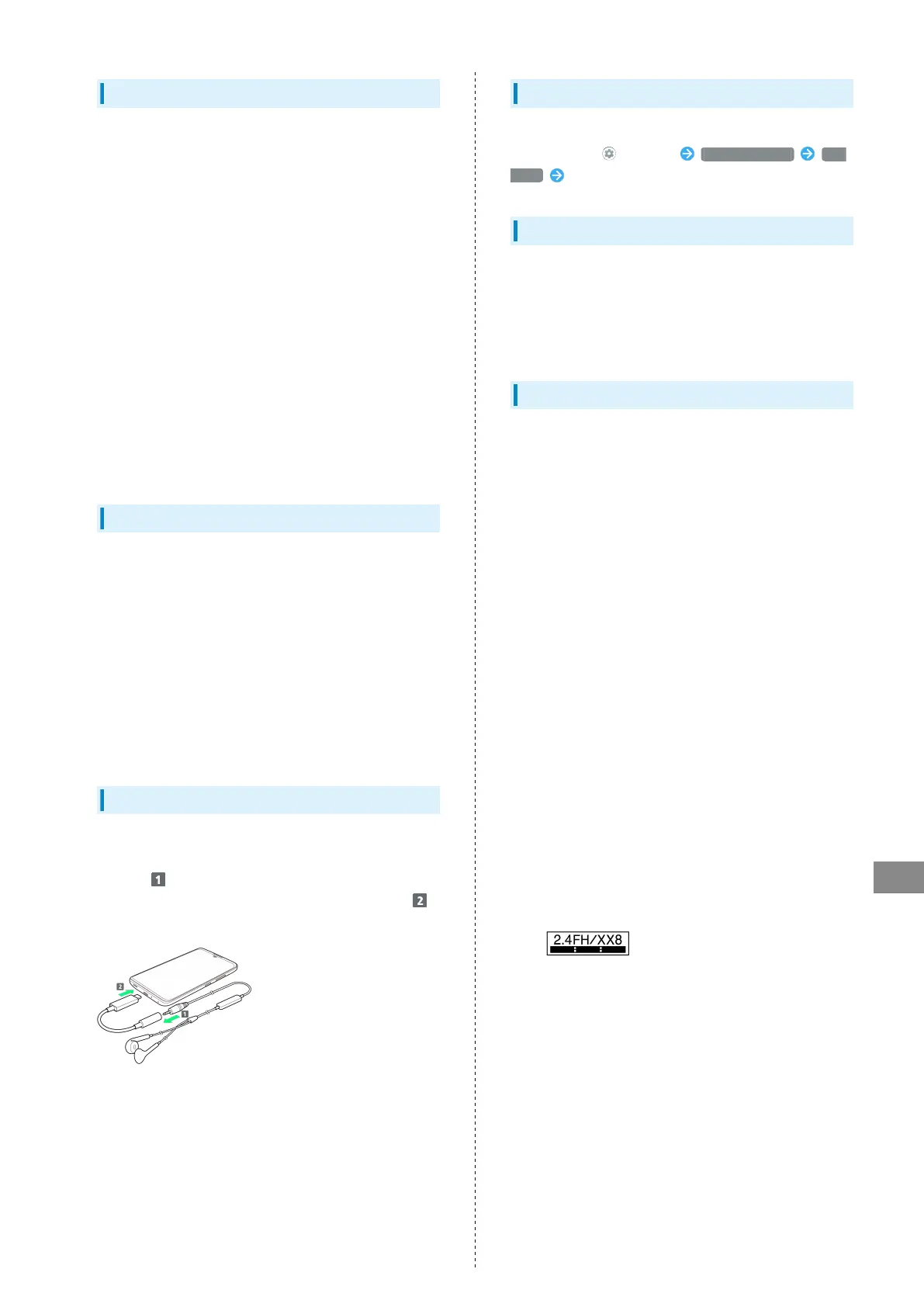
To use stereo earphones with mic (commercially available),
connect to Earphones-Microphone Jack on 3.5mm Earphones
Adapter ( ), and connect USB Type-C connector of 3.5mm
Earphones Adapter to handset External Connection Jack ( ).
・Some earphones-microphones may not work properly.
・Insert plug firmly. Not inserting completely may prevent
sound from being audible.
・As connection may be poor if Jack is dirty, clean with a dry
cotton swab, etc. Avoid damaging Jack when cleaning.
・Do not deform 3.5mm Earphones Adapter connector
or Earphones-Microphone Jack. Deforming may cause
malfunction.
・Subjecting External Connection Jack to force while 3.5mm
Earphones Adapter is connected may affect water and dust
resistance.
Self Check
If handset is unstable, diagnose the cause as follows.
In Home Screen, (Settings) Troubleshooting Self
check Follow onscreen prompts
Forcing Power Off
If handset has stopped processing or won't respond to
operation, power off forcibly as follows.
Power Key (Long Press for at least 8 seconds)
・Display goes out and handset powers off.
Bluetooth
®
Function
SoftBank Corp. is not liable for any damages resulting from
data/information leakage due to use of handset Bluetooth
®
function.
■Precautions
The frequency band utilized by handset Bluetooth
®
function
is shared with industrial, scientific or medical equipment,
including household microwave ovens, and used by radio
stations, amateur radio stations, etc. (hereafter "other radio
stations").
1. Before using Bluetooth
®
, visually check that no other radio
stations sharing the same frequency band are in use nearby.
2. Should interference occur between handset and other radio
stations, move it to a different location or cancel Bluetooth
®
function immediately.
3. For additional information and support, contact Customer
Service.
・Frequency Band
This radio station utilizes 2.4 GHz band.
FH:FH-SS modulation, with a maximum interference range of
about 80 m.
XX:Other modulation, with a maximum interference range of
about 80 m.
It is not possible for the radio station to avoid using the
frequency band of a mobile unit identification apparatus.



 To Next Page