20
Basic Operations
Selecting Options and Navigating
Screens
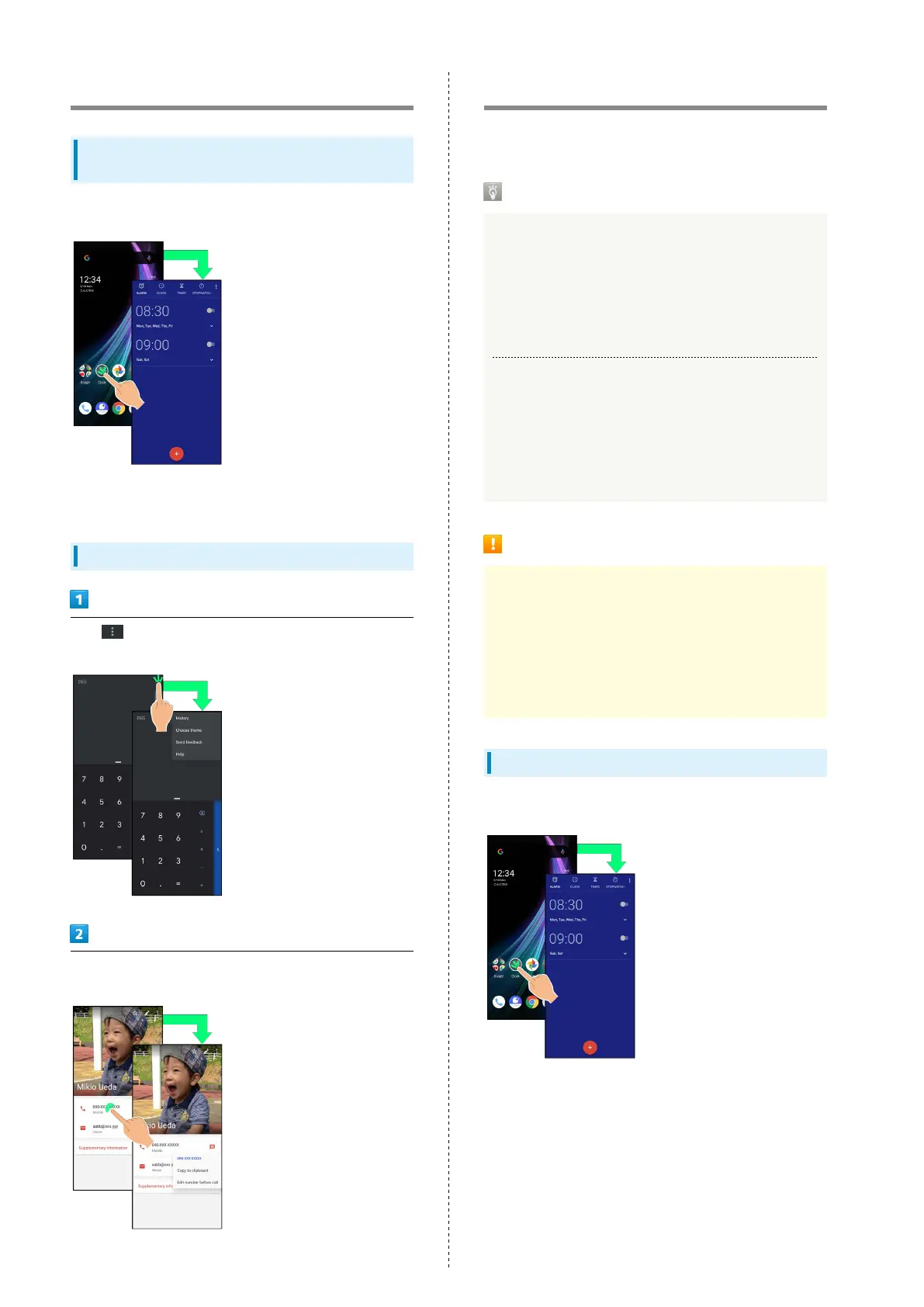
Tap items, icons, onscreen keys, etc. to open assigned items.
・To return to the previous screen, flick the edge of screen to
the left/right.
Menu Operations
Tap at Display top or bottom for available settings
and items.
Screens may also have settings and items that are available by
Touching & Holding Display.
Using Touchscreen
Handset uses a touchscreen-type Display. Operate with your
fingers on Display.
About Touchscreen
In Case of Unintended Operation
If handset initiates operation without Touchscreen
(Display) being operated or does not respond after
Touchscreen being operated, Press Power Key to turn off
Display, Press Power Key again to turn on Display and then
operate handset.
Touchscreen Usage Notes
Touchscreen may not respond in these situations:
・Use with gloves/long fingernails
・Use of pens, pencils or sharp objects
・Use with objects on/against Display
・Use while wet
Touchscreen Usage Cautions
To prevent malfunctions, do not:
・Touch Display with wet fingers
・Use if Display is wet
If Display is wet, wipe it with a soft cloth.
・Subject Display to force/pressure
・Place a sticker or shield (commercially-available
protective film, privacy protector shield, etc.) on Display
Tap
Contact Display lightly and briefly.



 To Next Page