32
Handset Screens
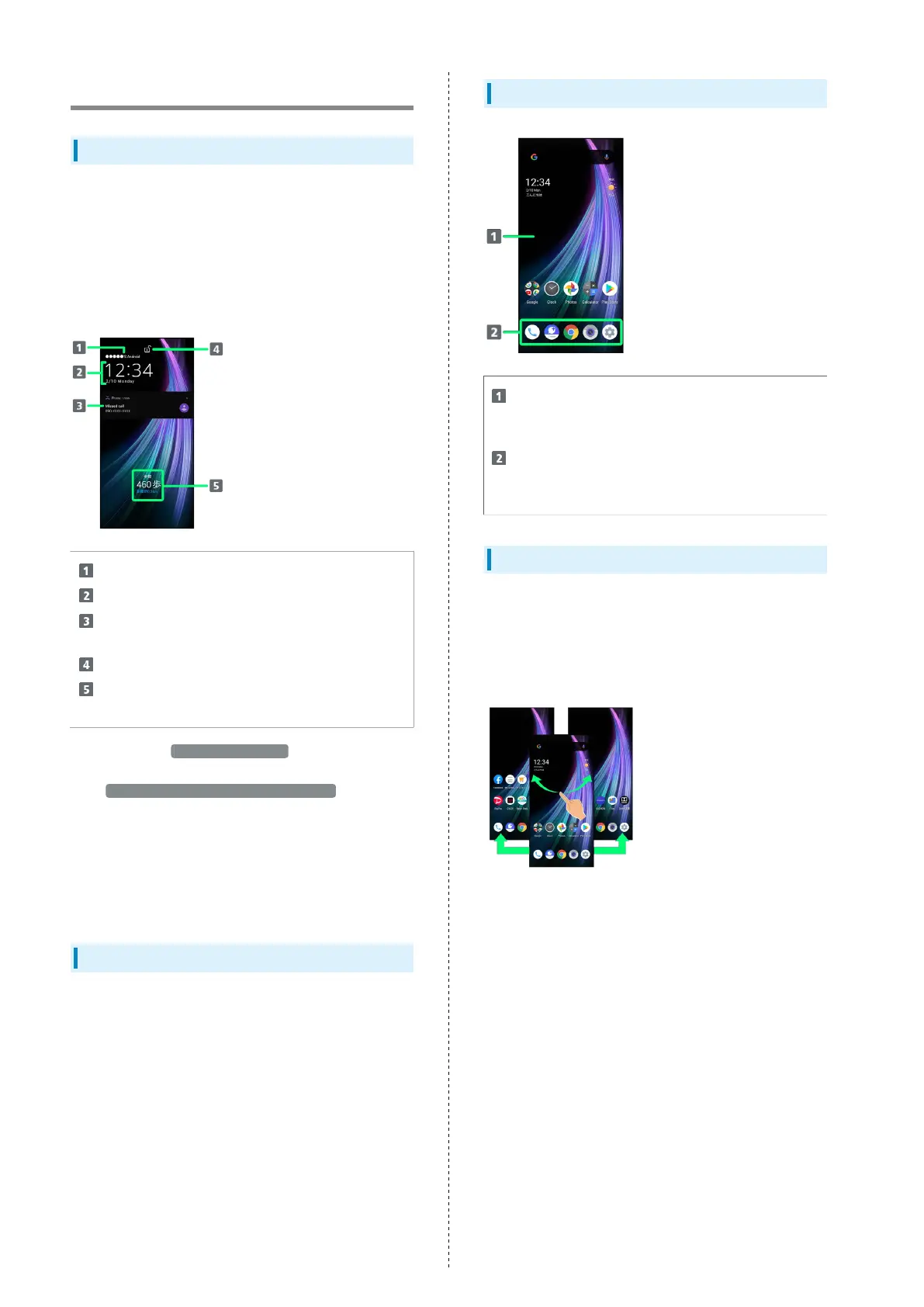
Lock Screen Layout
Lock screen appears at power on or when Power Key is
Pressed while Display is turned off (screen lock active).
From lock screen, unlock screen or quickly activate Google
Assistant.
By default, Wallpaper changes randomly each time lock screen
appears (Lock Photo Shuffle). Change Wallpaper for lock
screen as needed. See "Changing Wallpaper" for details.
Show message set for lock screen.
1
Time and date appear here.
Notifications of incoming calls/messages or from
applications, etc. appear here.
2
Display screen lock status
Messages and news from emopa appear here (emopa
area).
3
1 Appears when Lock screen message is set. See "Display
Settings" for details.
2 If Organize notifications on the lock screen is enabled,
a notification viewed the first time does not appear
the second and subsequent times. See "Applications &
Notifications" for details.
3 Appear when emopa is configured. See "エモパーを利用する
(http://help.mb.softbank.jp/aquos-zero2/05-07-11.html)"
(Japanese) for details.
Home Screen & App List
Most handset operations start in Home Screen or in app
list. Flick Home Screen up to display app list and activate
applications or change handset settings (To change Home
Screen, switch to another home screen app.)
Home Screen Layout
Desktop sheet
Place application shortcuts, folders, widgets freely.
Flick left/right to toggle sheets.
Favorites Tray
Place application shortcuts and folders freely. Activate
applications quickly from any Home Screen sheet.
Toggling Home Screen Sheets
Home Screen consists of several sheets.
Flick left/right to toggle Home Screen sheets.
・Adding application shortcuts and widgets in Home Screen
adds more Home Screen sheets. See "Adding Shortcuts" and
"Adding Widgets" for details.



 To Next Page