33
Handset Interface
AQUOS zero2
Navigation Bar
Tap, Drag, or Flick icons on Navigation Bar (Display bottom)
for the following functions/operations.
Name Description
1
(Back
key)
Tap to return to previous screen. Appears
as
1
/
2
for onscreen keyboard;
Tap to close keyboard.
2
(Home
key)
Flick up to return to Home Screen. Drag
up to display the list of recently used
applications and activate or delete
them from the list. Flick to the right to
activate a recently used application.
1
(Home
key)
Tap to return to Home Screen.
1
(Recents
key)
Tap to open a list of recently used
applications to activate or remove them
from the list.
3
(Rotate
Horizontally
key)/
3
(Rotate
Vertically key)
Tap to switch current screen between
portrait/landscape orientation.
4
(Keyboard
key)
Tap to change keyboards.
5
(Menu
key)
Tap to show menu.
1 Appears when 3-button navigation is enabled. See
"System Settings" for details.
2 Appears when Gesture navigation is enabled. See
"System Settings" for details.
3 Appears when Auto-rotate screen is disabled and
handset is rotated vertically/horizontally. See "Quick
Settings Window Layout," "Display Settings," and
"Accessibility" for details.
4 Appears when keyboard is open.
5 Appears for some applications.
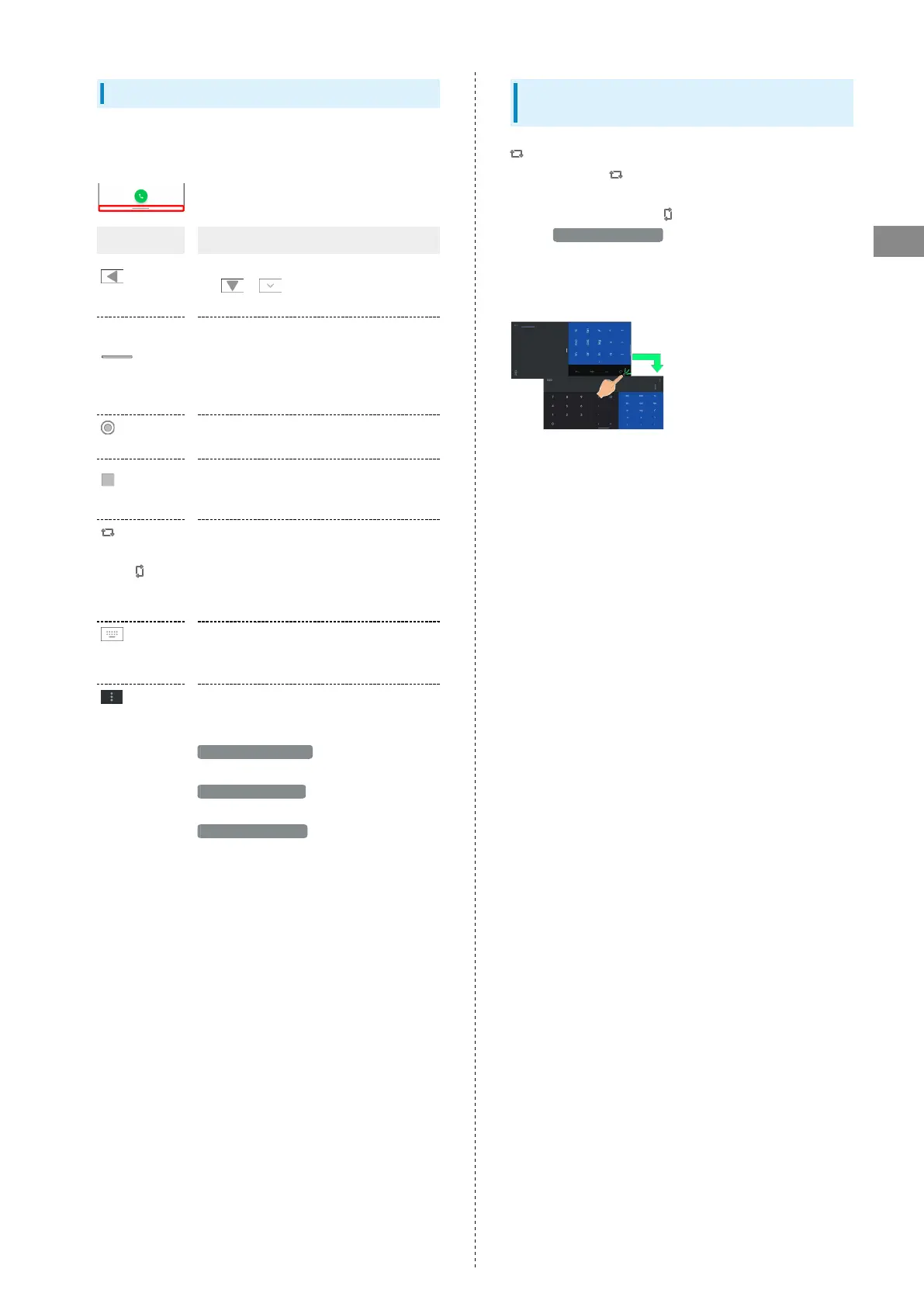
Portrait Orientation & Landscape
Orientation
appears in Navigation Bar when handset is rotated
horizontally. Tap to switch current screen to landscape
orientation. To switch screen to portrait orientation, rotate
handset vertically and Tap .
Enable Auto-rotate screen to allow current screen to
switch to landscape orientation when handset is rotated
sideways. See "Quick Settings Window Layout," "Display
Settings," and "Accessibility" for details.



 To Next Page