24
Using Airplane Mode
Leaving power on, suspend signal-transmitting functions.
Activating Airplane Mode
Drag Status Bar down
Notifications Window opens.
Airplane mode activates.
Canceling Airplane Mode
From Notifications Window,
Airplane Mode Caution
Activating Airplane mode disables Wi-Fi and Bluetooth
®
,
interrupting corresponding transmissions.
Wi-Fi/Bluetooth
®
connections can be used even in
Airplane mode by enabling Wi-Fi/Bluetooth
®
after
activating Airplane mode; make sure that such connection/
transmission is allowed in your current location before use.
Text Entry
Keyboards
Use onscreen keyboards for text entry.
・
Tap Text entry field for keyboard. To hide it, Tap .
・Text entry descriptions are for Google Keyboard (default
input method).
Enabling One-Handed Mode
Shrink onscreen keyboard for easier one-handed operation;
switch between Left-handed mode and Right-handed mode
as needed.
When keyboard is open, Touch & Hold / and slide
finger over /
・
Tap / to switch between Right-handed mode and
Left-handed mode.
・
Tap to disable One-handed mode.
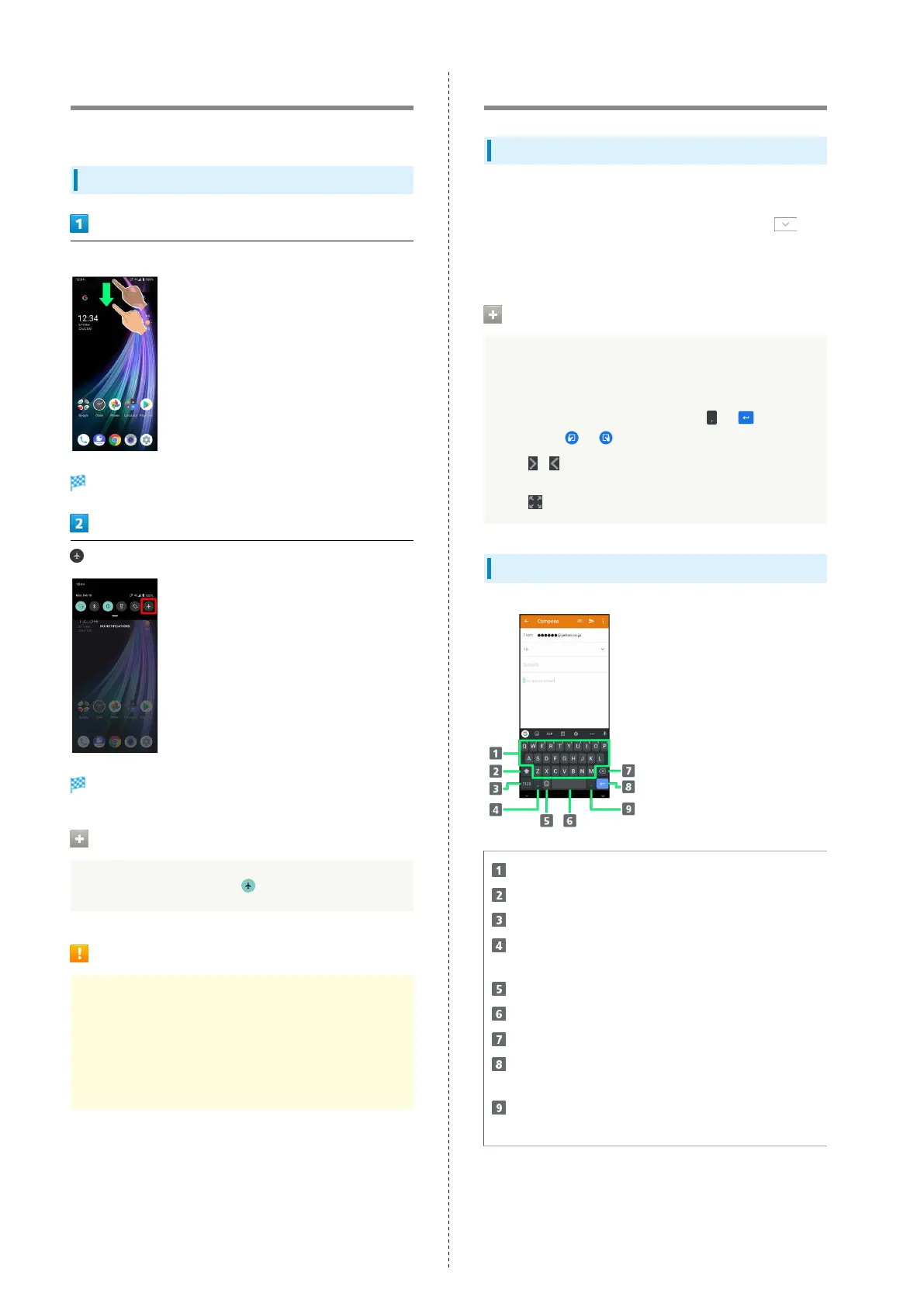
Keyboard Layout
Enter characters.
Toggle case.
Switch to number/symbol keyboard.
Enter comma. Touch & Hold to specify settings or
enable One-handed mode.
Switch to emoji/emoticon keyboard.
Enter space.
Delete characters.
Insert line break. Touch & Hold for options; enable One-
handed mode, or move to other entry fields.
Enter period. Touch & Hold for a set of other
punctuation marks and symbols.



 To Next Page