96
Confirmation when First
Activating Applications
Set the operation of applications when activating for the
first time.
The type and content of a confirmation differ with the
application. The following explains two types of confirmation:
First things first and Battery optimization.
Setting Required Permissions for
Applications
Permit applications to use data on handset, Camera, etc.
Activating (Email) for the first time is described as an
example.
・An application may not function correctly if permission to
use it is not set.
Flick Home Screen up
(Tools) (Email)
・
If Privacy Policy window appears, Tap AGREE .
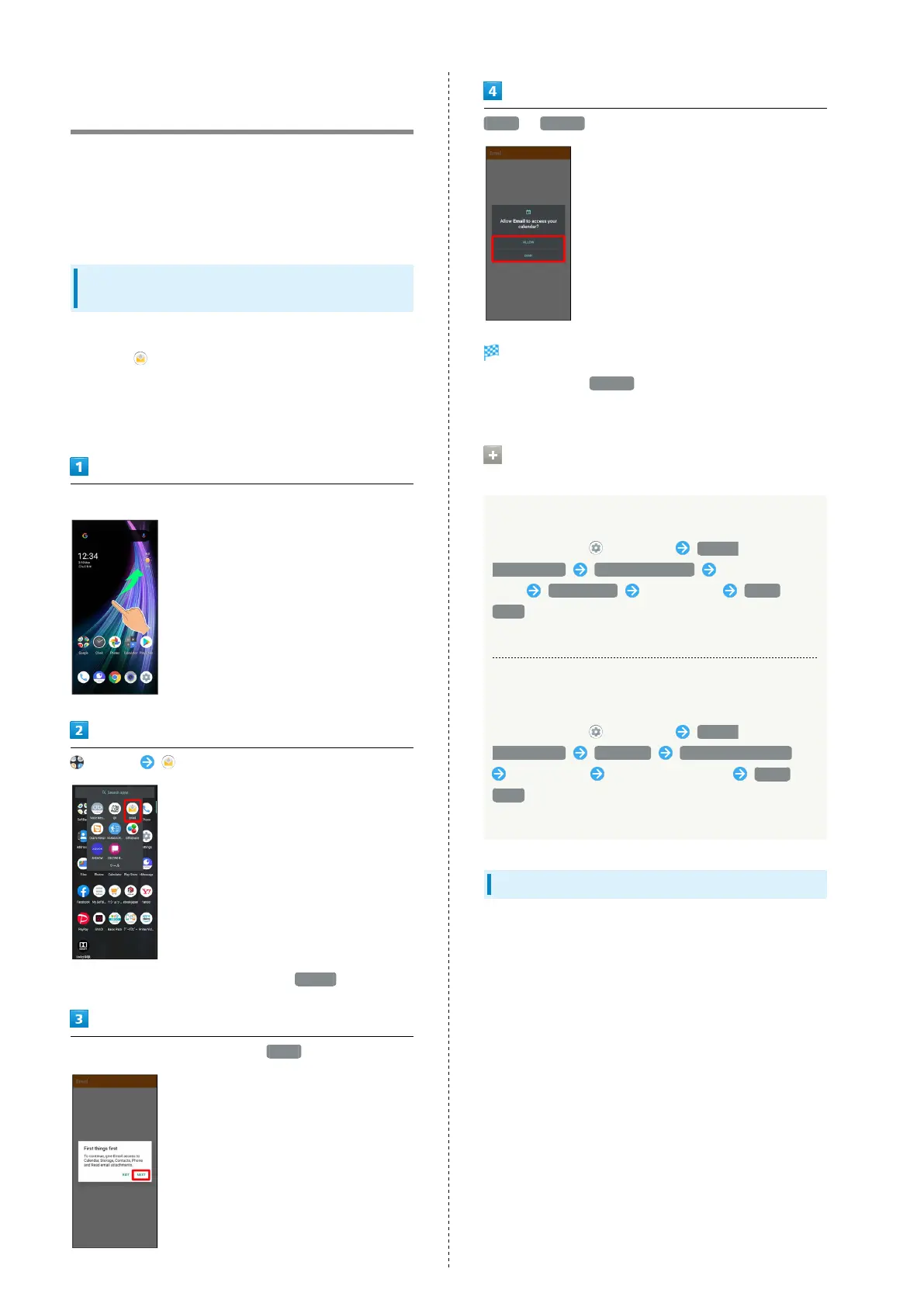
In First things first confirmation, NEXT
DENY / ALLOW
Setting is complete.
・
Normally, select ALLOW to permit usage of the function.
・For several functions, continue in the same way.
Other Ways to Set Required Permissions
for Applications
Setting Functions to Use by Application
In Home Screen, (Settings) Apps &
notifications SEE ALL XX APPS Tap application
name Permissions Tap function Allow /
Deny
・If confirmation appears, follow onscreen prompts.
Setting Applications with Permitted Usage by
Function
In Home Screen, (Settings) Apps &
notifications Advanced Permission manager
Tap function Tap application name Allow /
Deny
・If confirmation appears, follow onscreen prompts.
Setting Battery Optimization
Enable Battery optimization to prevent applications from
running while Display is turned off (except while charging).
・Confirmation for optimizing Battery appears when launching
or making settings for some applications. Normally, ignore
Battery optimization. Optimizing the Battery may cause
some applications to exit.
・If Battery optimization is enabled, applications are disabled
while Display is turned off (except while charging).
Applications/functions may become unusable or other
unintentional operation may occur.



 To Next Page