34
Multi-Window
Split screen to view and operate two applications.
Activate the two applications beforehand. Viewing and
operating (Address Book) and (Phone) is described as
an example.
・Viewing in Multi-Window is not available for some
applications.
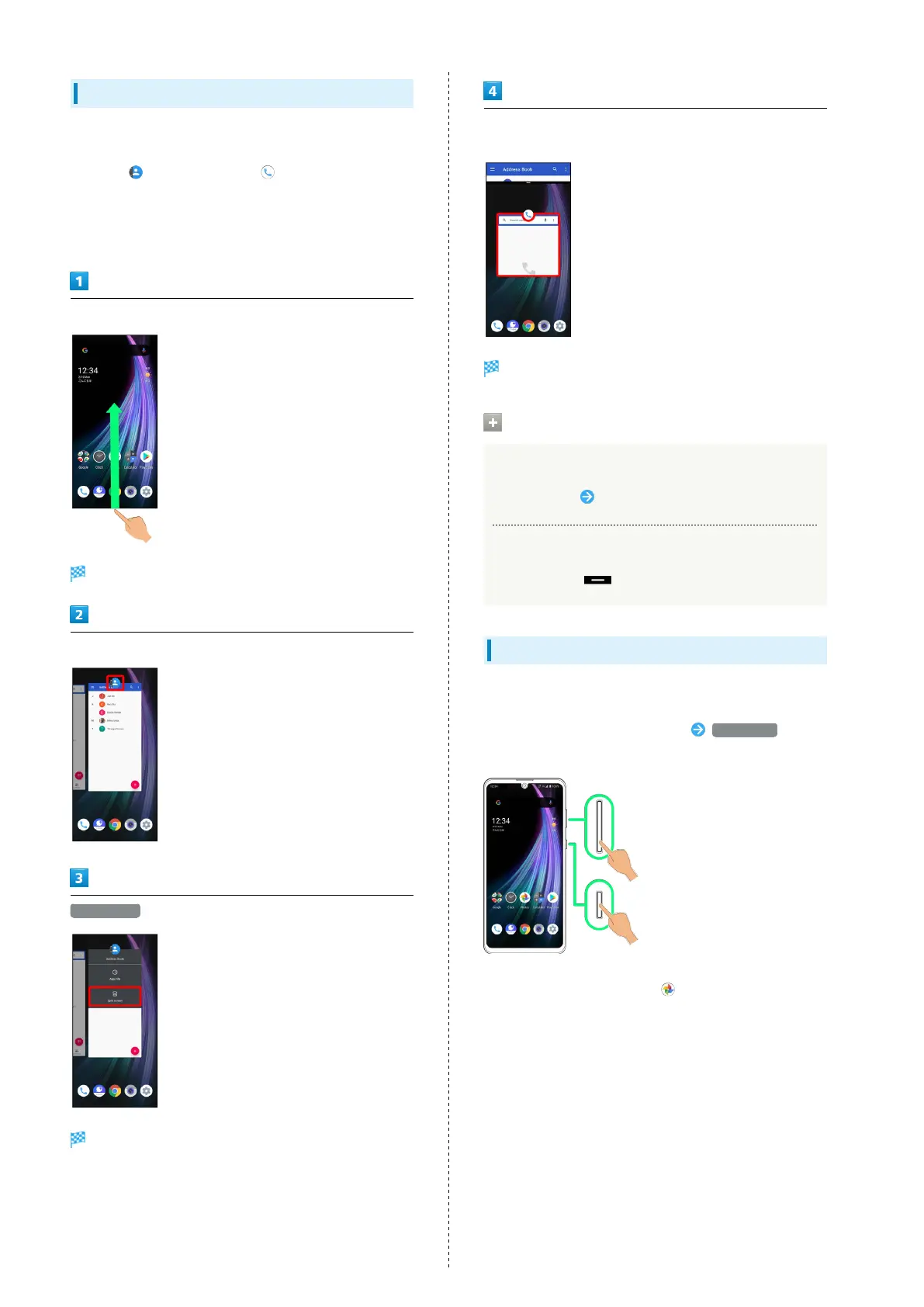
Drag screen up
Recent apps window opens.
Tap icon of application to use in history
Split screen
Multi-Window opens, and selected application opens at
top of Display.
From application history at bottom of Multi-Window, Tap next
application
Tapped application opens at bottom of Multi-Window.
Multi-Window Operations
Switching between Applications
Drag screen up Tap application
Exiting Multi-Window
Flick pane bar ( ) up/down
Capturing Screenshots
Long Press Power Key and Volume Down Key at the same time
to capture a screenshot of the current screen.
Long Press Power Key for 3+ seconds Screenshot to
capture a screenshot.
・May be unavailable for some applications.
・
View captured screenshots in (Photos), etc.
・Alternatively, use Clip Now and slide your finger along the
edge of Display to capture a screenshot. See "Capturing
Screenshots (Clip Now)" for details.



 To Next Page