3.4.3.2. Creating Macros
Click the Learn button in the Macro tab and you will see that the process works much like
MIDI assignments: Available destinations turn purple and ones already assigned turn red.
Click on a purple control onscreen and its name will appear on the list.
To remove a parameter from the Macro, control-click or right-click its name in the list and
select Delete. Parameters under Macro control have Min and Max values and may be scaled
by dragging up or down directly on the number, similarly to MIDI assignments. To reverse
the polarity of a parameter (i.e. it goes down when you turn the Macro knob up and vice-
versa), set the minimum value higher than the maximum.
♪ There are no rules for what to name a Macro or which parameters to put in it. You could name a
Macro after a favorite TV character and group a handful of unrelated parameters there. In practice it’s
probably better to keep things more descriptive.
3.4.3.3. Macro Curves
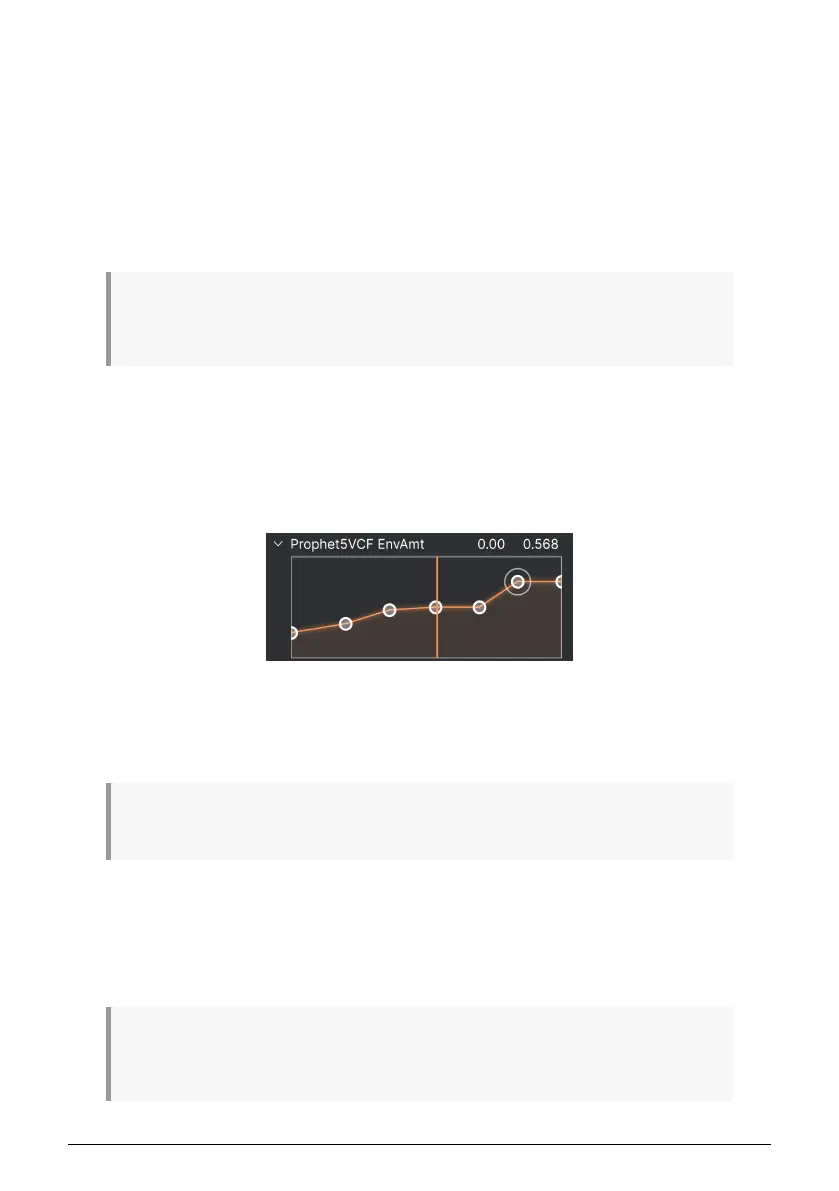
Beyond simple scaling, you can customize a curve that determines how each parameter
under the Macro’s control proceeds from its minimum to maximum value and back when
you turn the Macro knob. Click the > icon next to the parameter name to open the curve
window.
Click on the curve to add a “breakpoint,” represented by a small circle. You can then drag the
point and the curve segments between it and its nearest neighbors will change accordingly.
Right- or control-click on a point to remove it. The first and last breakpoints cannot be
removed.
♪ A simple diagonal line would produce a linear curve, but the potential fun here is to make things
non-linear.
3.4.4. Tutorials
In this tab, which can also be opened by selecting Tutorials from the Main Menu [p.14], you
can click on titles for the individual chapters, which in turn will take you through different
areas of Prophet-5 V in steps. The parts of the panel to focus on are highlighted as you go.
! If you’re editing a Preset, make sure to save it before opening the Tutorials because doing so will
load a new Preset and overwrite your changes. The Tutorials also take over the Side Panel space when
in use.
27 Arturia - User Manual Prophet-5 V - The User Interface



 To Next Page