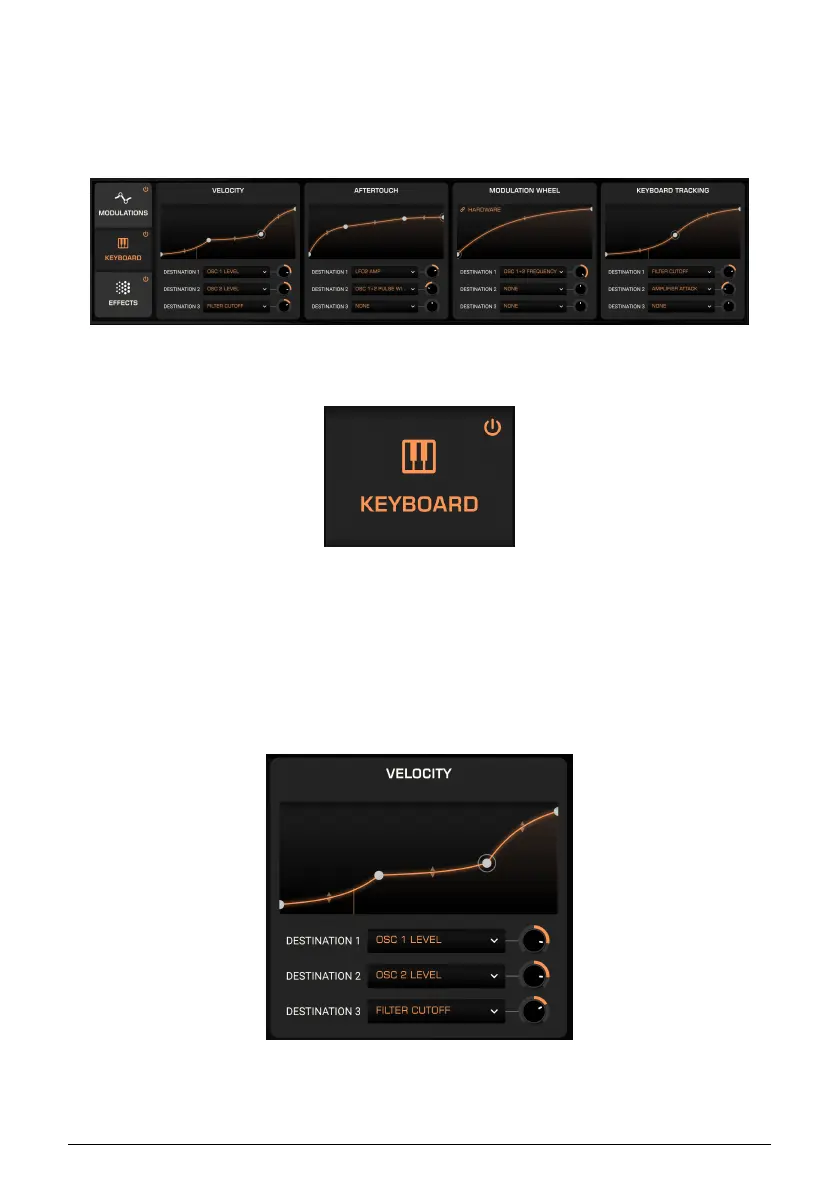
6.2. Keyboard Tab
The Vintage Prophet sensed neither velocity nor aftertouch. In Prophet-5 V, the Keyboard
Tab lets you map each of Velocity, Aftertouch, the Modulation Wheel, and Keyboard Tracking
to up to three destinations each. The goal is, as always, expressive playing that’s highly
customizable.
As with the Modulations Tab, the On/Off button to the left activates or bypasses all four
sources at once, without losing the assignments or settings within them.
In each pane, you can create a custom response curve for the source. The sources behave
identically with respect to this process and assignment to destinations, so we’ll take Velocity
as our main example and then explain the other sources’ relevant differences in their
sections.
6.2.1. Velocity
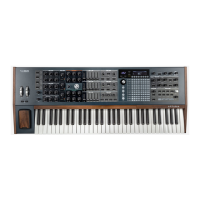
This pane assigns MIDI velocity to its chosen destination(s).
If you read about the Function [p.61], this will be familiar territory. Click anywhere on the
curve display to add a breakpoint, then drag on the “handles” in the middle of the line to
adjust its curve between two points.
Arturia - User Manual Prophet-5 V - Advanced Modulations 66



 To Next Page