4.8. Playlists
Playlists are a way to collect Presets into different groups for different purposes, such
as a set list for a particular performance or a batch of Presets related to a particular
studio project. Within a Playlist, Presets can be reordered and grouped into Songs, a handy
addition to a set list.
The My Playlists subheading appears under My Favorites in the Sidebar. However, when
you first start using Prophet-5 V, you'll have no Playlists yet, and the My Playlists
subheading won't be there yet. To make it appear, you'll have to create your first Playlist.
4.8.1. Create your first Playlist
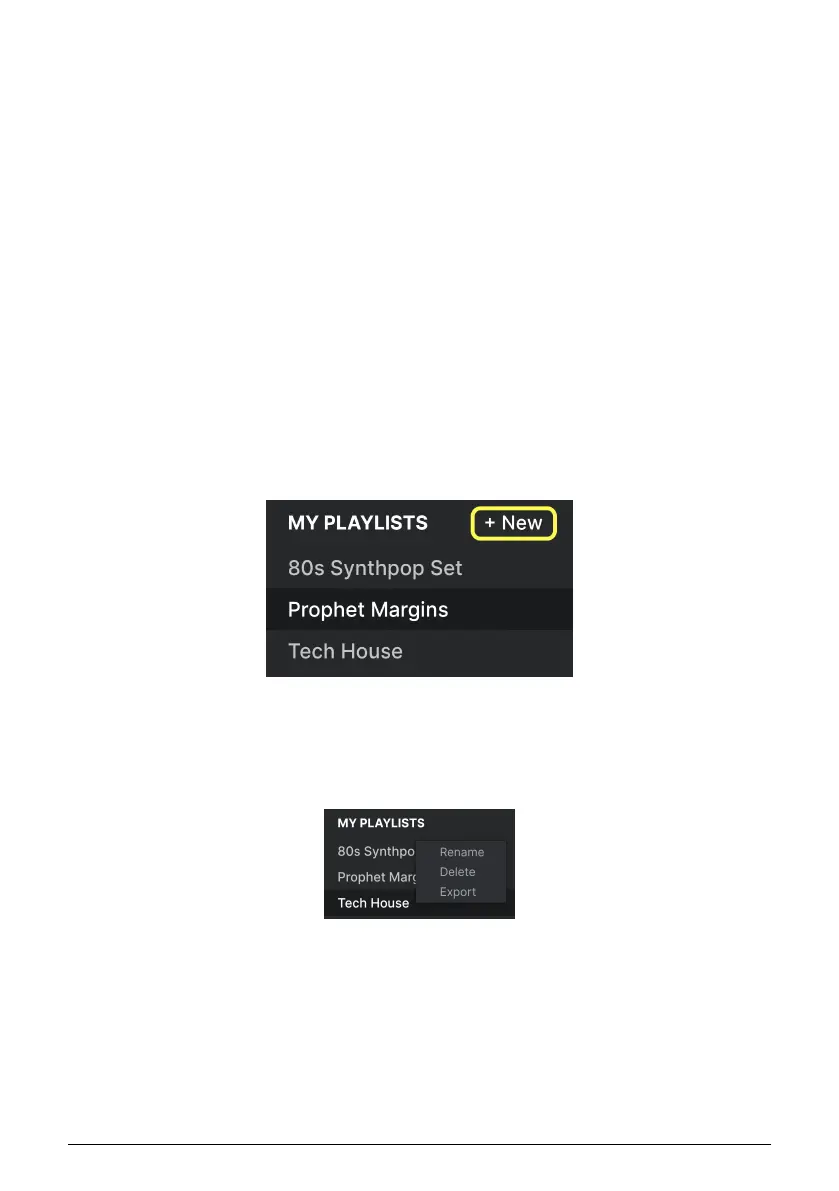
To get started, drag any Preset to the Sidebar. The My Playlists heading will appear, along
with a + New icon. Drop the Preset onto the + New icon, and you will then be given a pop-up
to name your first Playlist. Once you've created one Playlist, the My Playlists heading will
become a permanent part of the Sidebar.
4.8.2. Add a Playlist
To add a Playlist, hover your mouse over the My Playlists heading and click the + New icon
when it appears.
Give the Playlist a name and it will appear in the Playlists menu in the Sidebar.
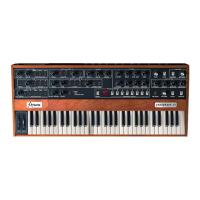
Once you've created some Playlists, right-clicking on a Playlist name will pop up a set of
options – you can Rename, Delete, or Export the Playlist to your computer, as a file with the
.aplist extension.
39 Arturia - User Manual Prophet-5 V - The Preset Browser



 To Next Page