4.3. Search Results window
Click the Show Results button if you cannot already see your list of results. Click the sort
arrow to reverse the alphabetical order of any column.
4.3.1. Sorting the Preset Order
Click the NAME header in first column of the Results list to sort Presets in ascending or
descending alphabetical order.
Click the TYPE header in the second column to do the same thing by Type.
Click the Arturia logo to the left of TYPE to bring factory-featured Presets to the top of the
list. These will appear just under any Presets you have liked [p.33].
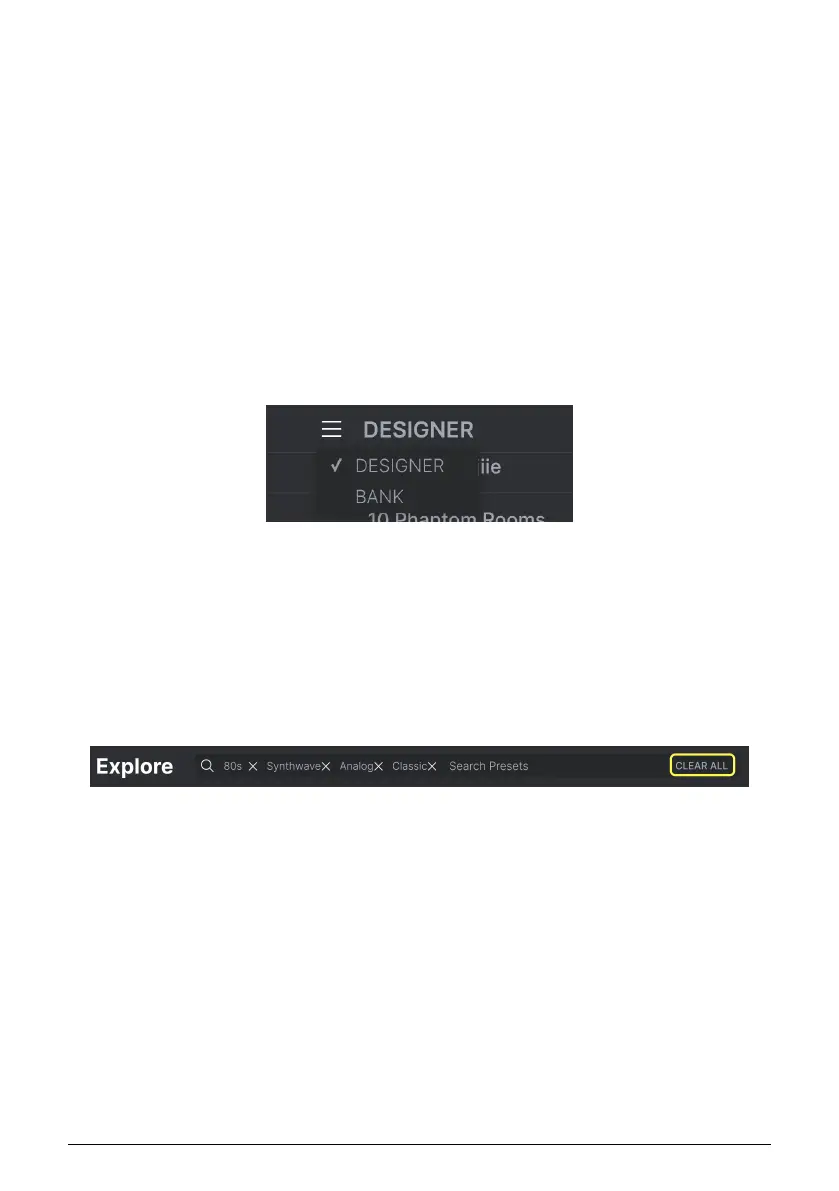
The third column has two header options: DESIGNER and BANK. Click the icon with three
lines to choose between the two. Then click either header name as with the other two
columns to switch the alphabetical order.
Click the ♥ to sort by liked presets.
Click the two intertwined arrows to sort presets at random.
4.3.2. Clearing Tags
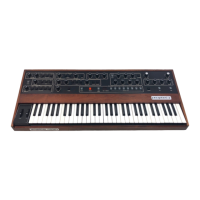
Just above the Types, Styles, and Banks buttons, you will see labels for all the active tags in
a search. Click the X next to any one to remove it (and thus broaden the results). Click Clear
ALL to remove all tags.
Arturia - User Manual Prophet-5 V - The Preset Browser 32



 To Next Page