SECTION 3
OPERATING THE ASTROJET M1
30
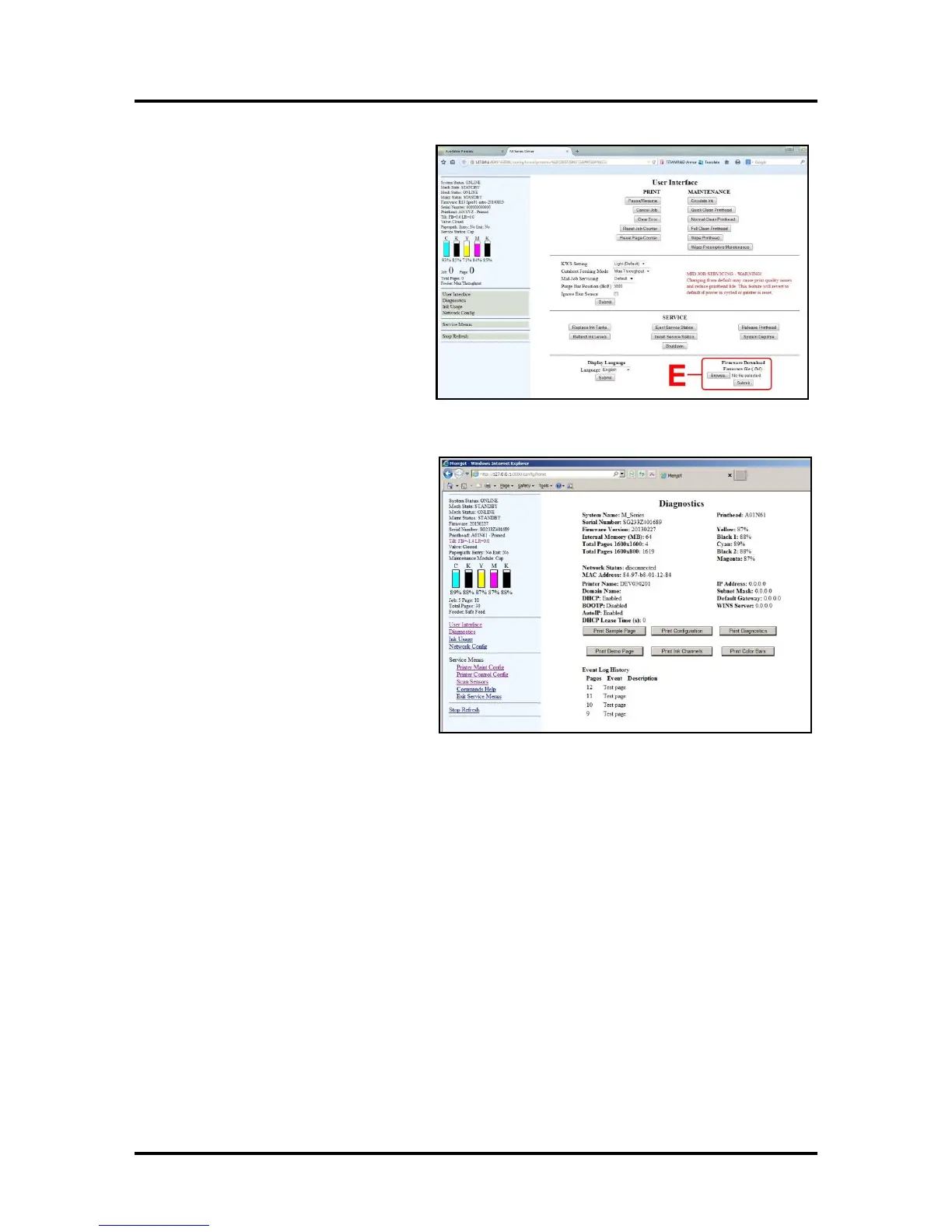
[E] Firmware Download – Get the latest
version of firmware for your Printer.
NOTE: This is an alternative method for
downloading the firmware. See “Updating
Firmware” for the recommended
procedure.
WARNING: This procedure should only be
performed by qualified service personnel.
In some cases firmware must be loaded
using the “Firmware Migration Tool”. If this
process is not performed properly, Printer is
rendered inoperable.
Diagnostics
From this screen you can see the current
status of your Printer. You can also:
Print Sample Page – Prints type and color
bands to check print quality.
Print Configuration Page – Displays the
current configuration of the Printer including
Firmware Version, Network Connection,
Printer Serial Number and more.
Print Diagnostic Page – Displays basic
Printer information, memory, Network
Settings, Event Log and RAM partitions.
Print Demo Page – Prints a 4-color sheet.
Print Ink Channels – Prints 5 bars (1 bar
from each ink tank) to indicate how well the
Printhead Nozzles are working.
NOTE: This function can also be accessed by pressing the “Print Ink Channels” button on the right
side of the Print Engine.
Print Color Bars Page – Prints a series of 7 color bars to indicate how well the Printhead is mixing colors
and printing.


 To Next Page