85
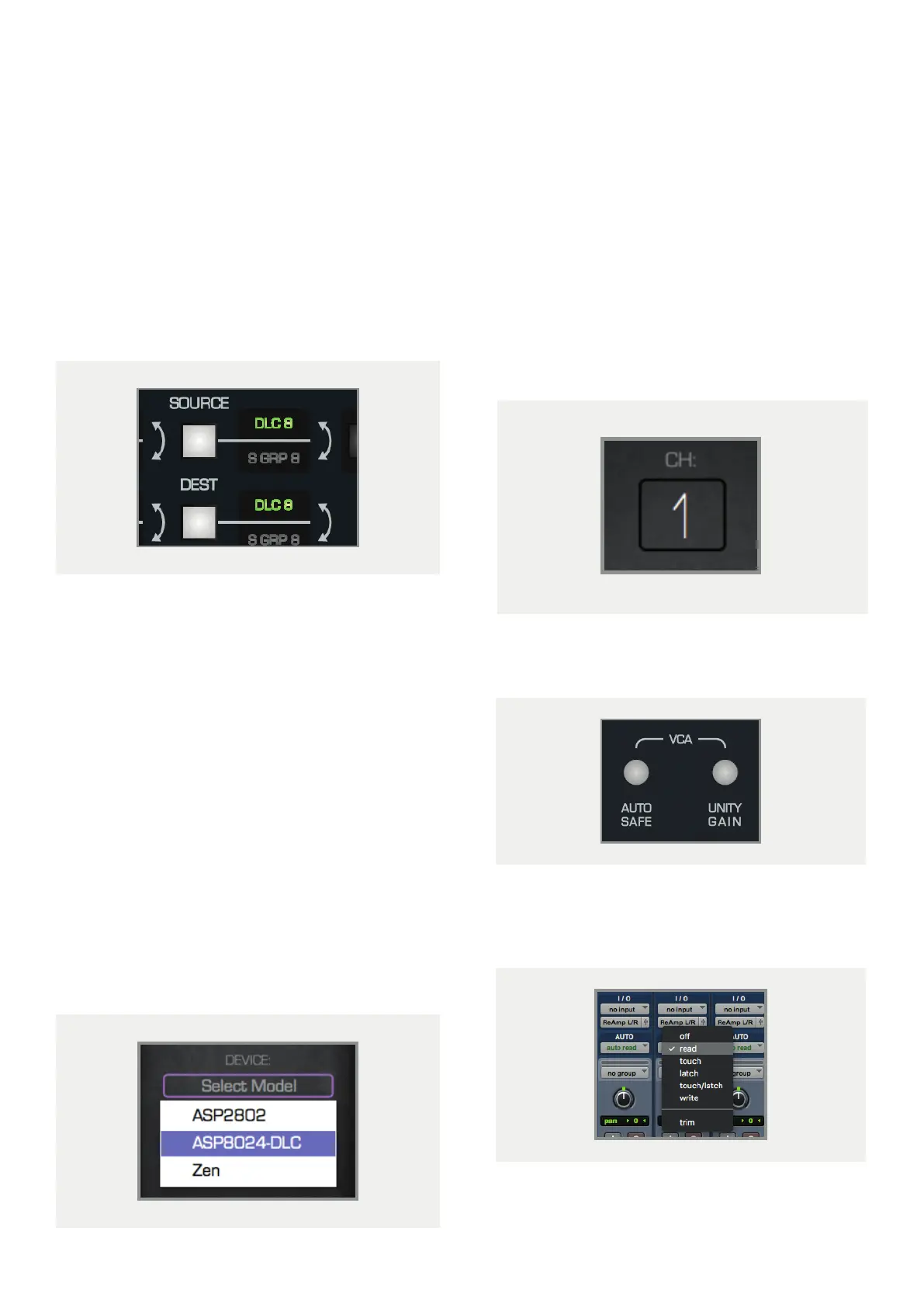
1 Set the desired audio routing using the Source and
Dest buttons.
2 In your DAW, add a Faderlink Plugin instance to any
track. This can be a track with or without regions
present. If automating a group from your DAW
or an individual track, it would make sense to put
the Faderlink plugin on those tracks to keep things
organised. Alternatively a single track could be
created with eight instances of Faderlink, so that all
automation data is contained on the same track.
3 Set the Device to ASP8024-DLC and ensure that the
MIDI In and Out have automatically set to ASP8024-
DLC Automation.
4 Set the channel number to the VCA fader you want
to control on the DLC module, and name the channel
by double clicking on the Scribble Strip and typing
the name.
4 Set the channel number to the VCA fader you
want to control on the DLC module, and name the
channel by double clicking on the Scribble Strip
and typing the name.
5 Ensure that Auto Safe and Unity are disengaged
on the channel.
6 For the DAW track that contains the Faderlink
plugin(s), set the automation mode appropriately
(e.g. Touch, Latch or Write).
7 Begin playback and ride the fader (and cut) to
write the automation.
Analogue Automation
For analogue automation functionality, first ensure the DLC has the Analogue Automation Mode
set to Faderlink in the first page of the Setup Menu, then follow these instructions for each DLC
channel you want to automate:



 To Next Page