20
Axess Pro Series 3000 Owner Installation Instructions
17. Time Clock
NOTE: The most recent program that applies to an output remains
active until a new program takes effect.
NOTE: If a Time Clock program does not have a day selected then
it can not be executed. If a Time Clock program is taking control
of the opener, then this status is displayed on the LCD. The MAIN
SCREEN and clock status screen flashes alternatively.
The opener provides a programmable time clock which can be
used to control the Axess
®
Pro Series 3000 on a timed basis at
various times of the week. This section details the time clock
operation and configuration.
17.1 Time Clock Operation
The time clock consists of a 7 day clock and storage for 32
programs. The clock is powered by its own battery and therefore
does not lose time when the Axess
®
Pro Series 3000 is turned off.
Each time clock program defines the time of the day and the days
of the week it is to run and the output function to be executed. Any
combination of the days of the week can be selected.
17.2 Time Clock Settings
The Time Clock settings are accessed by selecting the Time Clock
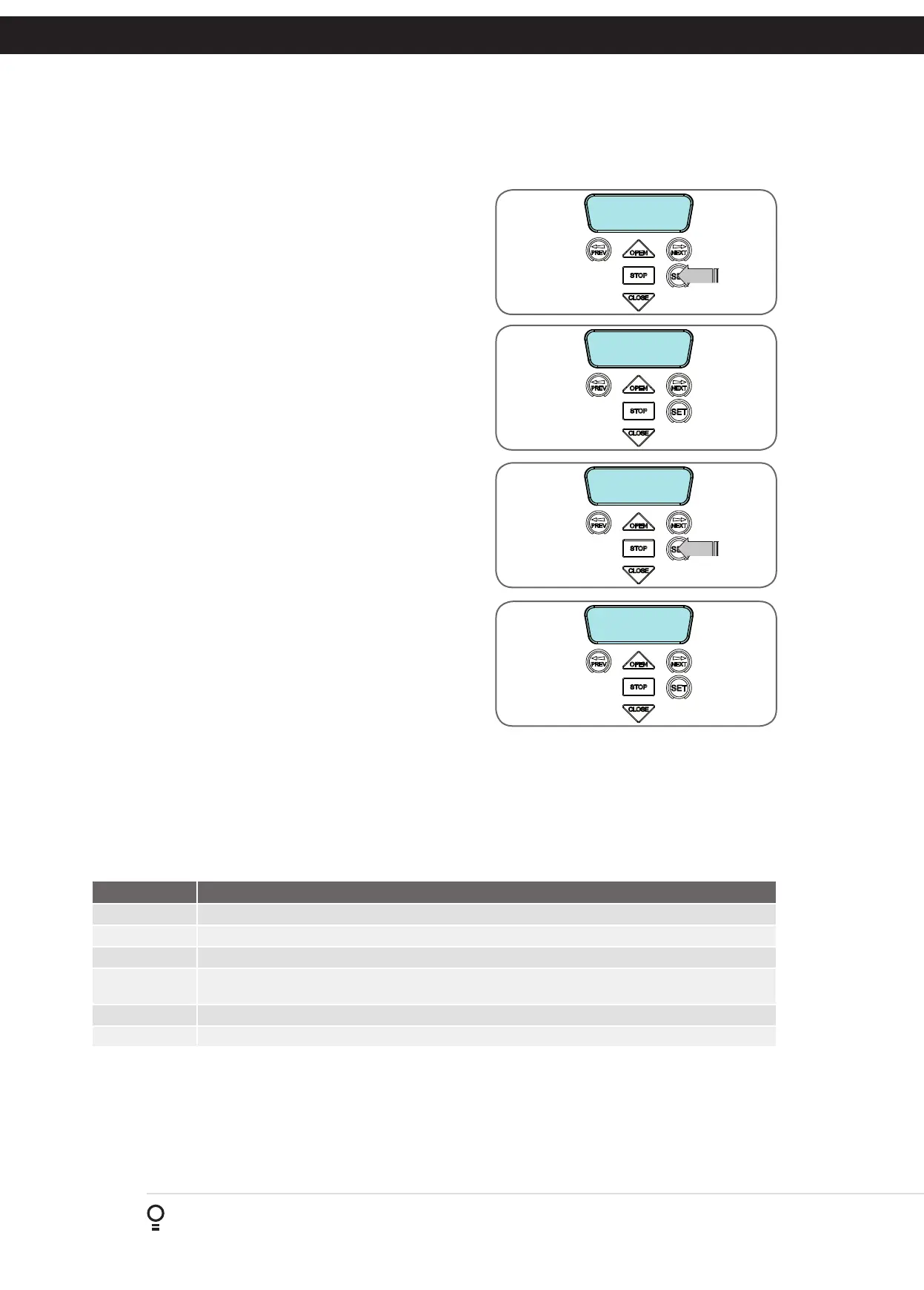
menu (MENU 7). Press SET (Fig. 17.1) to enter the menu and then
PREV or NEXT to navigate through the options.
Menu 7.1 Set Time/date
This is where the current time, date and day are displayed and set
(Fig. 17.2).
NOTE: The time is in a 24 hour format and the Day of the week is
not automatically set with the date. To change the settings simply
press UP or DOWN to display the cursor and then move to the
field to be changed using the NEXT / PREV buttons. Then press
OPEN/CLOSE to change the setting and then the SET or STOP
buttons to save.
Menu 7.2 View Programs
Select this menu to display or edit the Time Clock programs
(Fig. 17.3). When selected, program number 1 is displayed and
the cursor is shown on the program number field. The other fields
shown include the function, time and days of operation. The
example
Fig. 17.4 shows that the DOOR will OPEN at 7 am on Mondays,
Tuesdays, Wednesdays, Thursdays and Fridays. Use the OPEN /
CLOSE buttons to scroll though the other programs (Fig 17.5).
To edit a program, simply press the NEXT / PREV buttons to move
the cursor onto the required field and press the OPEN/CLOSE
button to change the value. To save the program settings, press
SET or to exit without saving press STOP.
MENU 7.1
Set Time/Date
00:00:80 STD
--- 00/00/2000
MENU 7.2
View Programs
P#01 OPEN DOOR
07:00:00 MTWTF--
Fig 17.1
Fig 17.2
Fig 17.3
Fig 17.4
The selectable functions available are:
Function Operation
RX = Off
From the time when the program with RX = OFF is activated, all the transmitters will be disabled.
RX = On
From the time when program with RX = ON is activated, all the transmitters will be enabled.
Open Door
From the time when the program with OPEN DOOR is activated, the door will open and stay open.
Stop Door
This feature will let the user activate the stop function until the next program starts. The door will not
open or close while stop is activated.
Free Door
Release the controls from the timer.
Off
This will temporarily disable the program.
.
Fig 17.5



 To Next Page