6
Installation
Device Connection
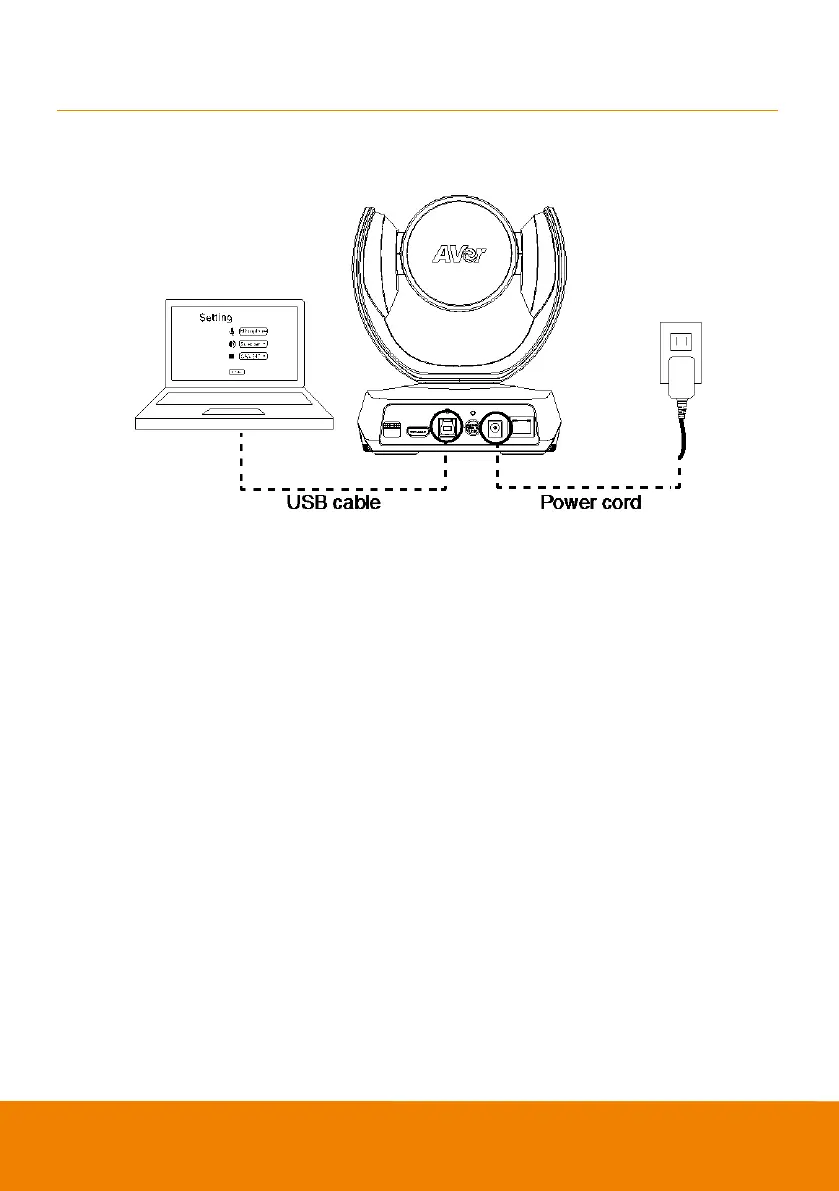
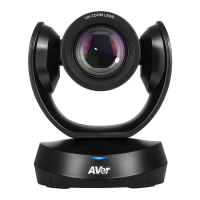
1. Use USB cable to connect the CAM520 Pro to your PC/laptop (refer to diagram above).
2. Connect the power to the CAM520 Pro; power indicator will light up and camera head w ill rotate.
3. Install AVer PTZApp on laptop or PC that is connected w ith CAM520 Pro. The app can be used to
adjust and setup the parameters of the camera (refer to the section of AVer PTZApp)
4. To make a call, run your video application (Zoom, Microsoft
®
Teams, Skype for Business, Skype,
Google Hangouts, Intel® Unite™, RingCentral, BlueJeans, V-Cube, LiveOn, CyberLink U
Meeting
®
, TrueConf, Adobe Connect, Cisco WebEx
®
, Fuze, GoToMeeting™, Microsoft
®
Lync™,
Vidyo, vMix, WebRTC, Wirecast, XSplit.… etc.) select CAM520 Pro as your video device.


 To Next Page