18
Operating the Camera
Make a Video Call
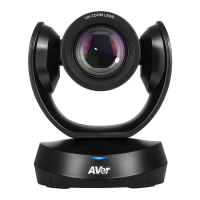
1. Make sure CAM520 Pro and PC/laptop are w ell connected and pow er is on.
2. Run your video application (Zoom, Microsoft
®
Teams, Skype for Business, Skype, Google
Hangouts, Intel® Unite™, RingCentral, BlueJeans, V-Cube, LiveOn, CyberLink U Meeting
®
,
TrueConf, Adobe Connect, Cisco WebEx
®
, Fuze, GoToMeeting™, Microsoft
®
Lync™, Vidyo,
vMix, WebRTC, Wirecast, XSplit.…etc.) on your PC or laptop.
3. Set the CAM520 Pro camera as the primary camera for your video application (refer to your video
application user guide). You can now make your call.
4. The CAM520 Pro is a plug-and-play conference camera. The system requires no special drivers,
but we do recommend installing the AVer PTZApp for a better user experience. For information on
how to install and use the AVer PTZApp, refer to the AVer PTZApp section in this user manual.
Make a Connection by Aver IP Finder App
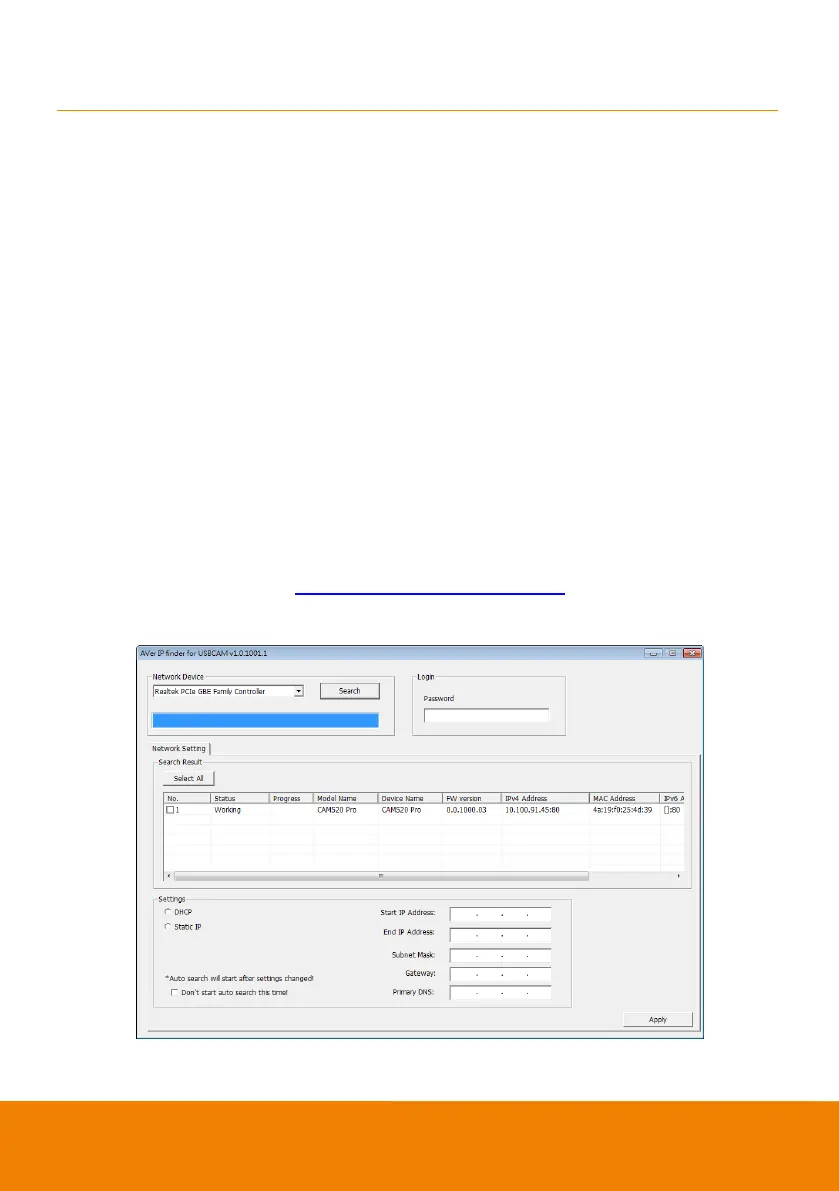
CAM520 Pro supports Ethernet connection; user can use AVer IP Finder app to find the camera and
make a connection through the brow ser to configure the camera.
1. Dow nload the IP Finder from http://www.aver.com/download-center .
2. Run the IP Finder.
3. Click “Search”, and all available devices w ill be listed on the screen.


 To Next Page