3
Remote Control
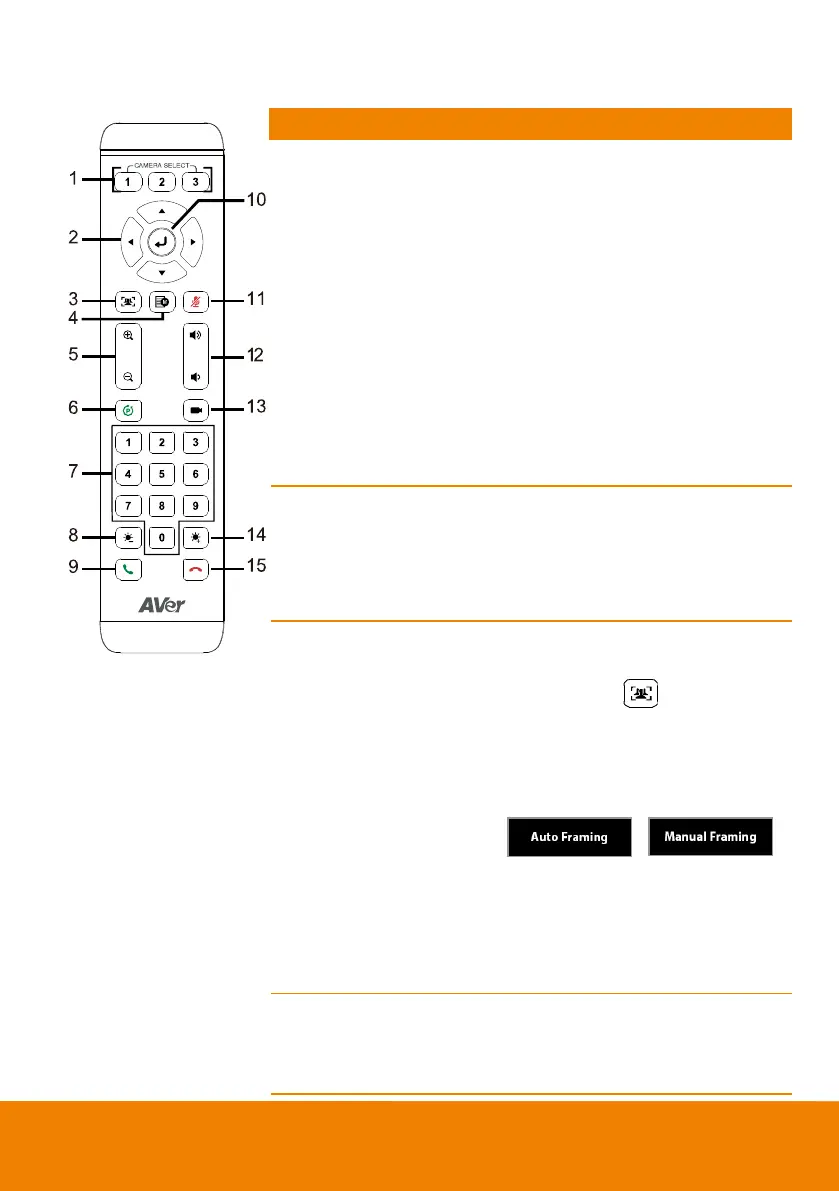
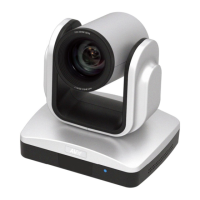
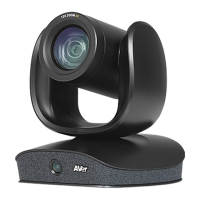
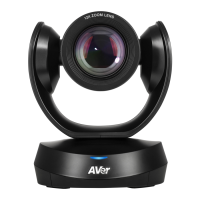
One remote can control up to 3 AVer
VC/CAM/VB series cameras. You can
use AVer PTZApp to set numbers
associated w ith each camera, and
then select w hich camera you would
like to control using the remote.
[Note] If you only have one camera
that requires no additional setting, the
default is camera 1.
If camera 2 or 3 is selected, the
remote will be unable to control the
camera. In this case, please press
camera 1 on your remote.
2. Camera directional
control
Use the directional buttons on the
remote to control the direction of the
camera. Press the directional button to
move the camera or press and hold to
continuously pan or tilt.
One-click automatic FOV adjustment
to fit all participants.
Press and hold on the remote
for 2 seconds to sw itch the
SmartFraming function between auto
and manual mode; a message (as
figure show n) will display on the
screen to indicate auto or manual
mode.
[Note] While in the video conference
meeting, participants must face the
camera for proper face detection
(SmartFrame). Side facial profiles are
not detectable.
To call out OSD menu. Only supports
CAM520 Pro(POE) SKU while
connecting HDMI output to TV
monitor.


 To Next Page