Configuring Pro Tools 18
Configuring Pro Tools
Once you have made the necessary cable connections for your studio and have enabled Pro Tools | Carbon for AVB in AMS, launch
and configure Pro Tools:
1 Launch Pro Tools. If the Dashboard appears, click Cancel to proceed without opening or creating a session.
2 Select Pro Tools | Carbon as the Playback Engine (Setup > Playback Engine). You may be prompted to quit and relaunch Pro
Tools to use Pro Tools | Carbon.
3 Configure Pro Tools | Carbon in the Hardware Setup (Setup > Hardware).
4 Configure the I/O Setup for use with Pro Tools | Carbon (Setup > I/O).
Playback Engine
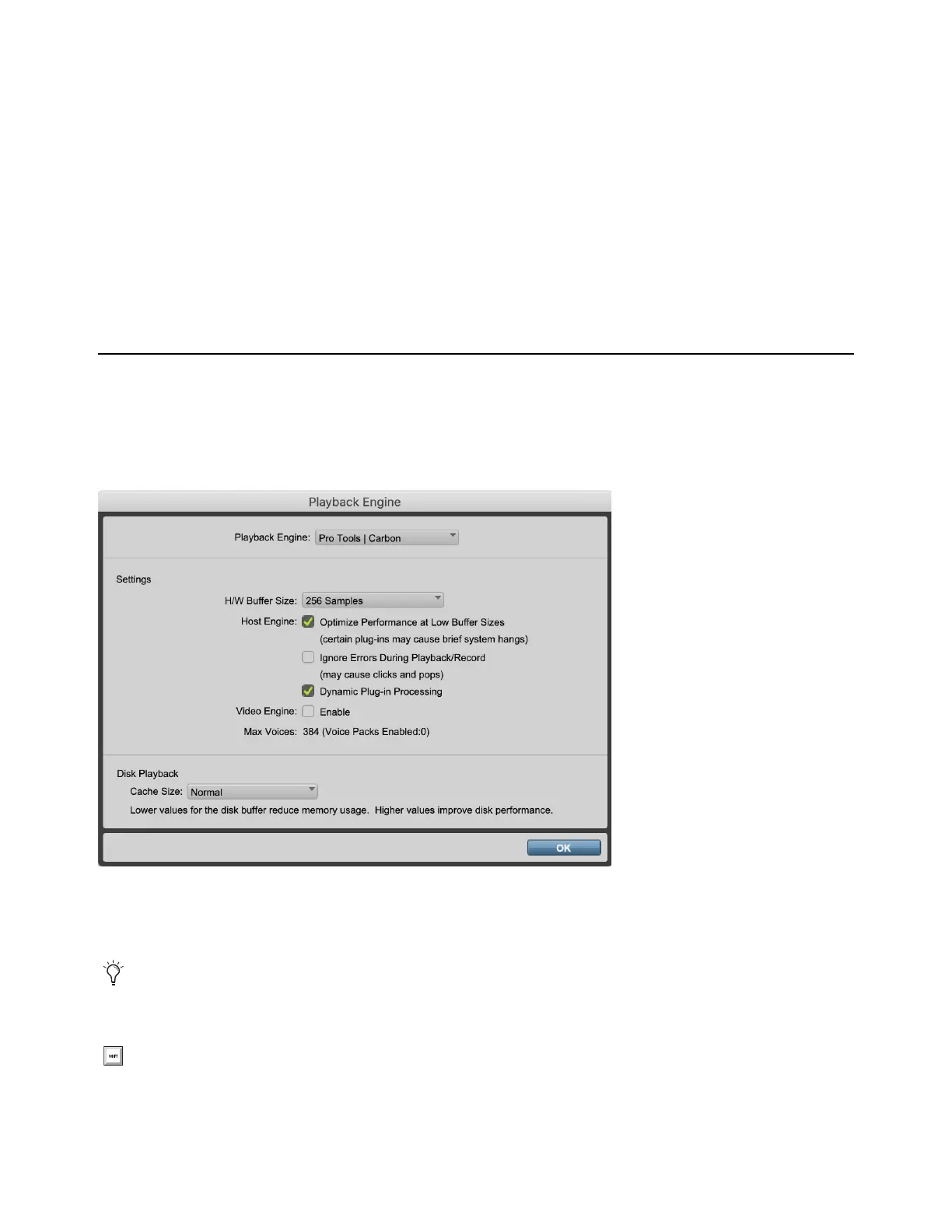
To select Pro Tools | Carbon as the Playback Engine for Pro Tools:
1 Launch Pro Tools if it is not already running.
2 Choose Setup > Playback Engine.
3 Select Pro Tools | Carbon as the Playback Engine.
4 Configure the rest of the Playback Engine dialog as desired.
5 Click OK.
Playback Engine dialog
For most installations, the default settings are recommended. You can optimize performance later by returning to the Play-
back Engine dialog.
To open the Playback Engine dialog when launching Pro Tools, press and hold the N key.











 To Next Page