DSP Mode for Low-Latency Monitoring 34
Use DSP Mode Safe to Record with Native Reverb
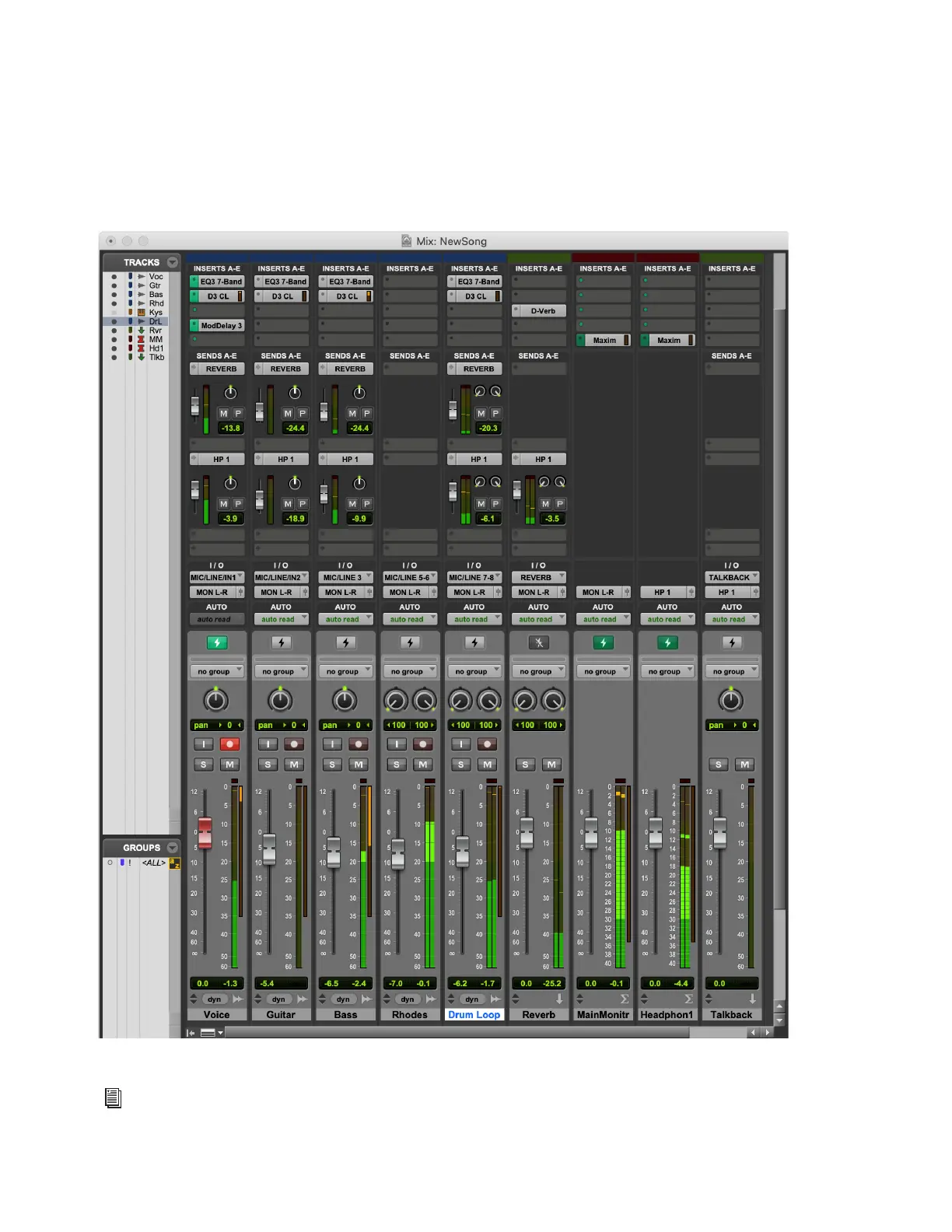
Let’s assume that you have a Native-only reverb plug-in that you really like. You can still record vocals with virtually no latency
in their monitor mix while still using your favorite Native-only reverb plug-in to process all of the audio tracks. Enable DSP Mode
Safe on the reverb track and set the wet/dry mix on the reverb plug-in to 100% wet. Enable DSP Mode on the vocal track—DSP
Mode is enabled for all tracks in the signal chain of the vocal track except for the reverb track. Record-arm the vocal track and when
the singer is ready, start recording. There will be latency on the reverb track, but given the nature of reverb processing it won’t re-
ally be noticeable. The important thing is that the talent won’t hear any latency in the mix with their performance.
Session configured for recording vocals, but with Auxiliary Input track in DSP Mode Safe for Native reverb processing
For complete information about recording and mixing in Pro Tools, refer to the Pro Tools Reference Guide, which can be
accessed from the Help menu in Pro Tools.











 To Next Page