35
3.9.7.1 Restore
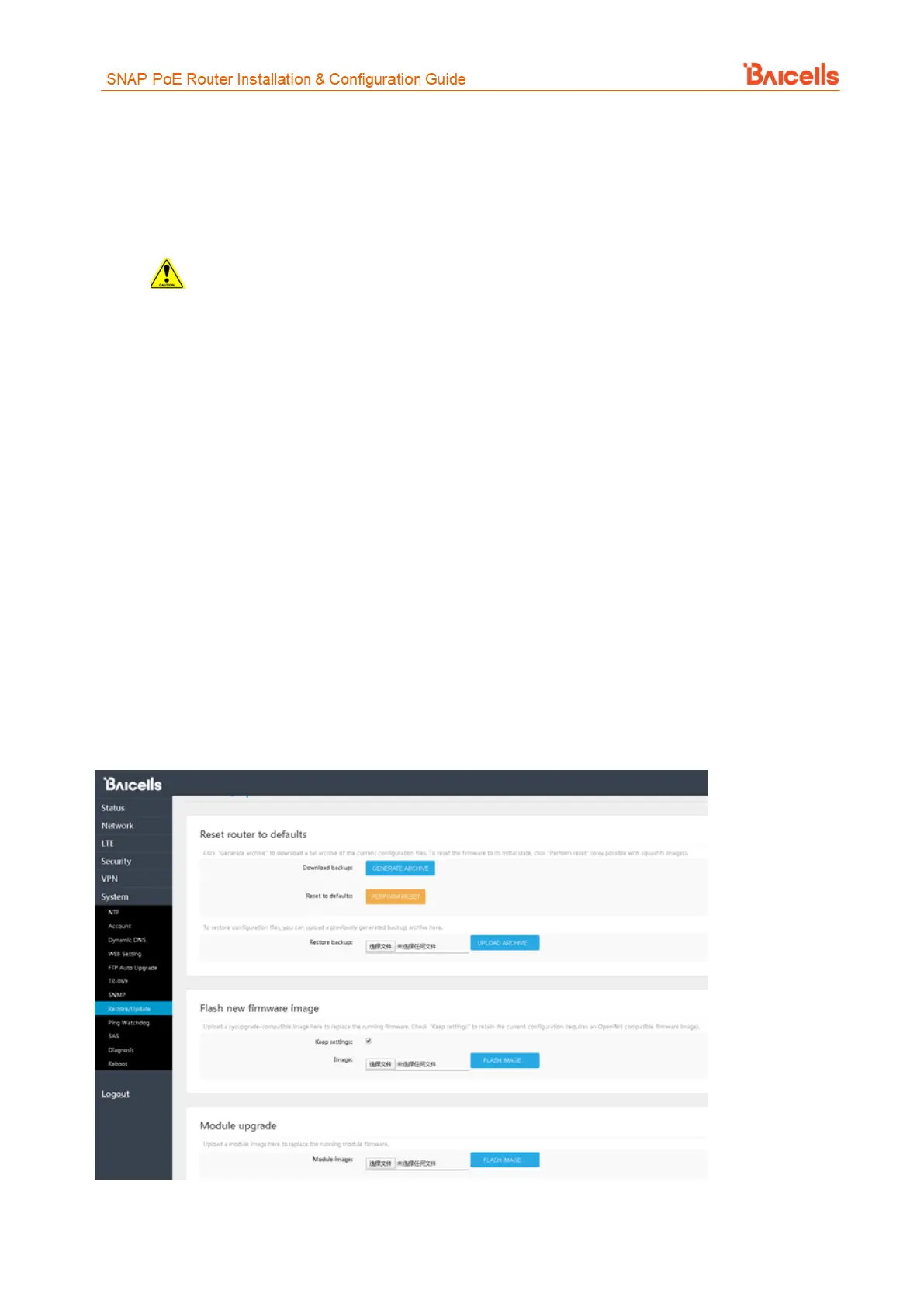
To initiate a restore action, click on the PERFORM RESET button. The CPE will automatically reset its
configuration to the factory default values.
3.9.7.2 Update Firmware
Caution: Do not power off the CPE or disconnect it from the computer during an upgrade.
To update (upgrade) the CPE to a different firmware version (Figure 57):
1. Download the image file from the Baicells support website (Baicells > Support > Downloads), and
save it to your computer.
2. Under Flash new firmware image, determine if you want to keep the current configuration settings
on the CPE (Error! Reference source not found.). If you do, select the check box next to Keep s
ettings.
3. Click on Choose File to navigate to the new image file on your computer, and then click on FLASH
IMAGE to initiate the upgrade.
After the upgrade, the CPE will restart automatically running the newer version of code.
3.9.7.3 Update Firmware Module (Patch)
To upgrade a specific module, meaning to apply a patch to the current firmware (Figure 57):
1. Download the image file from the Baicells support website (Baicells > Support > Downloads), and
save it to your computer.
2. Under Module upgrade, click on Choose File and navigate to the new module image file.
3. Click on FLASH IMAGE to initiate the patch upgrade.
Figure 57: Restore/Update



 To Next Page