69
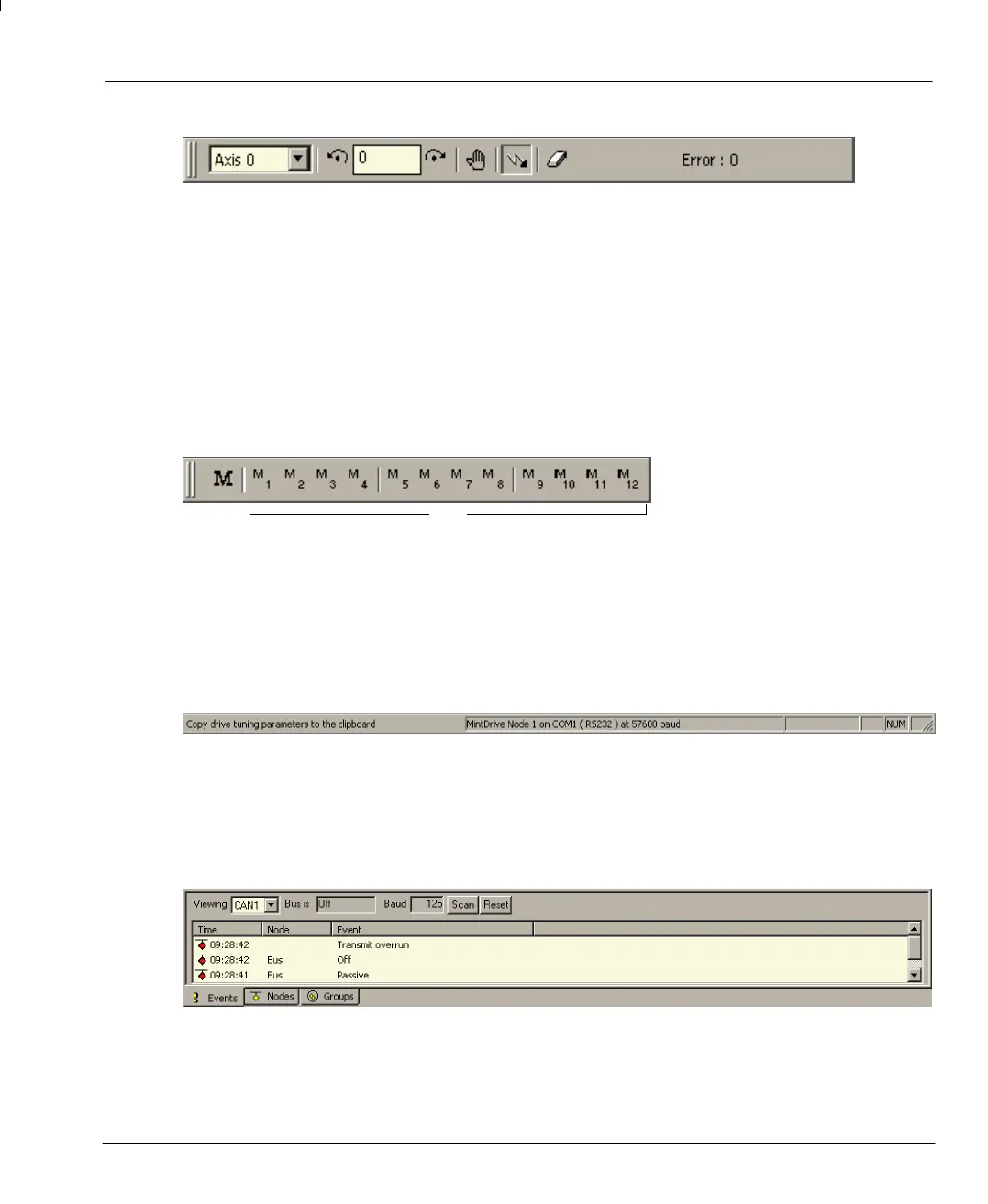
5.2.2.2 Motion toolbar functions
1 2 3 4567 8
1 Axis selection (Only Axis0 can be selected)
2 Jog (reverse) Causes the motor to start a reverse jog motion.
3 Jog speed Sets the jog speed (in user units per second)
4 Jog (forward) Causes the motor to start a forward jog motion.
5StopStops the jog motion.
6 Enable / Disable Enables (sending a CANCEL command first) or disables the drive.
7 Clear motion errors If an error occurs, clears the error condition so operation can continue.
8 Motion error Displays the error code bitmap when a motion error occurs. Click the button to
see a description of the error(s).
5.2.2.3 Macro toolbar functions
12
1 Configure macros Displays the Assign Macros to Function Keys F1..F12 dialog box.
2 Execute macro Starts the macro assigned to that button.
5.2.2.4 Status bar
The status bar provides information for the c urrently selected menu item or the status of WorkBench.
It provides a useful reminder of the meaning of each function. Double click on the center section to
display the Configure this Controller dialog.
5.2.2.5 CAN window
The CAN window shows the current status of the CAN ports. If the MintDrive is not connected to a CAN
network you can turn this window off by choosing View, CAN Window on the main menu or by clicking
the CAN window button on the standard toolbar.
123
4
1 Events Displays current CAN events
2 Nodes Displays node information for the CAN network.
3 Groups Displays grouping information for the CAN network
4ViewingSelects the CAN port to be monitored.




 To Next Page