9. Image menu
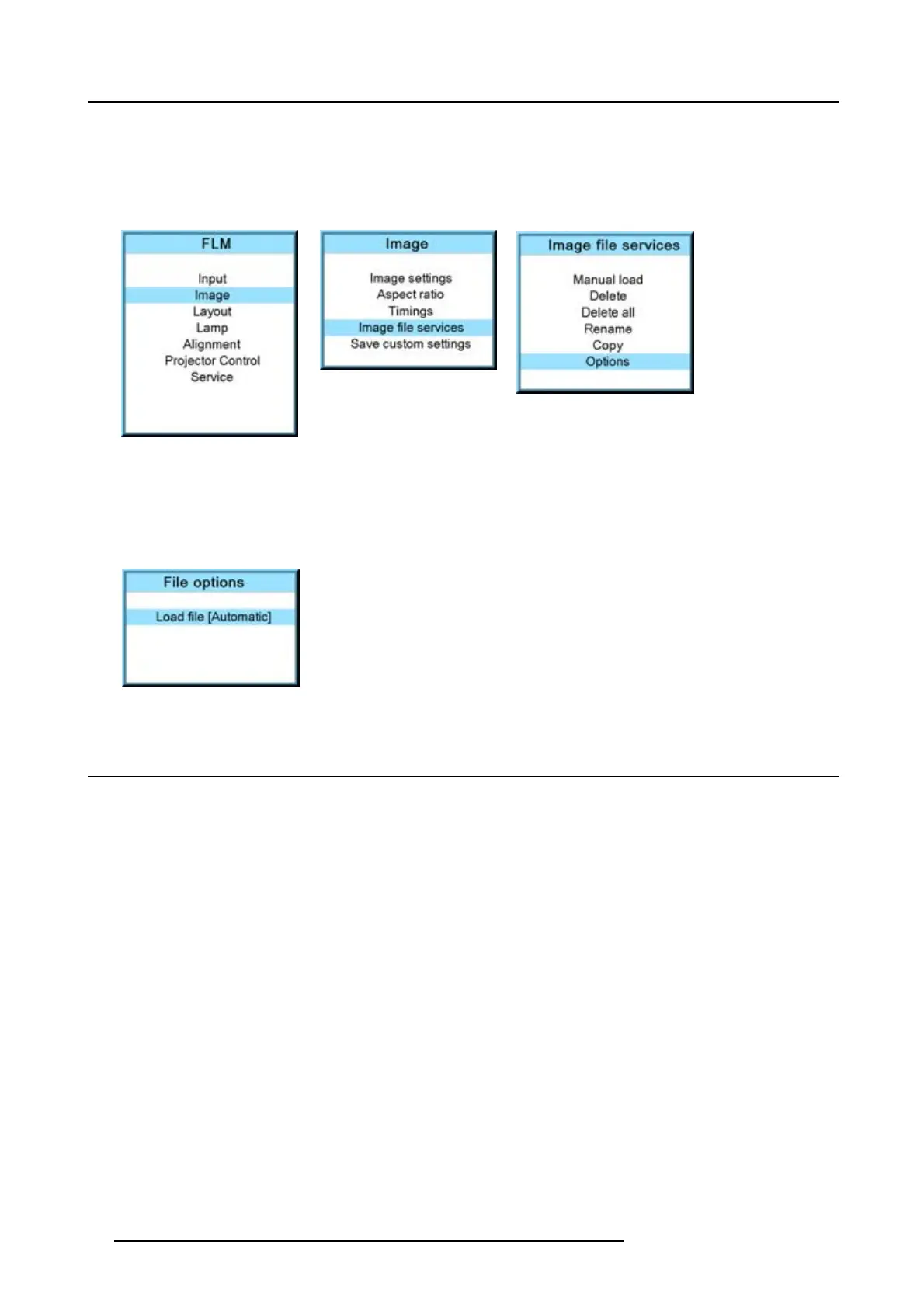
2. Use the ▲ or ▼ key to select Image and press ENTER.
3. Use the ▲ or ▼ key to select Image services and press ENTER.
The Image service menu is displayed.
4. Use the ▲ or ▼ key to select Options and press ENTER.
Image 9-101
Image 9-102
Image 9-103
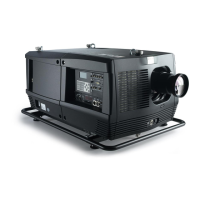
The options window opens.
5. Use the ▲ or ▼ key to select Load file and press ENTER to toggle between [Automatic], [Manual] and [Custom only].
- [Automatic]: correct file will be loaded automatically.
- [Manual]: correct file has to be loaded manually.
- [Custom only]: correct file will be loaded automatically out of the available custom files.
Image 9-104
9.7 Save custom settings
What is done?
The current custom settings can be saved to the internal backup device in the same way as it would be done when the projector
was switched to standby.
How to save
1. Press MENU to activate the menus.
2. Use the ▲ or ▼ key to select Image and press ENTER.
3. Use the ▲ or ▼ key to select Save custom settings and press ENTER.
The custom settings are written to the internal backup device. A message menu “Save data ...” is displayed during the save
operation.
92
R59770180 FLM HD20 11/07/2008


 To Next Page