Configuring SAP Inbound Processing
BEA WebLogic Adapter for SAP User’s Guide 2-5
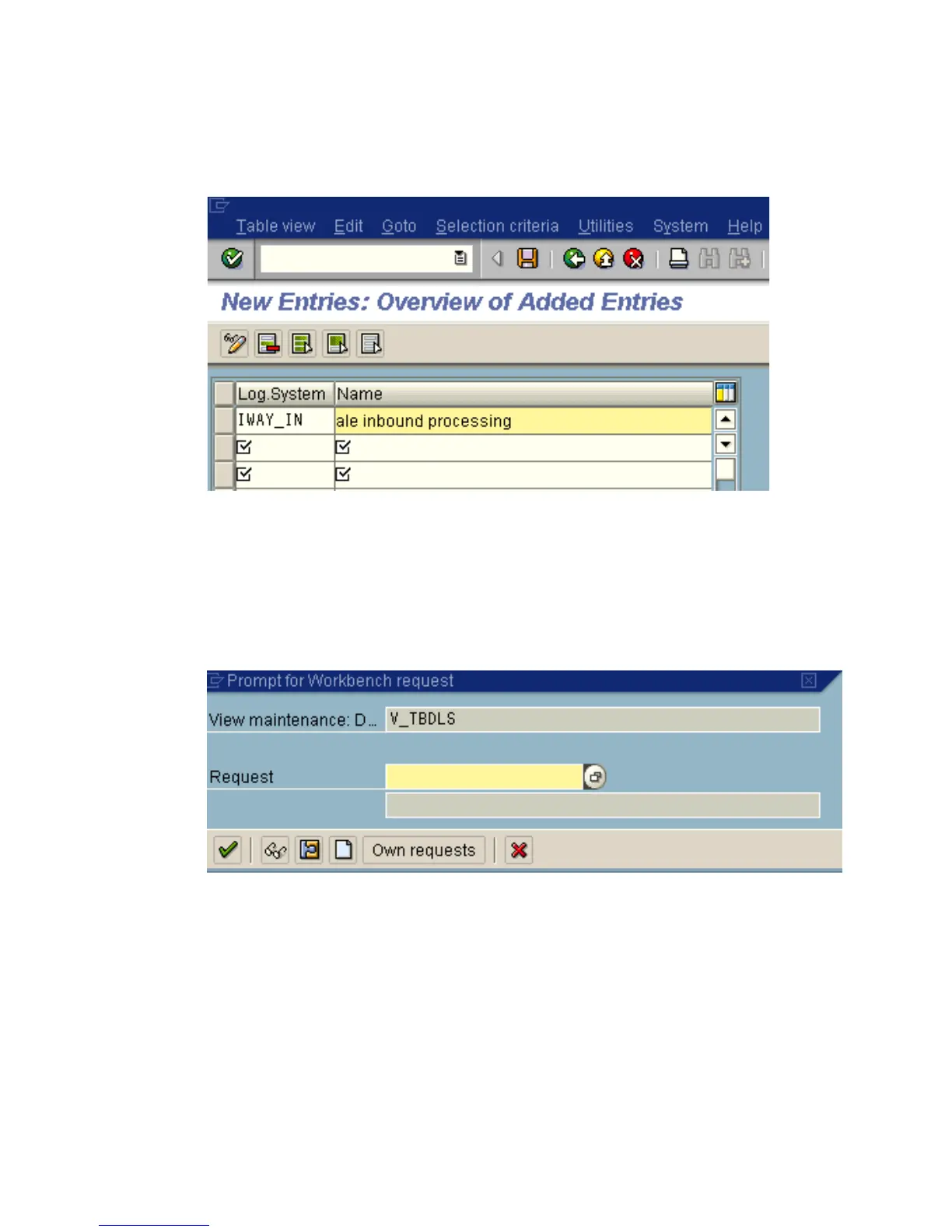
The New Entries window opens where you can type information for the logical system
and its corresponding name as shown in the following image.
a. In the Log.System column, type the Logical System, for example, IWAY_IN.
b. In the Name column, type a corresponding description.
5. Click Save.
The Prompt for Workbench request window opens as shown in the following image. It
includes fields for View maintenance and Request as well as several buttons.
6. Click the Create Request icon.



 To Next Page