Creative embroidering
57
2022-08 EN 5020070.40A.04
Moving the embroidery design view
The view of the embroidery design can be moved. In addition to that, the embroidery design position won’t
be changed.
> Select the embroidery design.
> To edit the view of the embroidery design, tap «Zoom In».
> Tap «Move View».
– The icon turns dark gray.
> Alter the view of the embroidery design.
– The embroidery position is not altered.
> To return to the previous view, tap «Zoom Out».
Moving the embroidery design in enlarged view
The view of the embroidery design can be moved when the embroidery position is changed.
> Select the embroidery design.
> To activate «Moving the Embroidery Design», tap «Zoom In».
> Tap «Moving the Embroidery Design».
– The icon turns dark gray.
> Moving the embroidery design.
– The embroidery design position is altered.
> To return to the previous view, tap «Zoom Out» again.
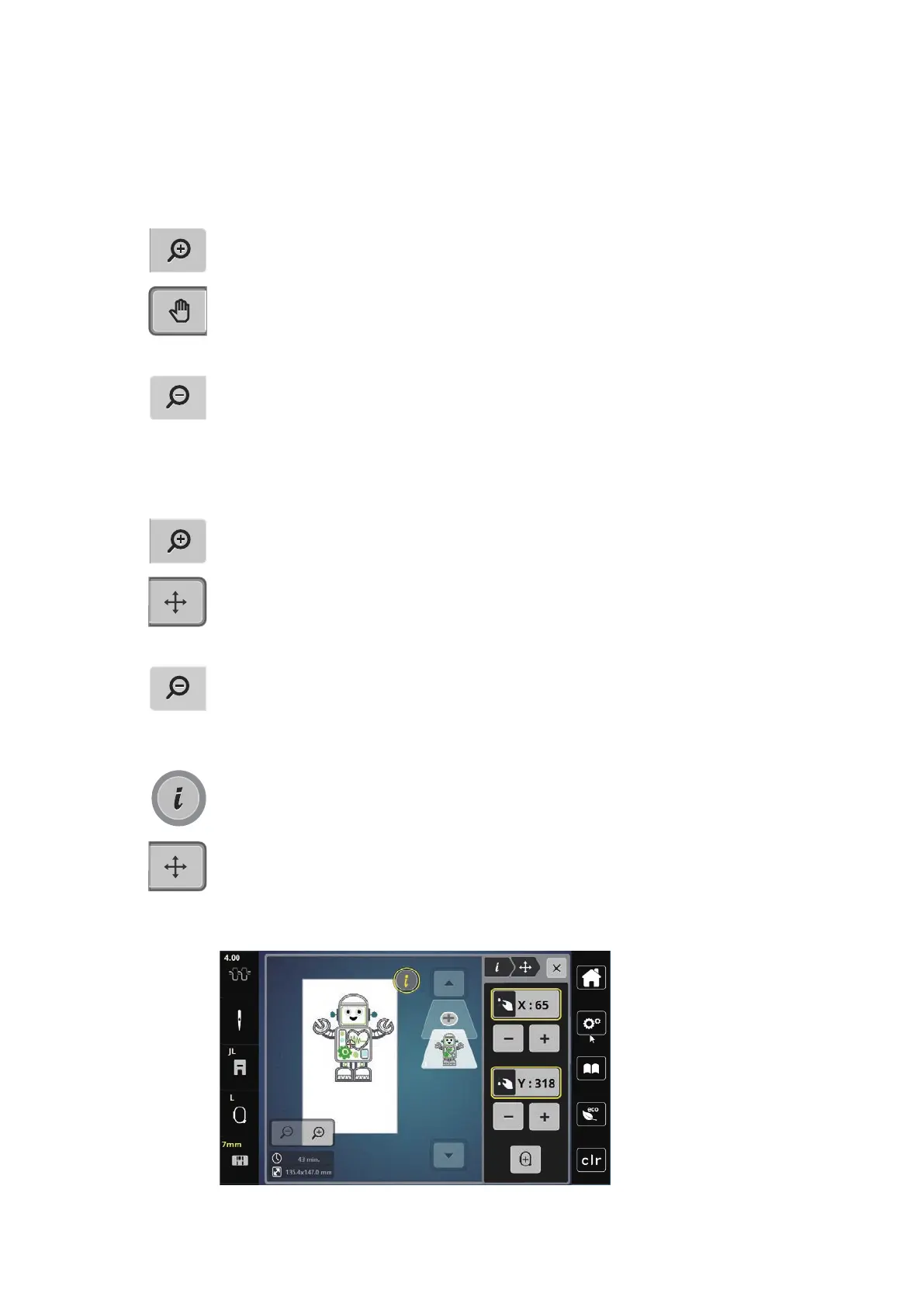
Moving the Embroidery Design
> Select the embroidery design.
> Tap «i-Dialog».
> Tap «Moving the Embroidery Design».
> Turn the «Upper Multi-function Knob» to move the embroidery design horizontally.
> Turn the «Lower Multifunction knob» to move the embroidery design vertically in 0.5-mm steps or touch
the «+»/«-» icon or touch the embroidery design, keep it pressed and move it as you like.
– The relocation is indicated in the yellow-outlined icons.


 To Next Page