Creative embroidering
58
2022-08 EN 5020070.40A.04
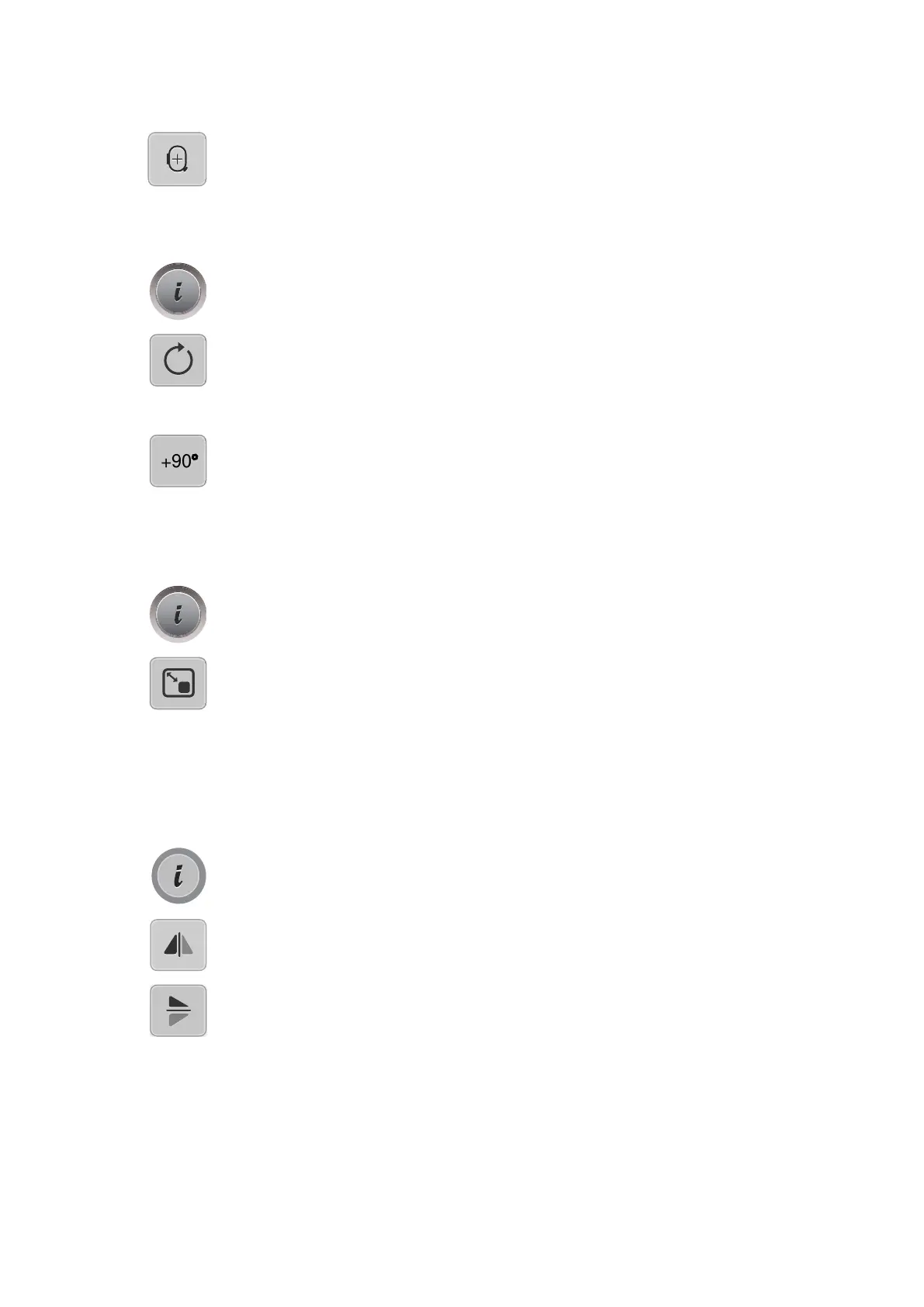
> Tap «Center of Embroidery Design».
– The embroidery design is repositioned in the center of the embroidery hoop.
Rotating the Embroidery Design
> Select the embroidery design.
> Tap «i-Dialog».
> Tap «Rotating the Embroidery Design».
> To rotate the embroidery design clockwise, turn the «Upper Multi-function Knob» or «Lower Multi-
function Knob» to the right, or tap «Plus».
> To rotate the embroidery design counterclockwise, turn the «Upper Multi-function Knob» or «Lower
Multi-function Knob» to the left, or tap «Minus».
> To rotate the embroidery design in 90°-steps, tap «Rotate the Embroidery Design +90°».
Altering the Embroidery Design Size Proportionally
The alteration is limited to +/- 20%.
> Select the embroidery design.
> Tap «i-Dialog».
> Tap «Change Design Size».
> To enlarge the embroidery design in proportion, turn the «Upper Multi-function Knob» or «Lower Multi-
function Knob» to the right, or tap «Plus».
> To minimize the embroidery design in proportion, turn the «Upper Multi-function Knob» or «Lower
Multi-function Knob» to the left, or tap «Minus».
Mirroring Embroidery Designs
Embroidery designs can be mirror-imaged both vertically and horizontally.
> Select the embroidery design.
> Tap «i-Dialog».
> To mirror-image the embroidery design vertically/perpendicular, tap «Mirror Image Left/Right».
> To mirror-image the embroidery design horizontally/across, tap «Mirror Image Up/Down».


 To Next Page