My BERNINA
47
BERNINA SEWING MACHINE WORKBOOK
B 880 PLUS AND B 790 PLUS ONLY
Creating New Stitches-Free-hand Drawing
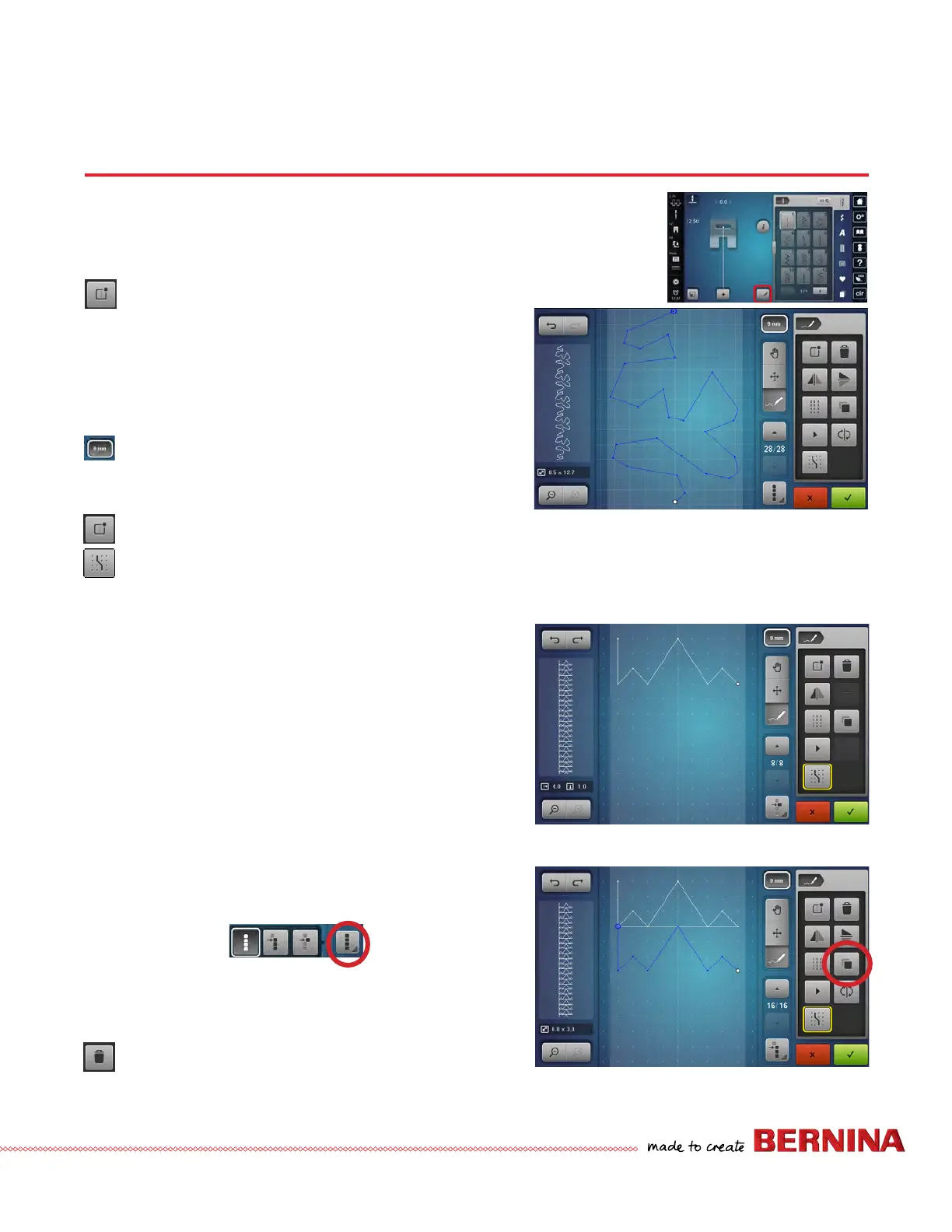
1. Select the Stitch Designer icon from the
sewing screen.
2. Touch the New icon to get a fresh page. The Draw tool
(pencil) is the default when entering Stitch Designer.
3. With your ngertip or stylus, free-hand draw on the
screen to ll the 9 mm boundary. Begin and end
on the same or approximate vertical grid line for a
seamless look.
4. Select New or Undo until pleased with the stitch.
NOTE: The highlighted area is 9 mm wide. The 9 mm Lock
icon is activated by default. If you wish to design a stit-
wch wider than 9 mm, deselect the 9 mm lock.
Creating New Stitches-Snap to Grid
1. Touch the New icon to start another stitch.
2. Select snap to grid icon. Snap to Grid makes
it easy to align points as stitch points will
only fall on a dot (note the grid changed to
dots).
3. Select the Draw (pencil) tool.
4. Design stitch by setting points:
• Click 1: to begin stitch
• Click 2: 3 grids down
• Click 3: diagonal line 1 grid up and 1 grid over
• Click 4: diagonal line 1 grid down and 1 grid over
• Click 5: diagonal line 3 grids up and 2 grids over
• Click 6: diagonal line 3 grids down and 2 grids over
• Click 7: diagonal line 1 grid up and 1 grid over
• Click 8: diagonal line 1 grid down and 1 grid over
• Stop
5. Touch the Select All icon. Selected stitches are blue,
and the Selection Icon changes to the selected choice.
6. Select Duplicate; the duplicate is added after the
original pattern.
Notes:
The Delete icon (Trash Can) deletes whatever is selected--a
single point, all or partial-whatever is blue is selected.
STITCH DESIGNER


 To Next Page