MKF / MKFT (E5) 06/2020 page 89/176
Information window
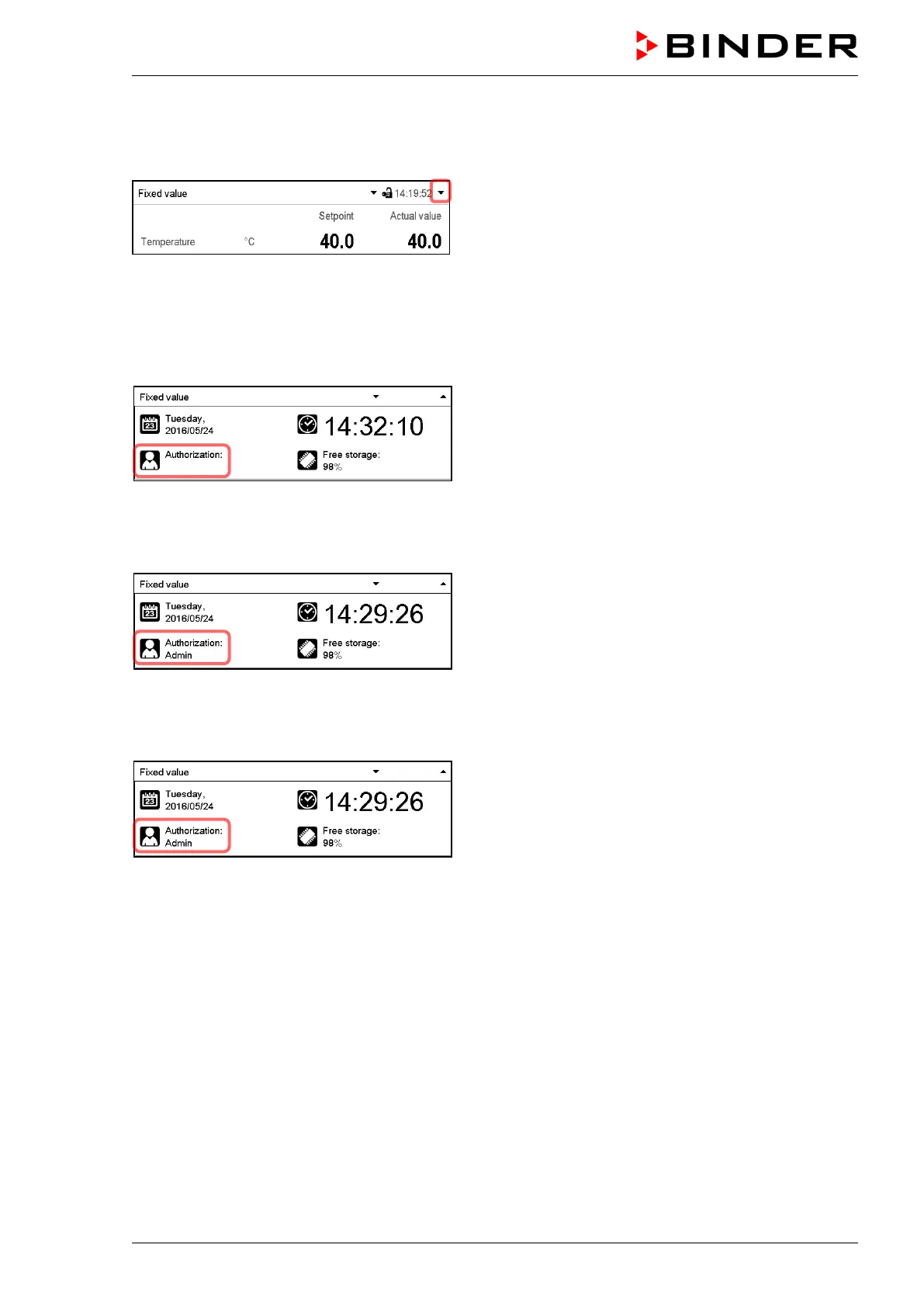
To check the authorization level of the user currently logged-in, select in Normal display the arrow far
right in the display header.
The information window shows date and time, the controller’s free memory space and under “Authoriza-
tion” the authorization level of the current user.
If passwords have been assigned for all authorization levels, a user without login (password entry) has no
authorization. There are only viewing functions available.
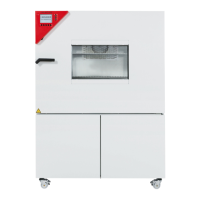
Display when all authorization levels are password pro-
tected and no user has logged in:
No authorization level is displayed.
If passwords have been assigned only for some of the authorization levels, a user without login (pass-
word entry) has access to the functions of the highest authorization level without password protection.
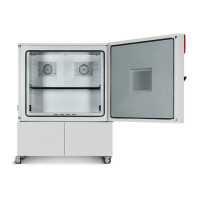
Display when only some of the authorization levels are
password protected (example: no protection for the
“User” and “Admin” levels) and no user has logged in:
The user’s effective authorization (due to lack of pass-
word protection) is shown.
Example: user with “Admin” authorization.
If passwords have been assigned for some or all of the authorization levels, user login (password entry)
provides the authorization for the corresponding password-protected level.
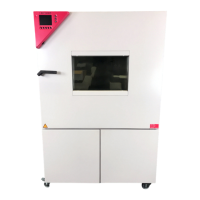
Display when at least some of the authorization levels
are password protected and a user has logged in.
The user’s authorization (by password entry) is shown.
Example: user with “Admin” authorization.



 To Next Page