34n
Displaying route
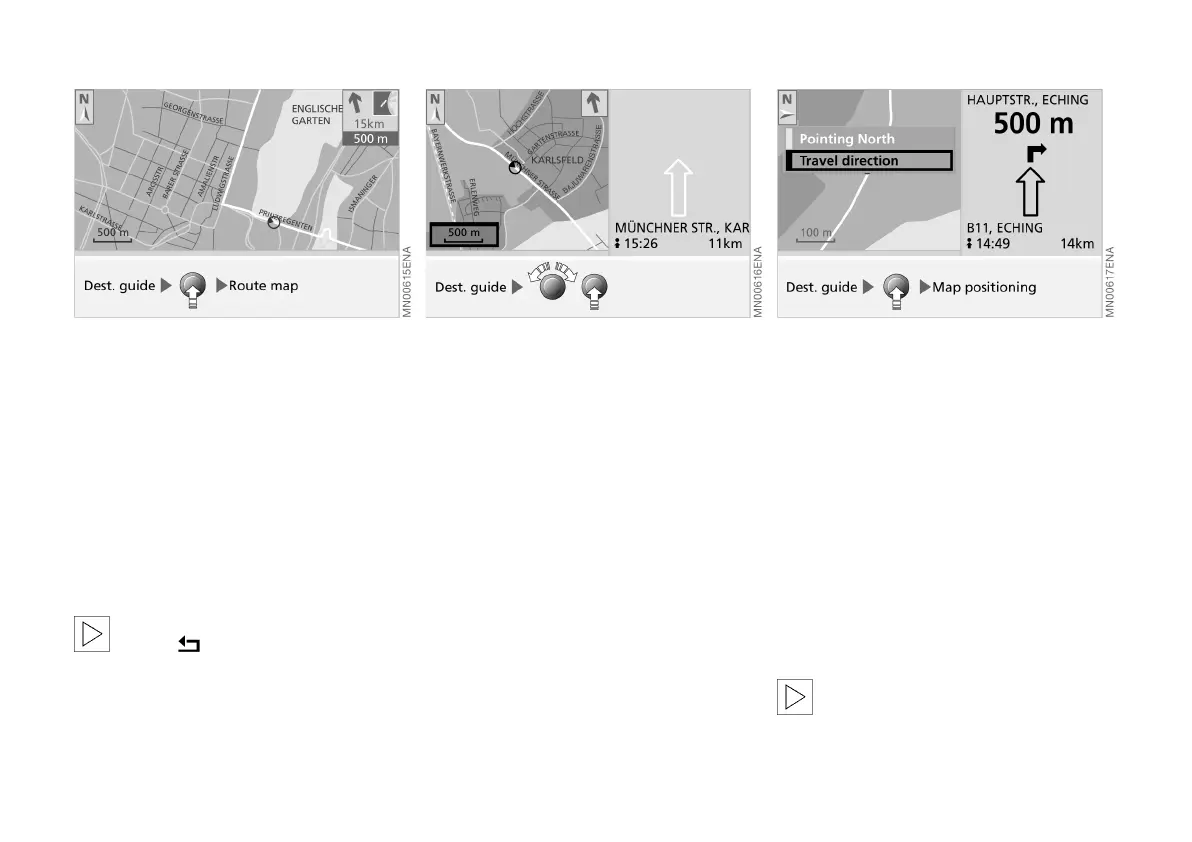
Calling up route map
If you have selected full screen, you can
display a map showing the planned
route during destination guidance.
1. Press right-hand rotary control.
A selection menu is displayed, see
also page 23
2. Select "Route map".
The route map is called up.
To change to map positioning,
select .<
Changing the scale
Irrespective of which screen layout is
selected (split/full), you can adapt the
scale of the route map to your require-
ments.
1. Turn right-hand rotary control to
highlight the box with the details of
the scale
2. Turn the right-hand rotary control
again to select the desired scale
3. To save the scale, either do not ad-
just the right-hand rotary control for a
few seconds, or press it.
The visible section of the map
changes after a few seconds.
Altering map positioning
If the scale is < 2 km, you can choose
whether to align the map with north at
the top, or according to the direction of
your chosen route.
1. Press right-hand rotary control.
A selection menu is displayed, see
also page 23
2. Select "Map positioning".
A further selection menu is called up
3. Select the desired map positioning.
After the map positioning has
been altered, the route map may
take several seconds to appear.<
Online Edition for Part No. 01 41 0 156 676 - © 01/02 BMW AG



 To Next Page