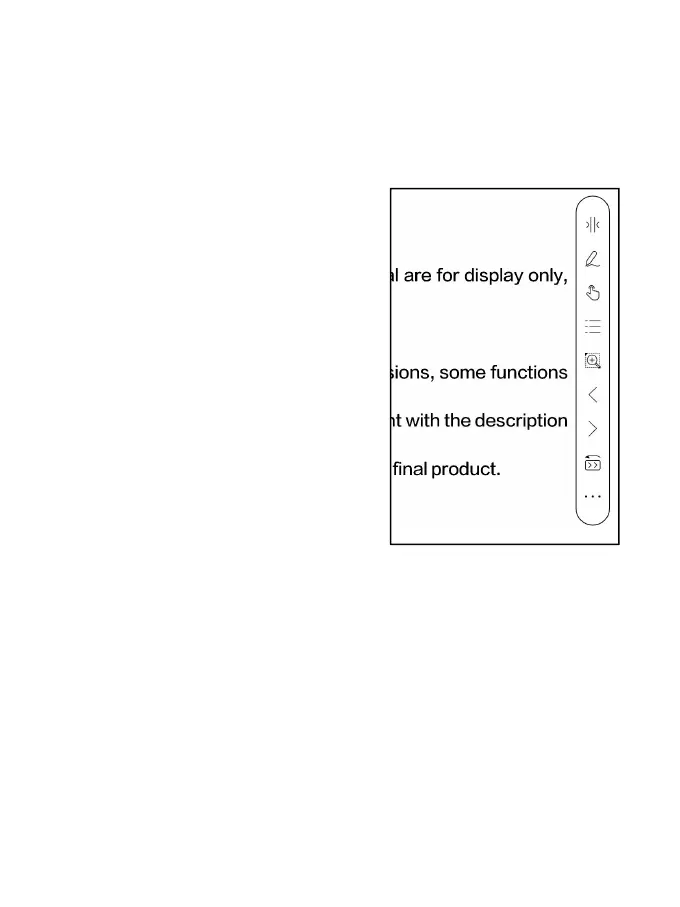
Floating Toolbar
By default, the Floating Toolbar is
collapsed to the right edge. When it
is expanded, long press the Toolbar
to drag it to anywhere you want on
the screen. It can be collapsed to
the sides to avoid covering text
during reading. When needed, swipe
left or right from the screen edges
to call it out.
When using zooming and columns in PDF, automatically add the
Panning icon and Reset icon(both are off by default) to help you
manage the zoomed-in document.
When a page is divided into several columns, single tap to turn
each column and tap the Virtual Buttons to turn the whole page



 To Next Page