EasyManua.ls Logo

Boox TabX - Screenshot; Refresh

Boox TabX
105 pages
Print Icon
To Next Page IconTo Next Page
To Previous Page IconTo Previous Page
Loading...
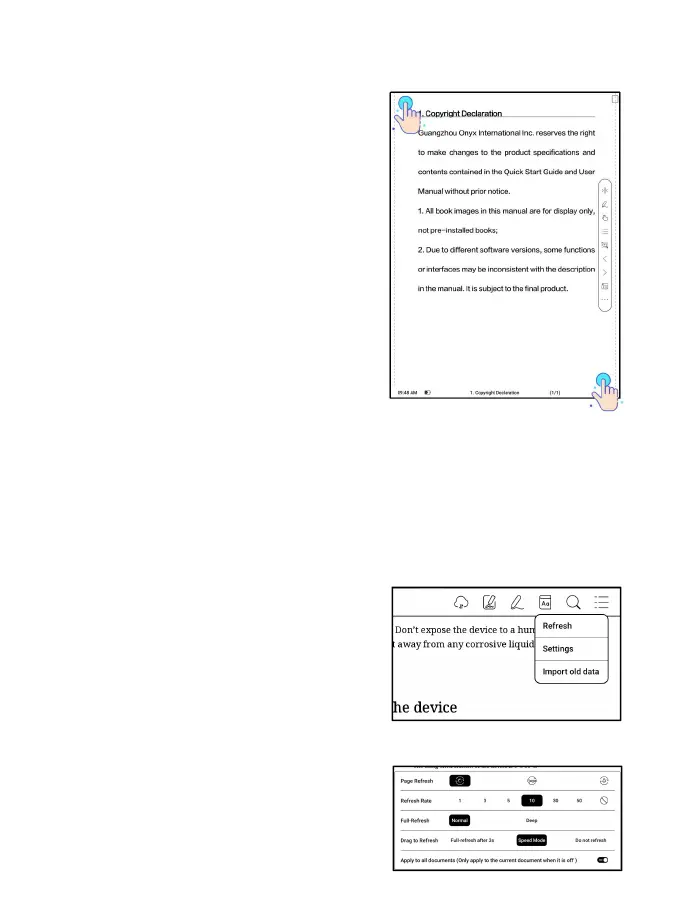
Screenshot
Tap the two corners (shown in the
pic) on the screen at the same time
to take a screenshot (PNG format).
This function is only available on
the reading page.
The screenshot can be saved to local
storage, shared by scanning QR code
and other means. The local saving

path is Storage\Screenshots
Refresh
Tap the hamburger menu on the upper
right corner to choose Refresh
settings.
When you drag a page, speed mode is
used by default.

Table of Contents

Related product manuals